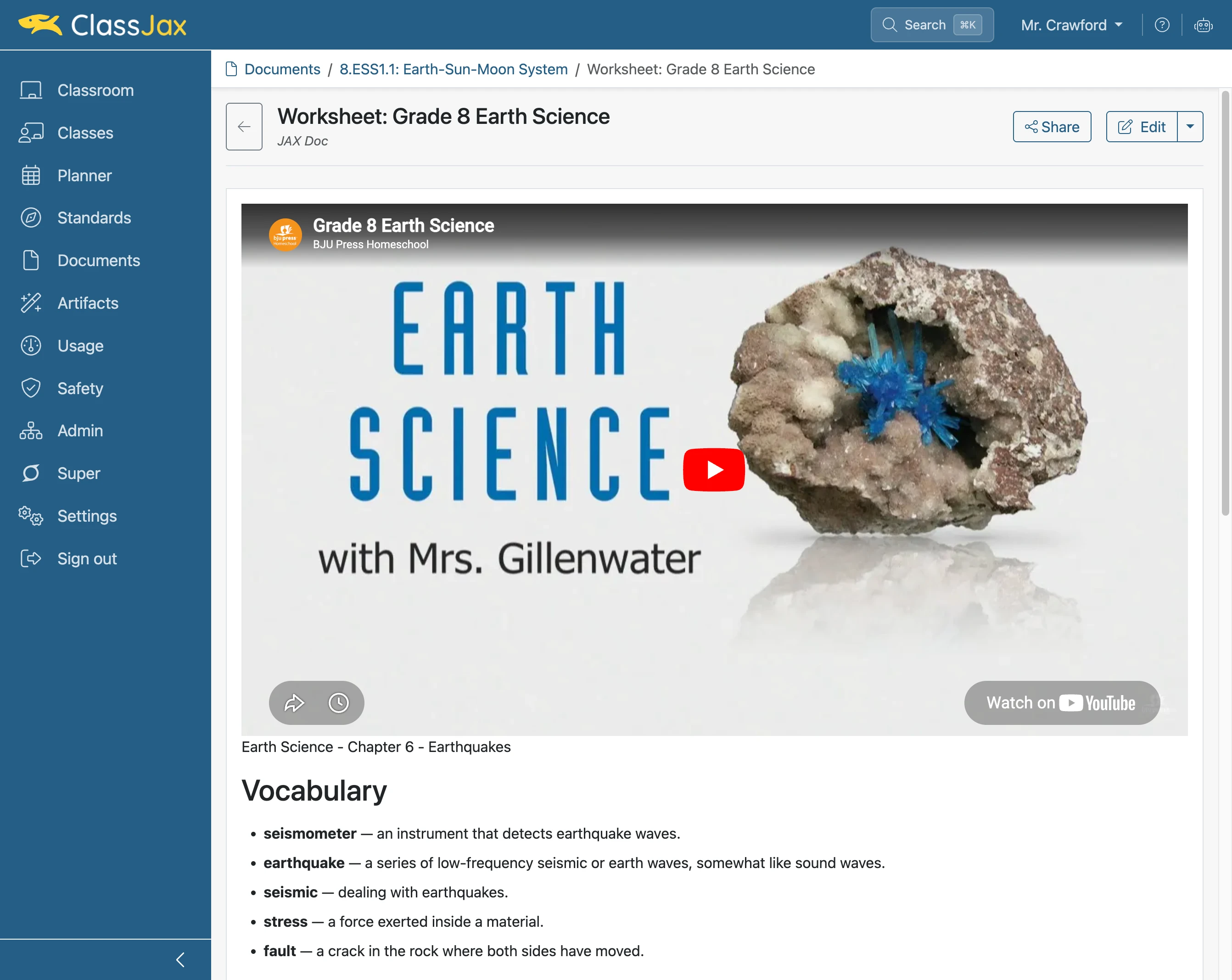

Use Library Documents
Library documents are free to copy to your Document folders. The copied documents are now yours to modify and use in your ClassJax-based Planner, Documents or Classes.
Plan smarter this year
ClassJax is free for teachers. No credit card required.
- 1
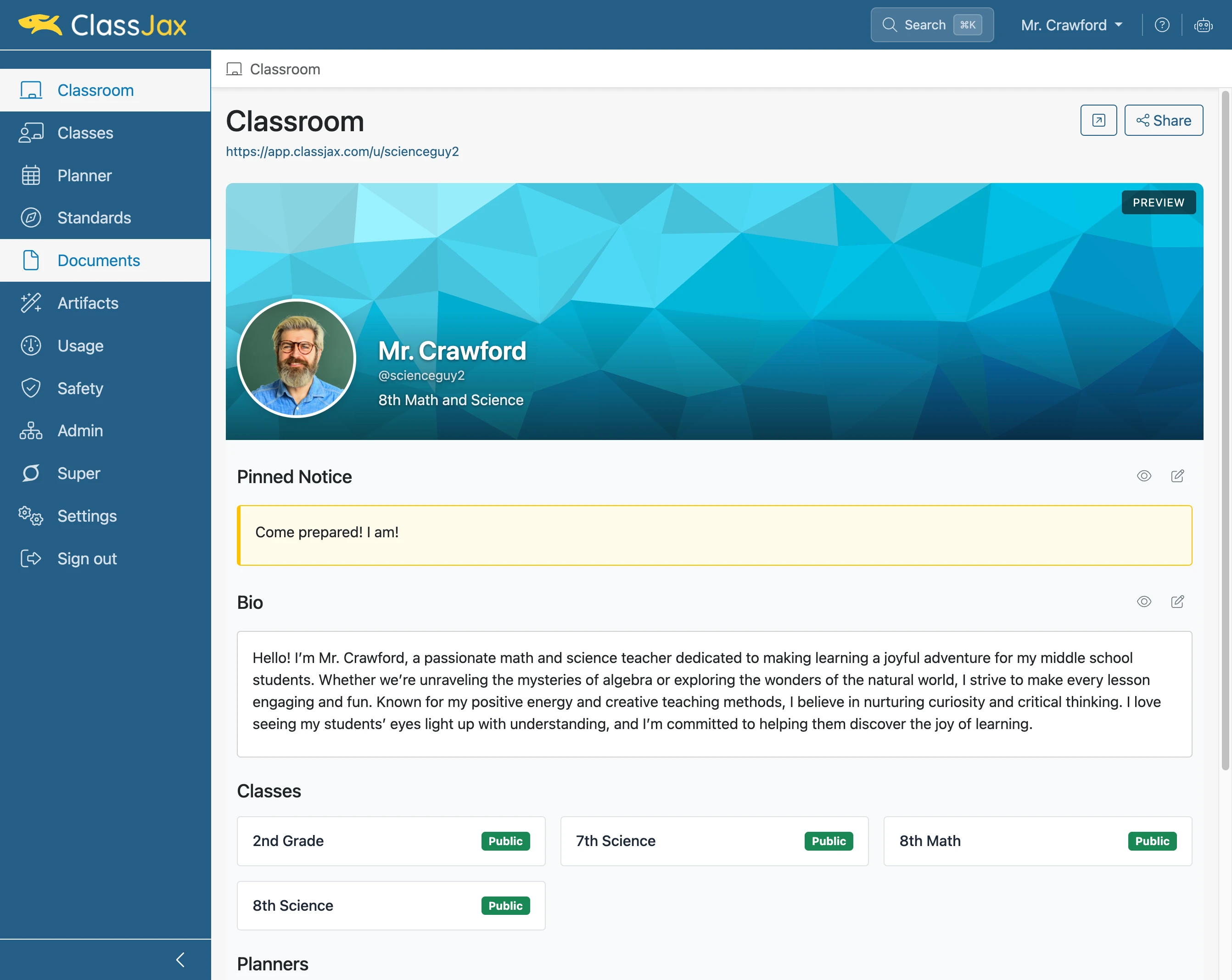
Click the 'Documents' link
- 2
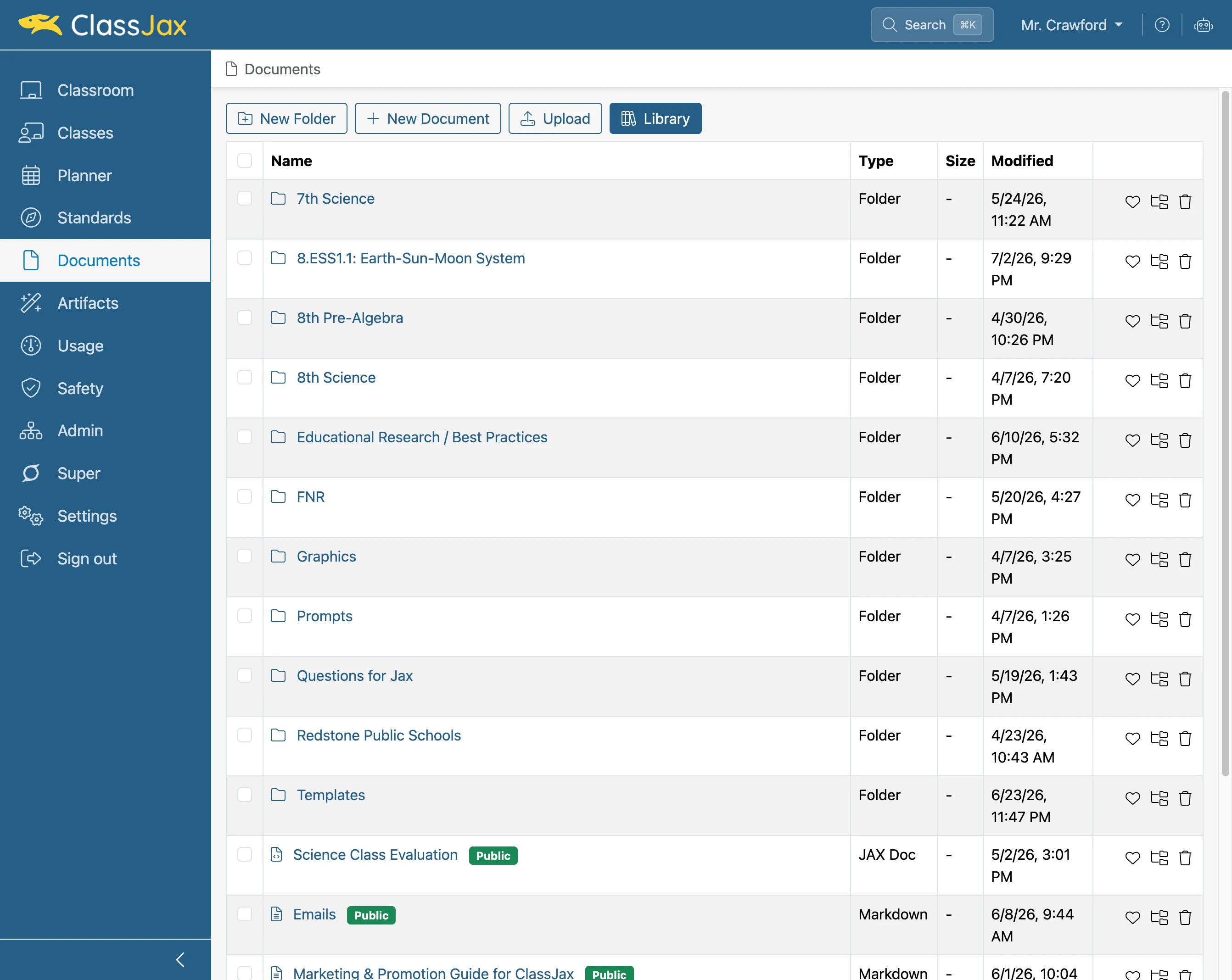
Click 'Library'
- 3
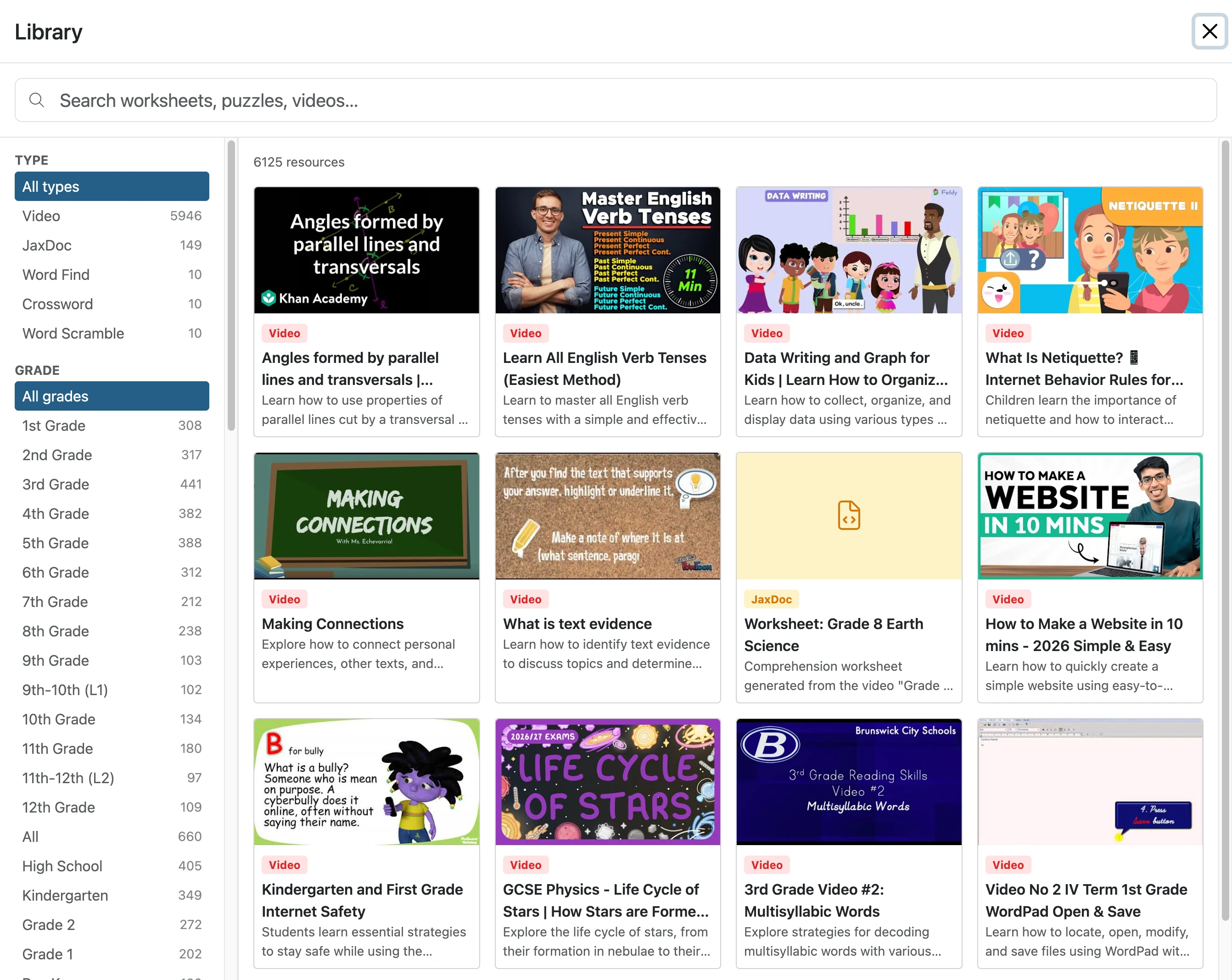
Click 'Search worksheets, puzzles, videos…'
Note the different types of documents one can access. Other types of documents are coming.
- 4
Enter the 'text' search to identify desired content
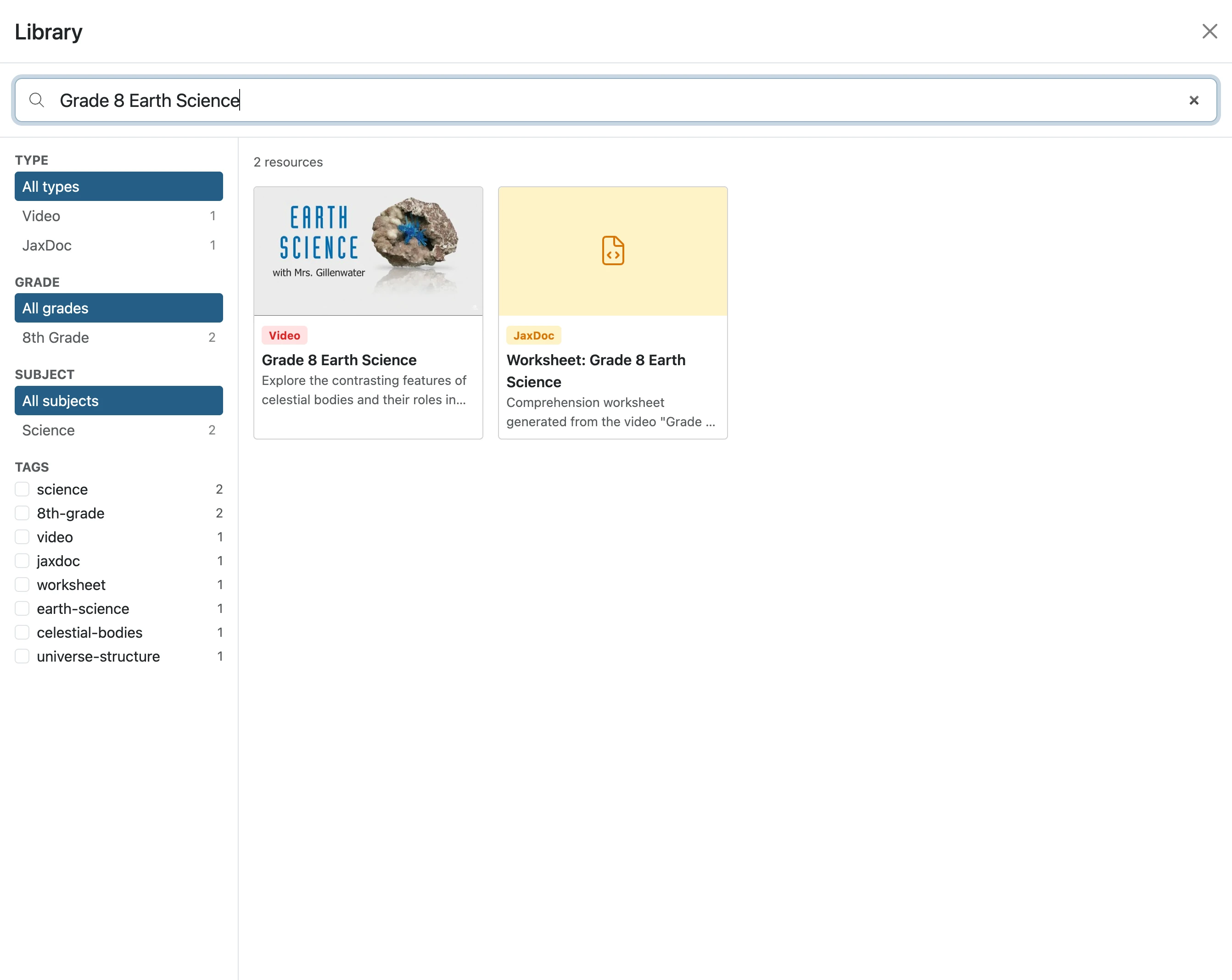
- 5
Click the desired document
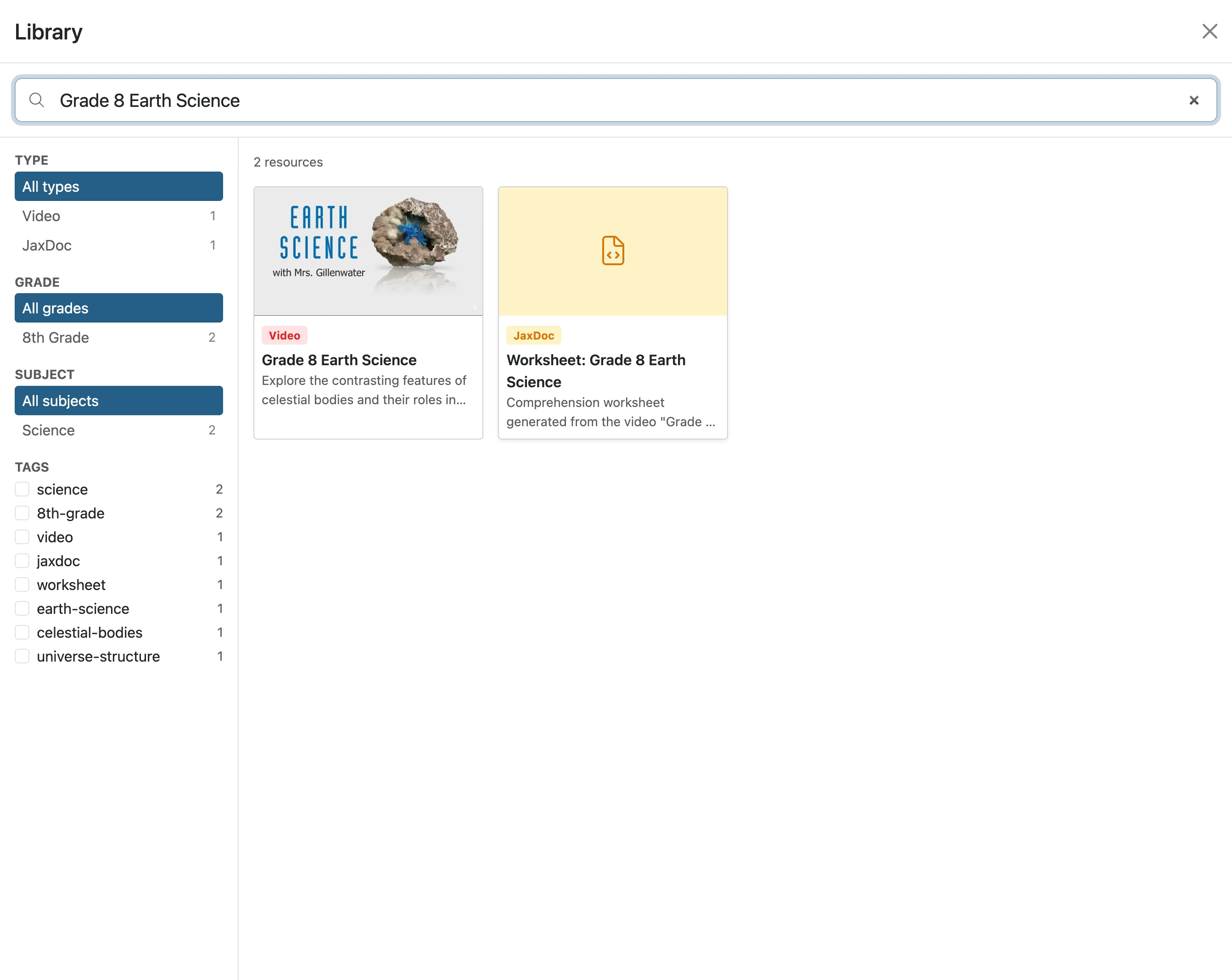
- 6
Click 'Add to My Documents'
The selected document will be added to your Documents.
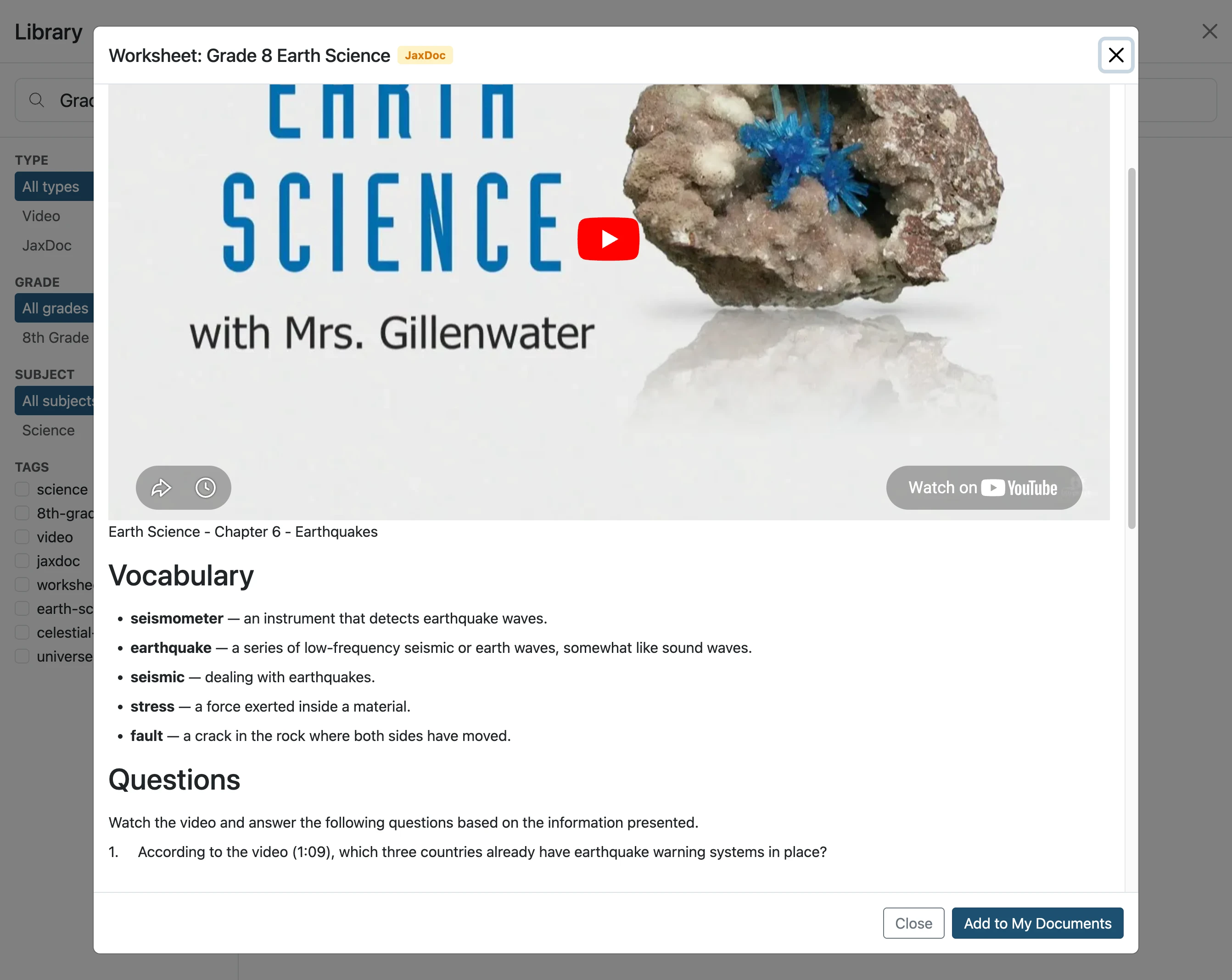
- 7
Click 'Choose'
Your Document folders will appear.
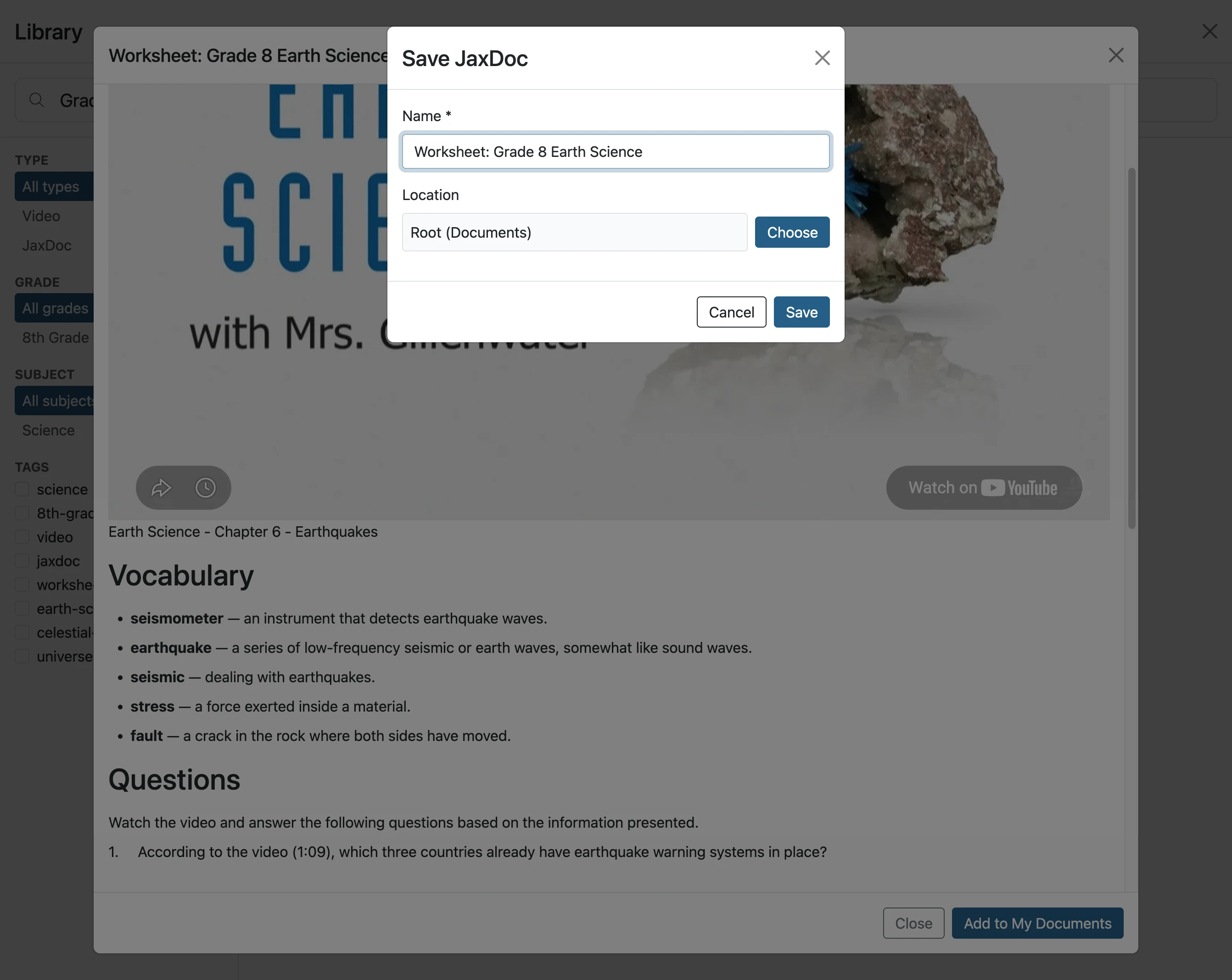
- 8
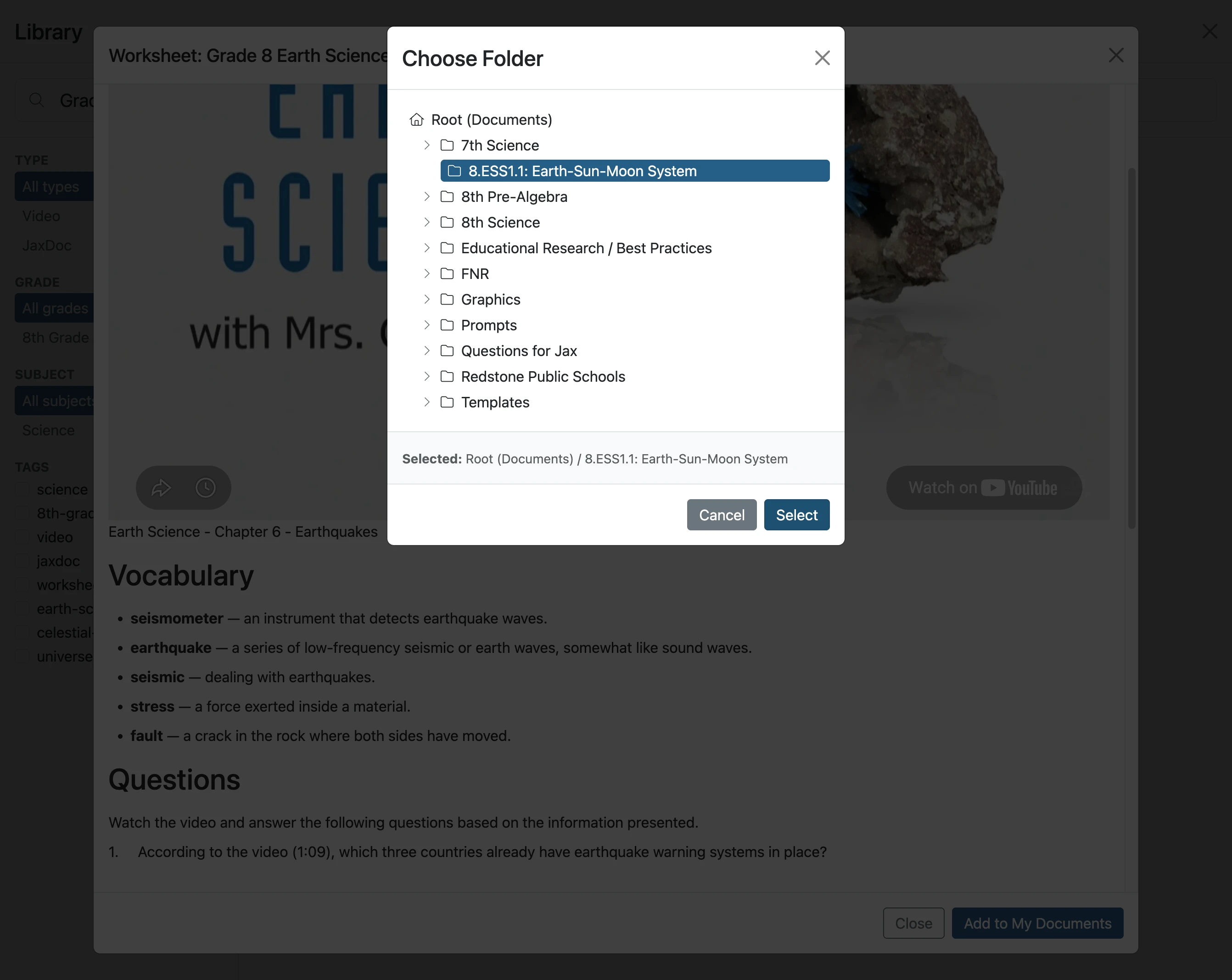
Click desired Folder
Navigate to and click the desired folder the document is to be saved in.
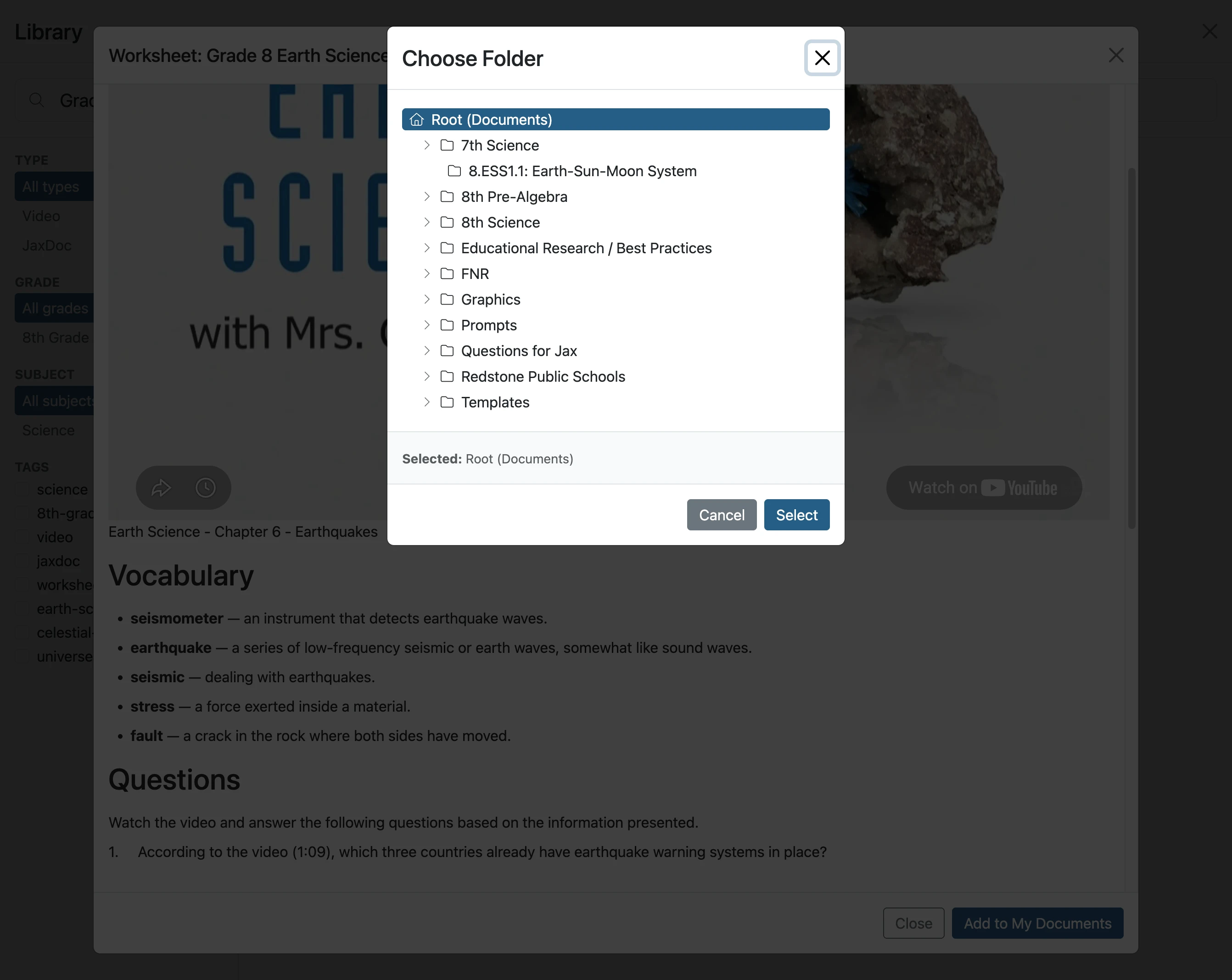
- 9
Click 'Select'
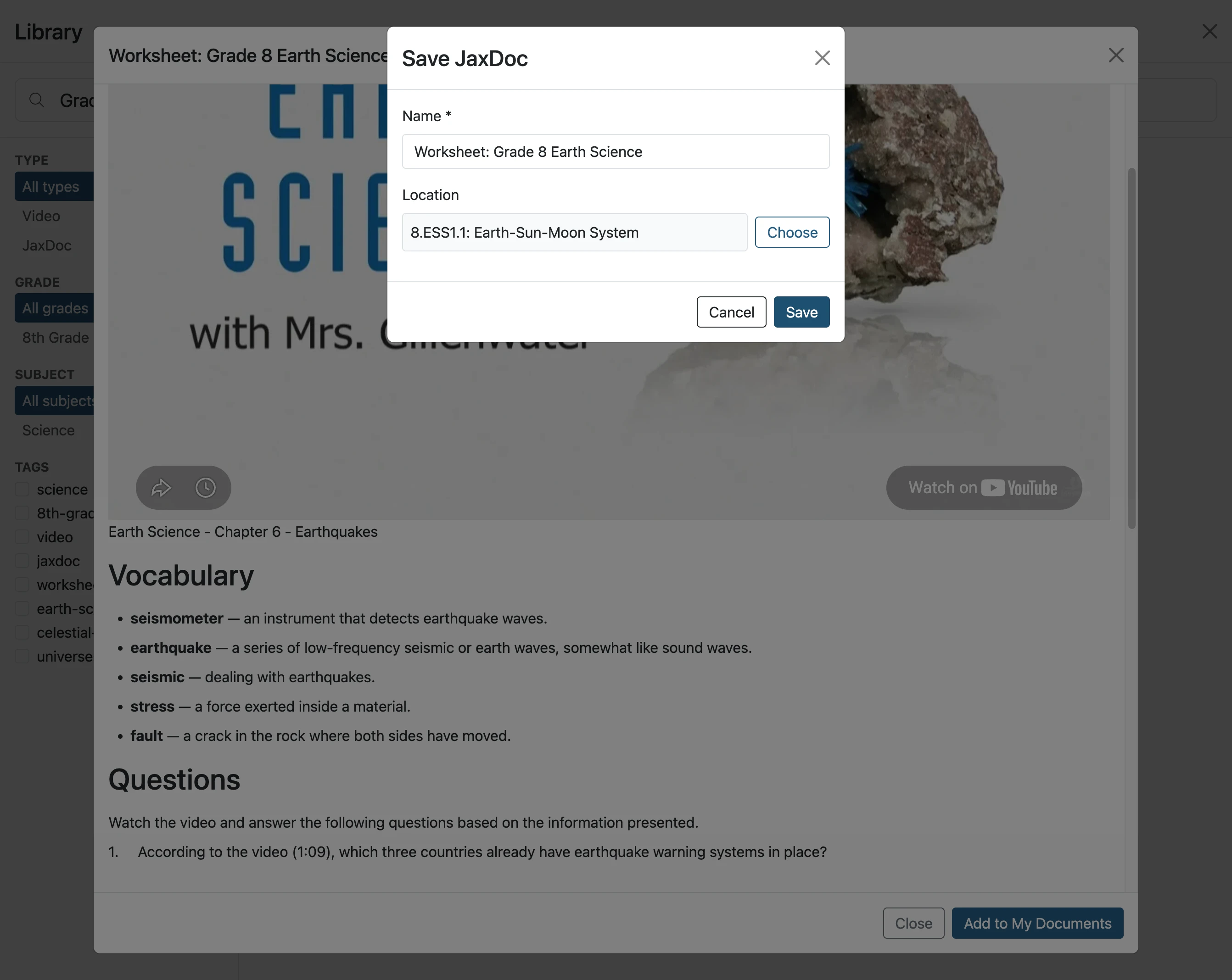
- 10
Click 'Save'
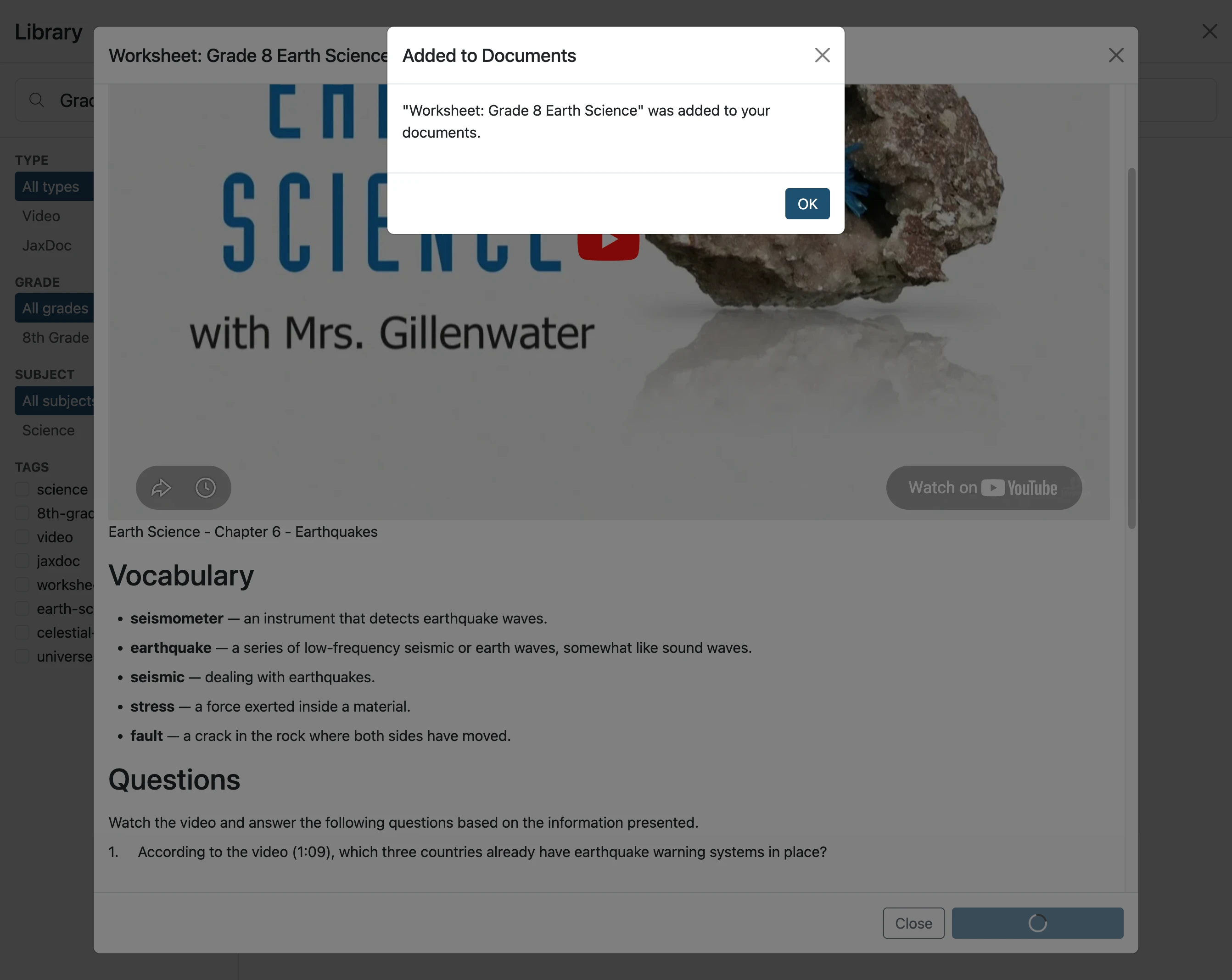
- 11
Click 'OK'
- 12
Click 'Close'
Clicking results in the Library being closed.
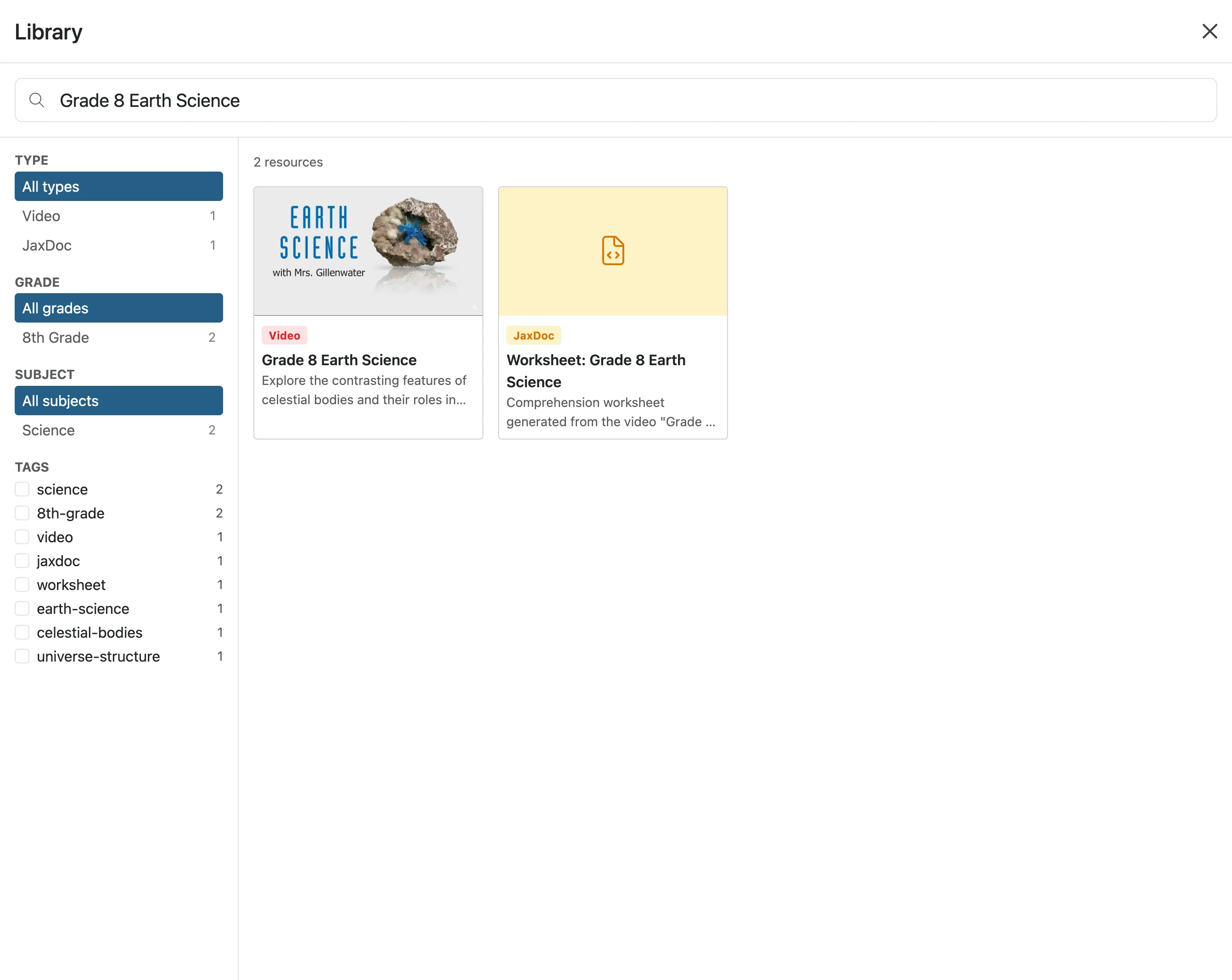
- 13
Navigate to new Document
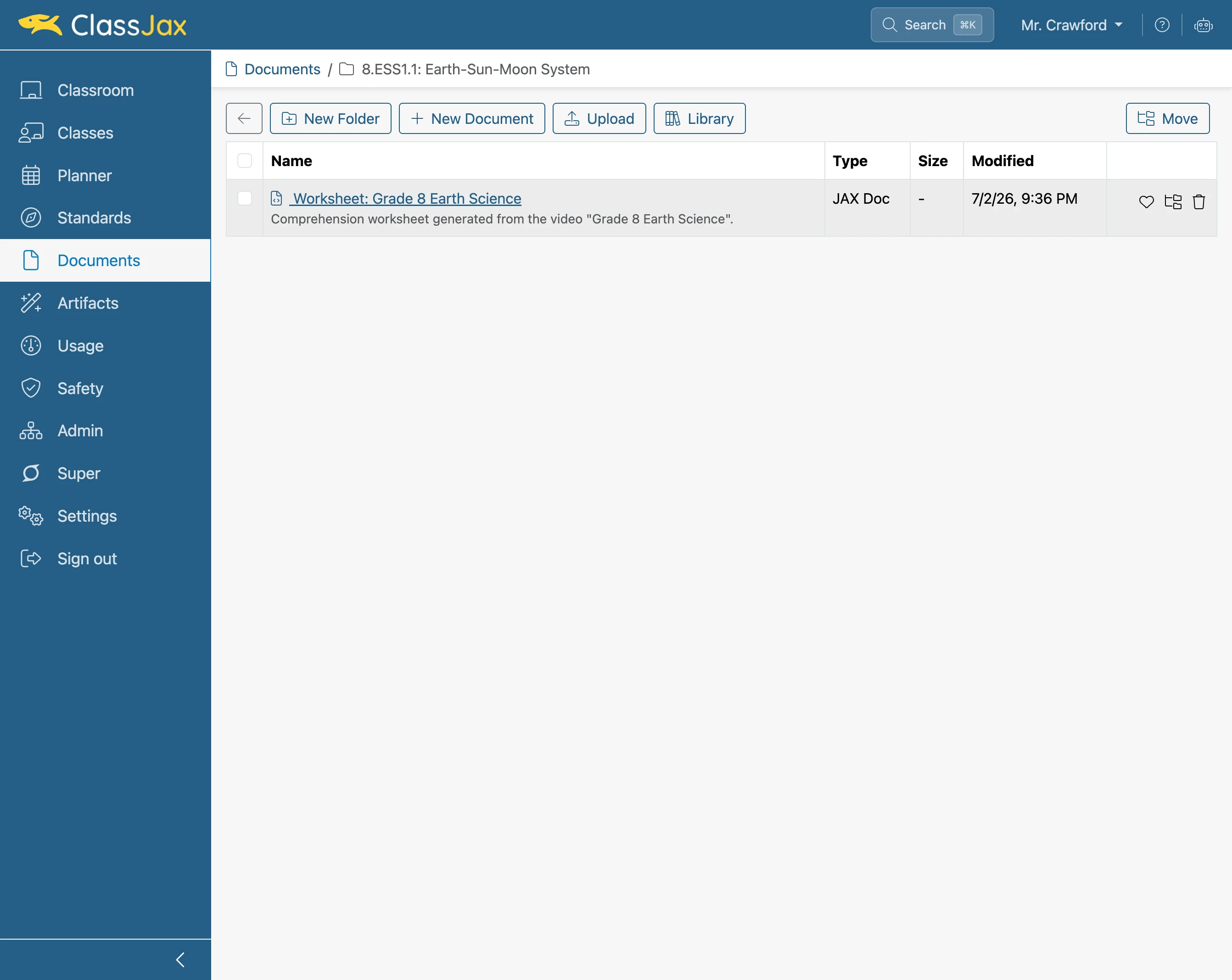
- 14
The Result
The document is now ready to be modified and added to lesson plans, linked within documents or shared with others outside of ClassJax.