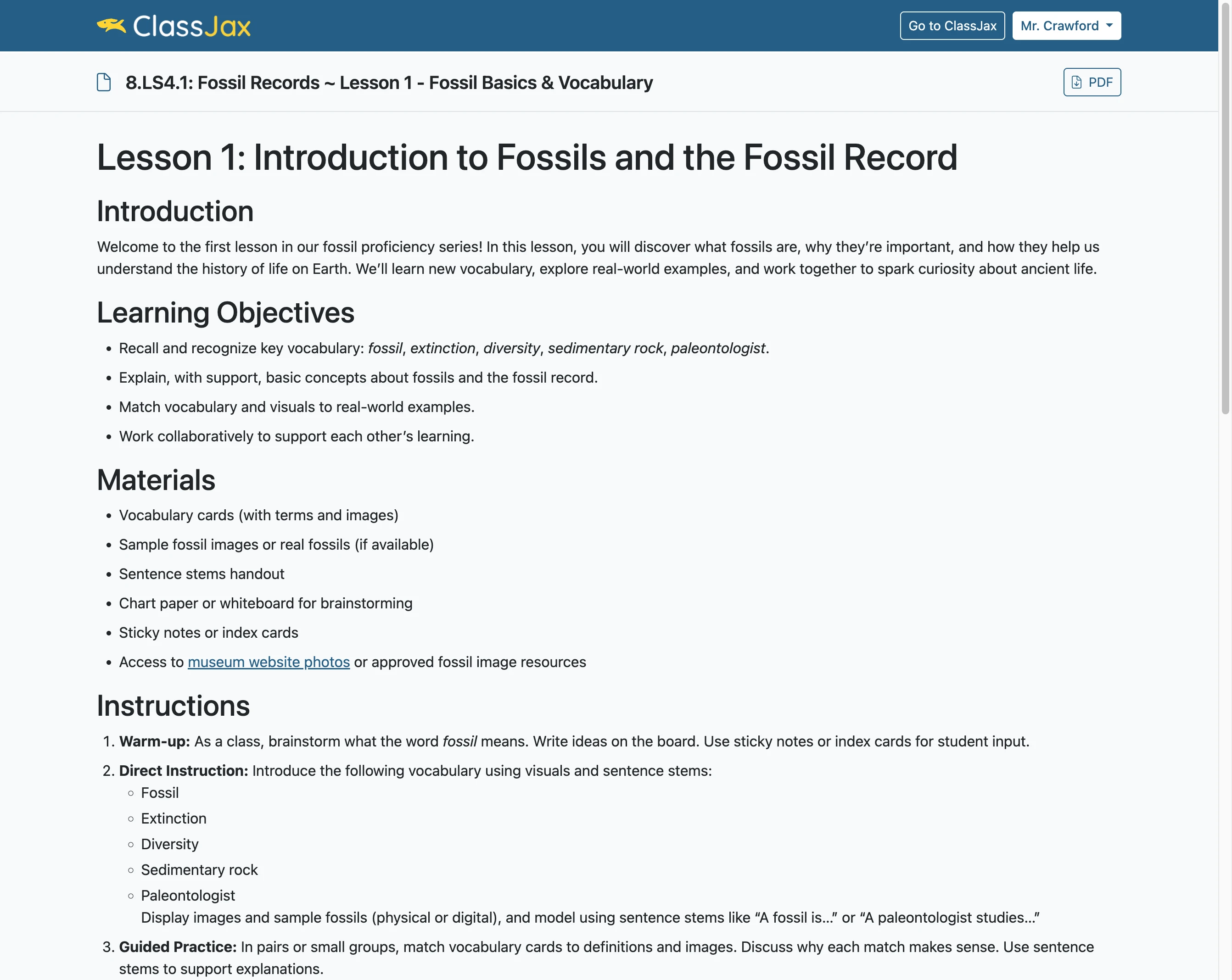

Share a Document
This guide explains how to publicly share ClassJax Documents—including curriculum activities, puzzles, forms, images, and more—by generating easy-access links so students, parents, or colleagues can view and use your resources online.
Plan smarter this year
ClassJax is free for teachers. No credit card required.
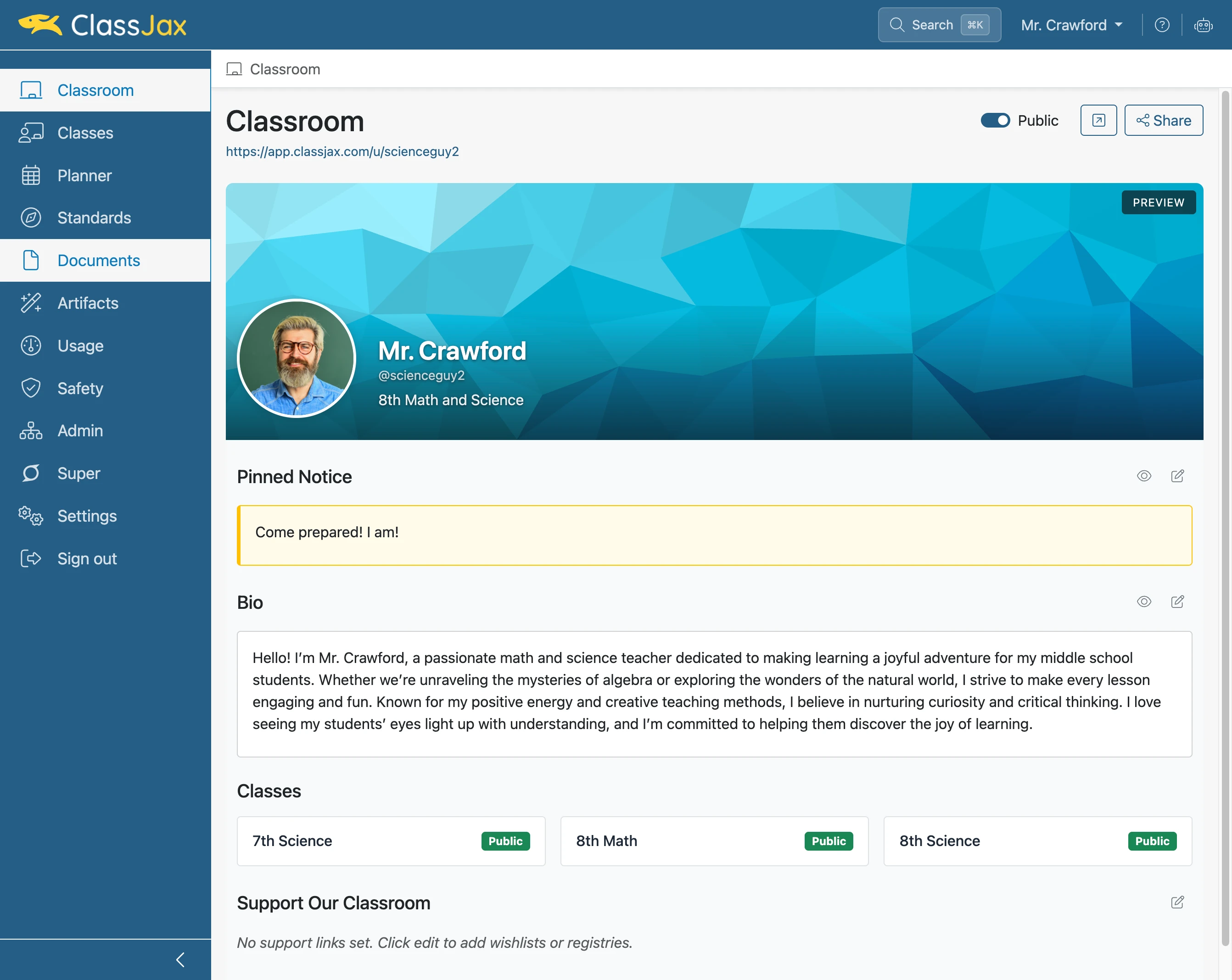
- 1
Click the 'Documents' link
- 2
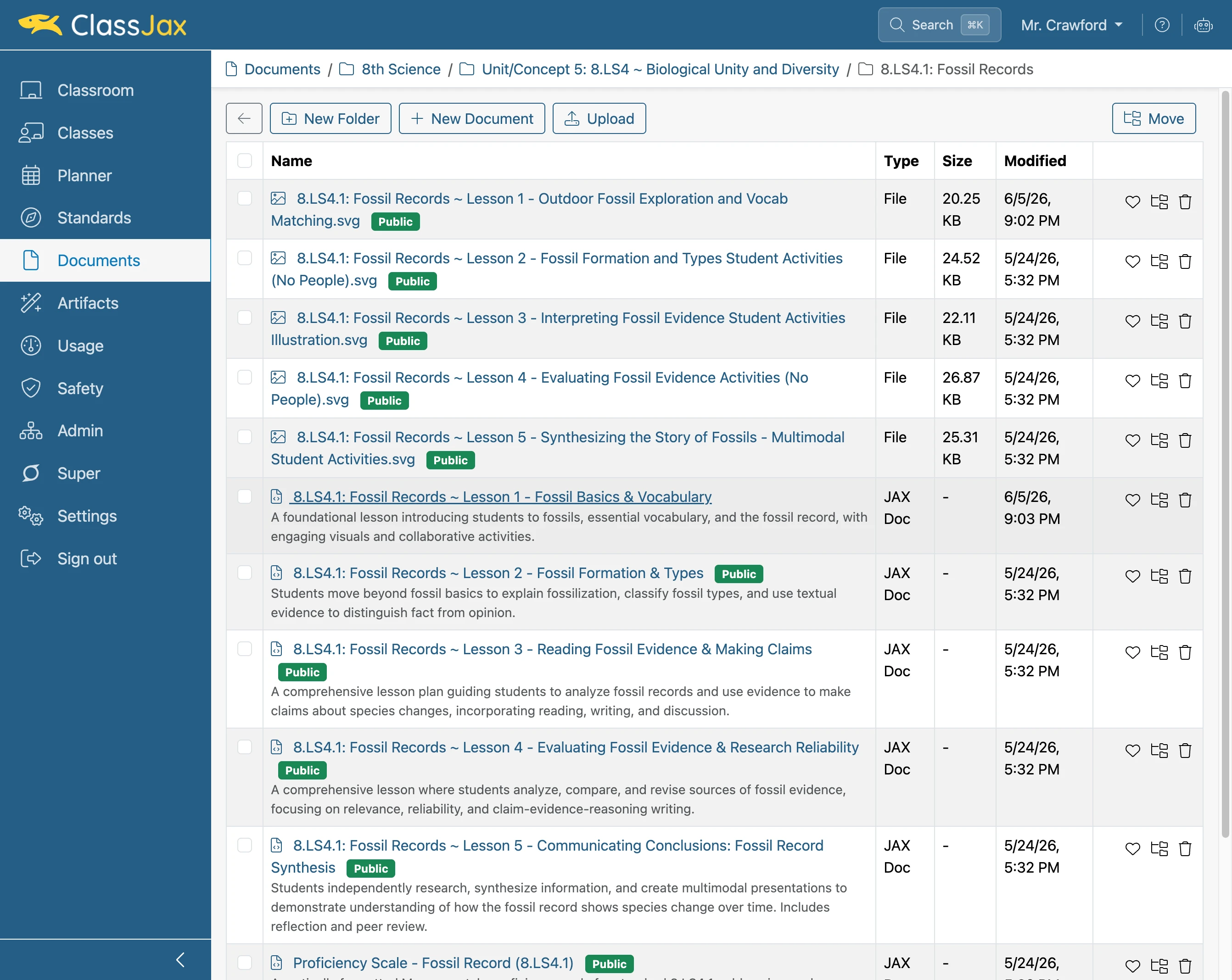
Click the 'Document' link
Click the name of the document to be shared. Note, documents that are Public have been shared.
- 3
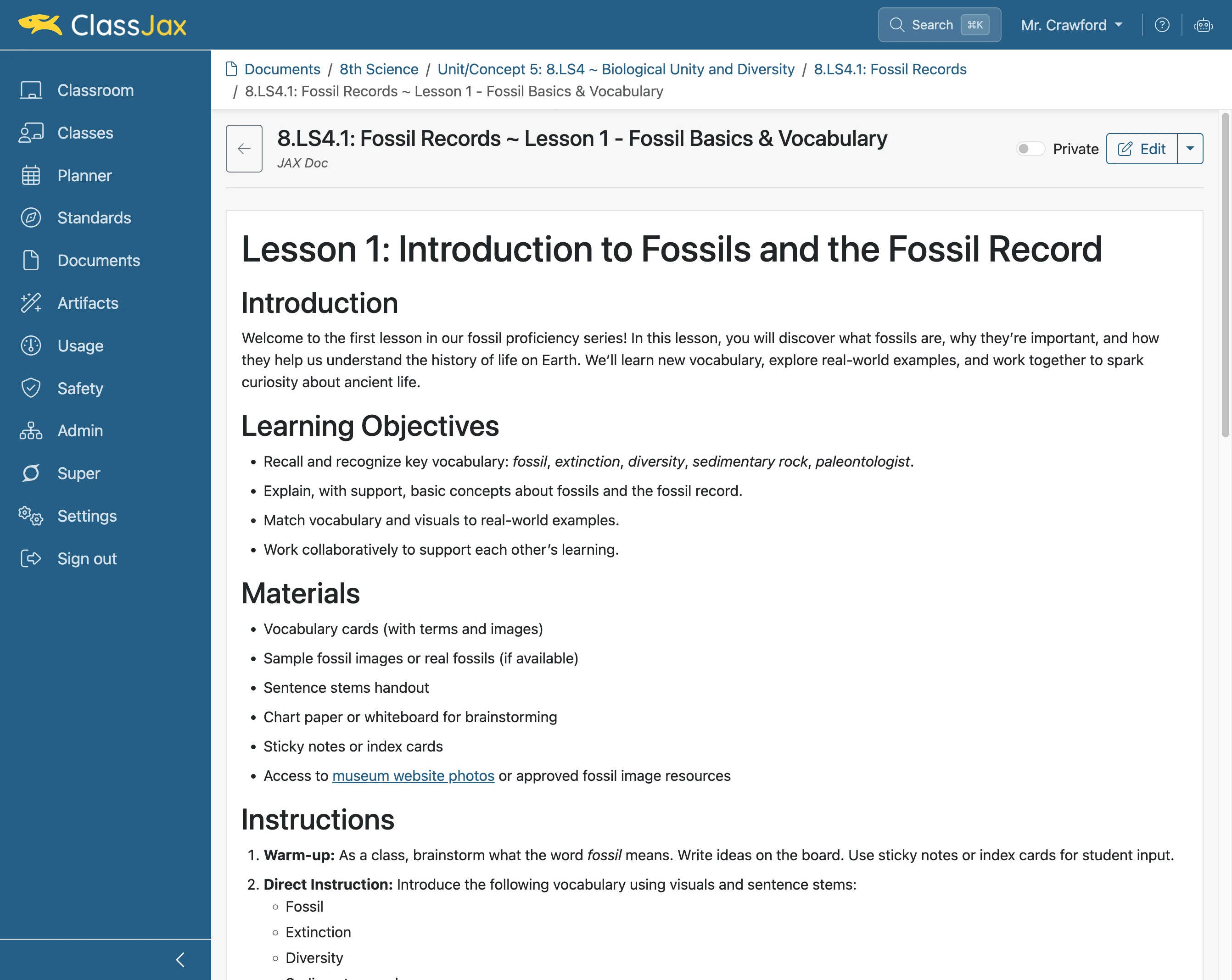
Click the 'Private' slider
Clicking the Private slider makes the Document public providing publishing options.
- 4
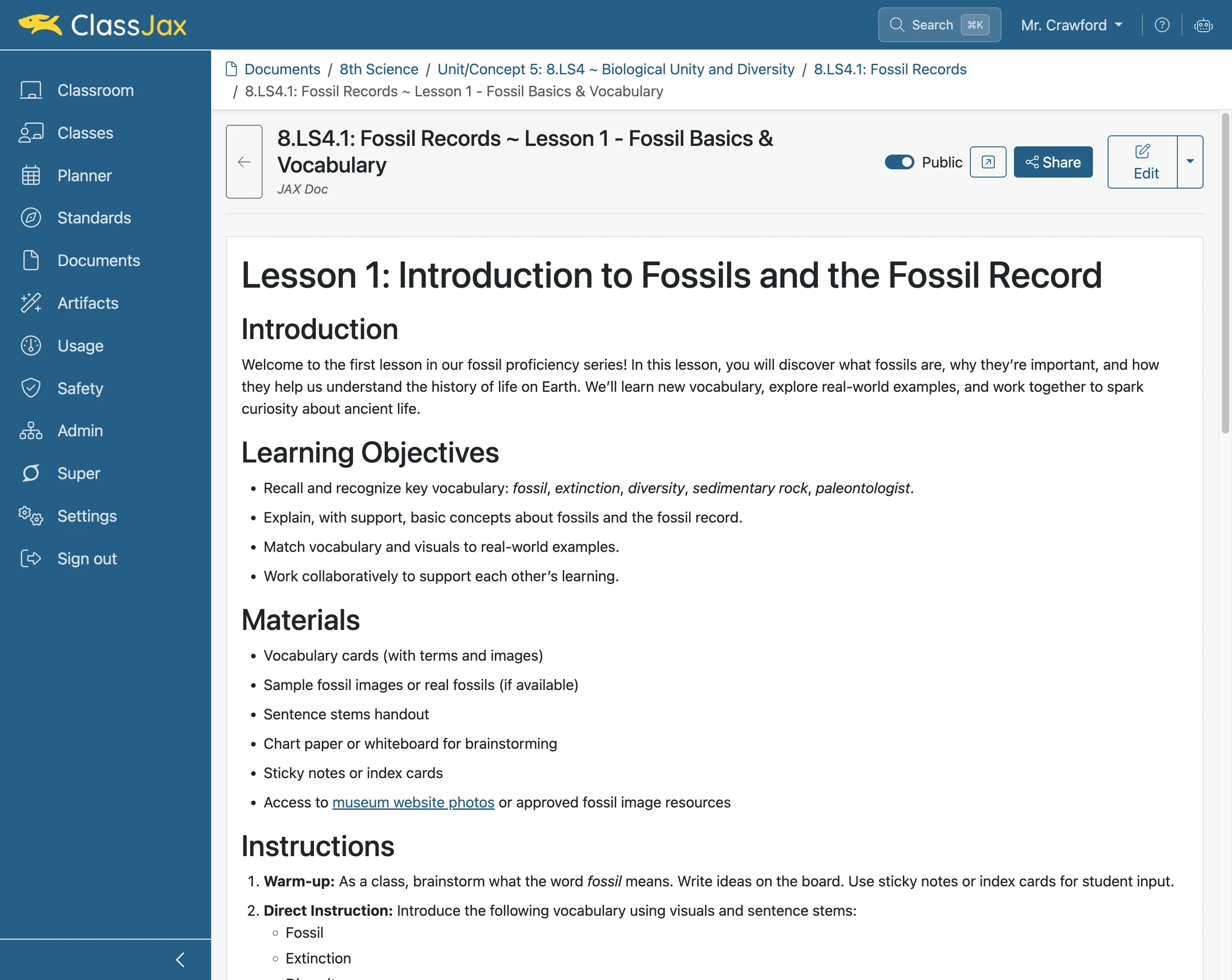
Click 'Share'
Clicking Share copies the Document’s link. The copied link can be sent by text or email and added to static web pages or ClassJax documents. IMPORTANT: When a document has been linked to lesson plans or other locations in ClassJax, it must be made public before it will appear when clicked.
- 5
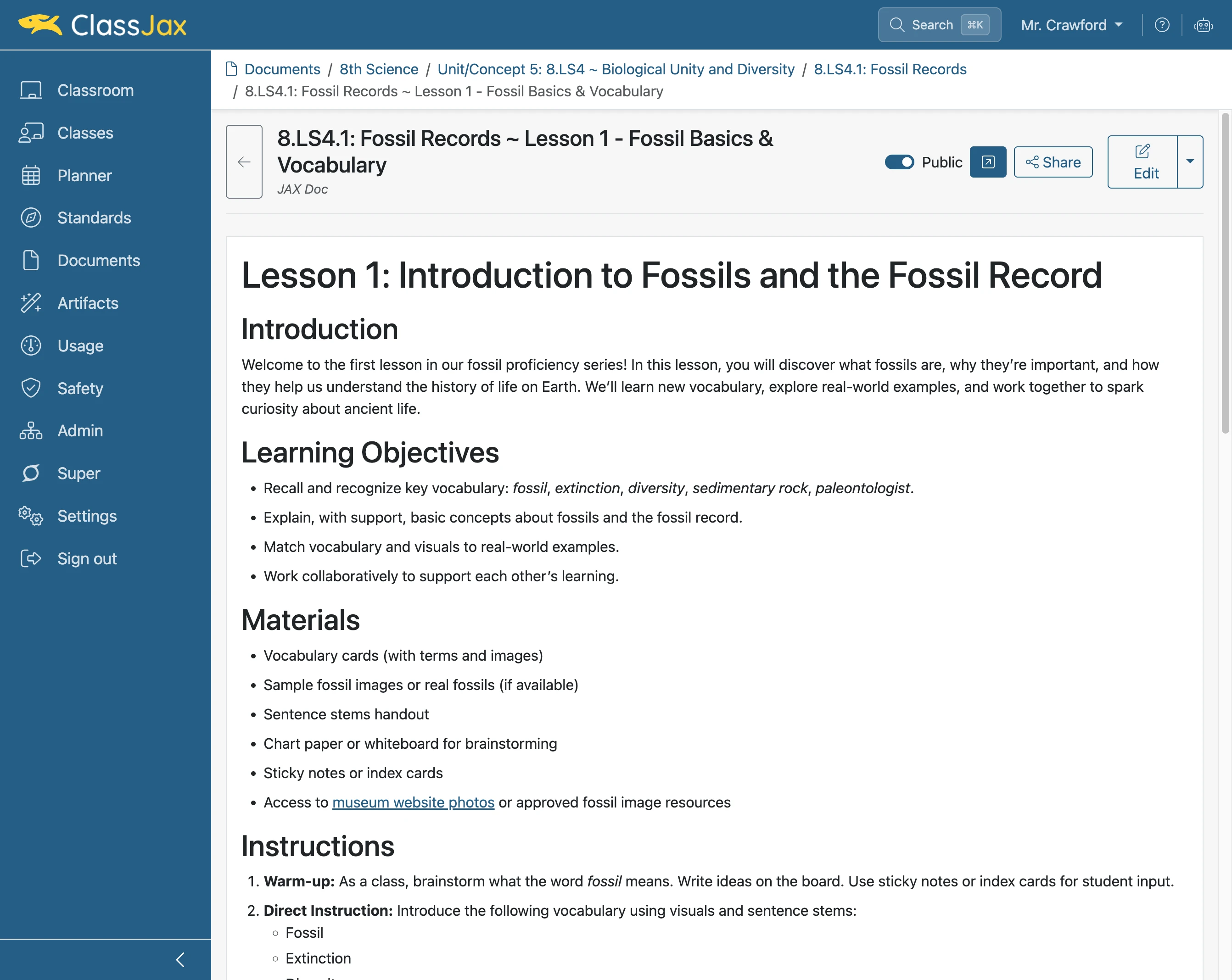
Click 'Open Public View’
Clicking the Open Public View button displays the Document’s public view in a new tab.
- 6
The Document appears
Note a document can be exported as a pdf for printing.