
Set Up the Classroom
This guide shows how to set up your ClassJax Classroom, personalize your space with custom branding, and easily manage your classes—all in one organized hub designed to reflect your unique teaching environment common across all your classes.
Plan smarter this year
ClassJax is free for teachers. No credit card required.
- 1
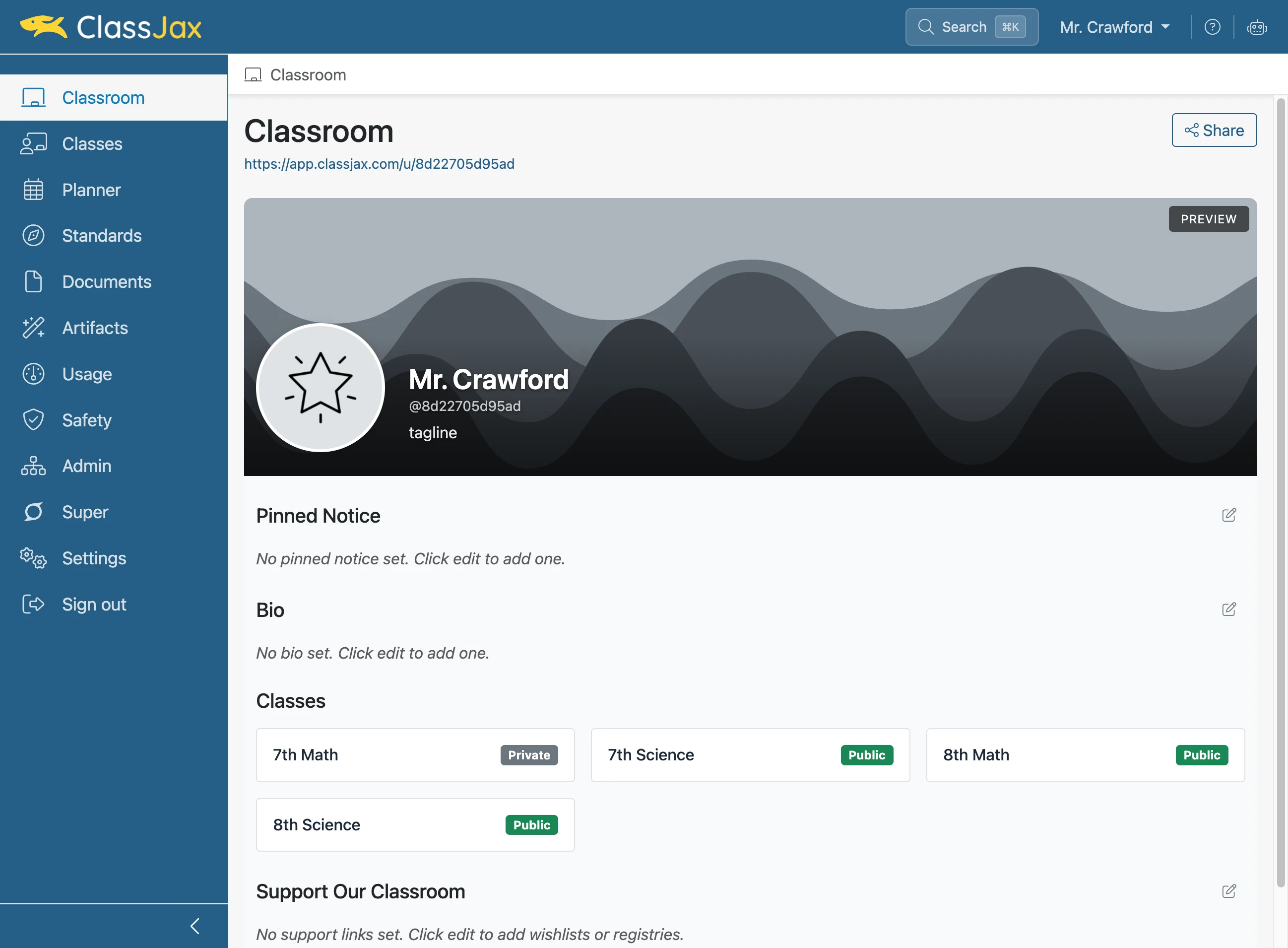
Click the 'Classroom' link
- 2
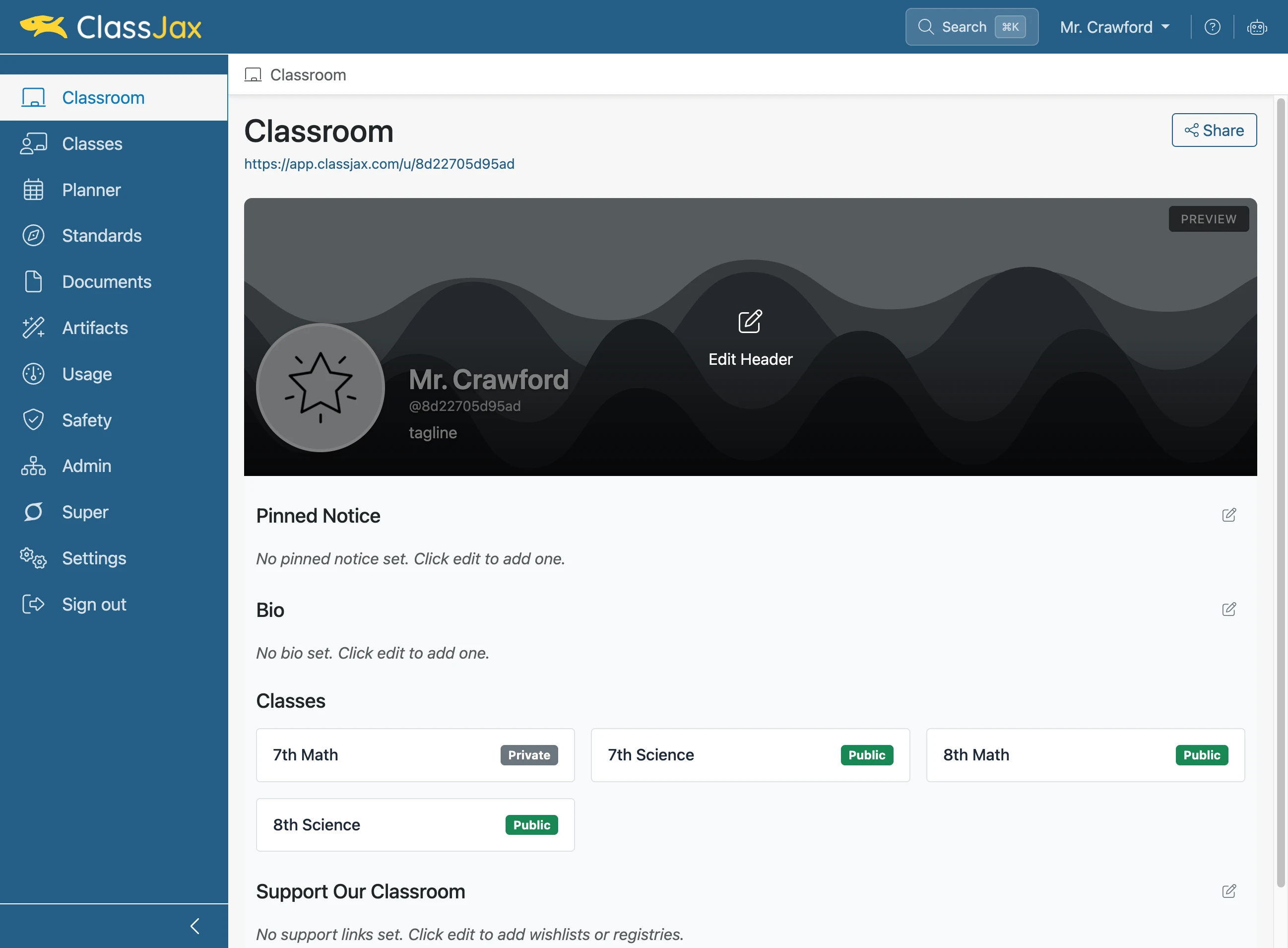
Click the 'Edit Header' icon
- 3
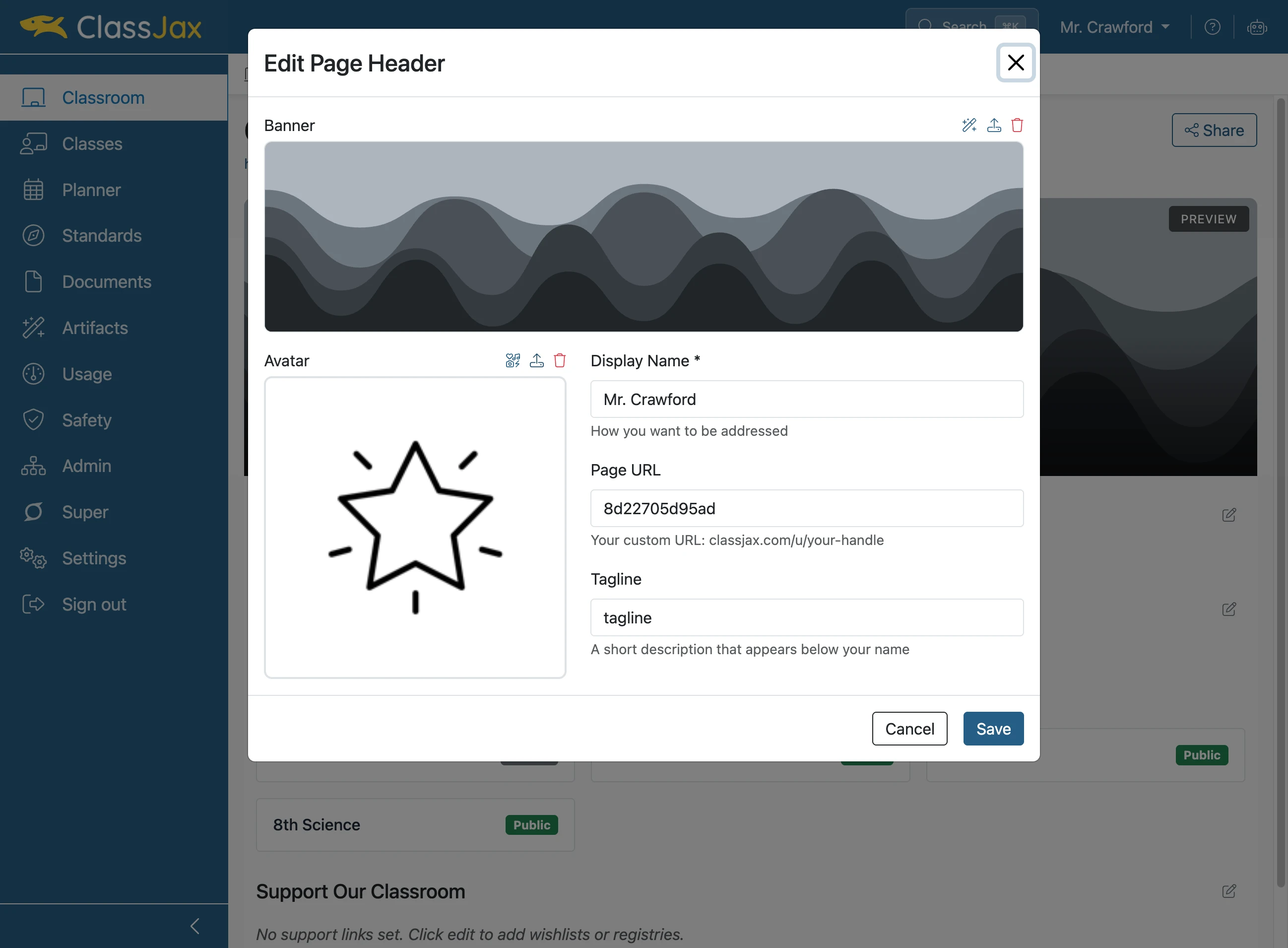
Click 'Upload image' to upload a photo from your computer
Pause a moment for the selected photo to upload
- 4
Click the 'Page URL' field to change your username
Make it something fun!
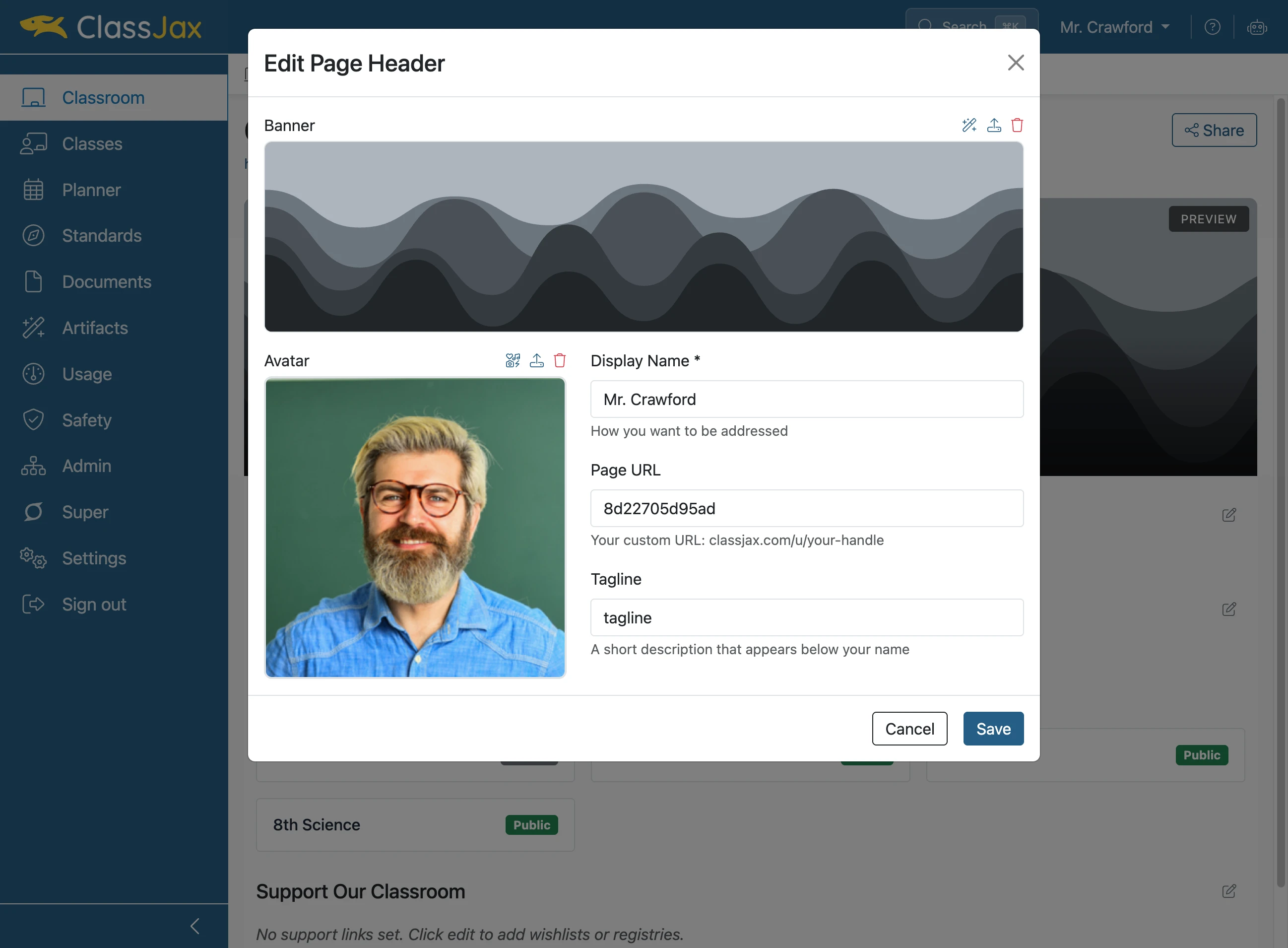
- 5
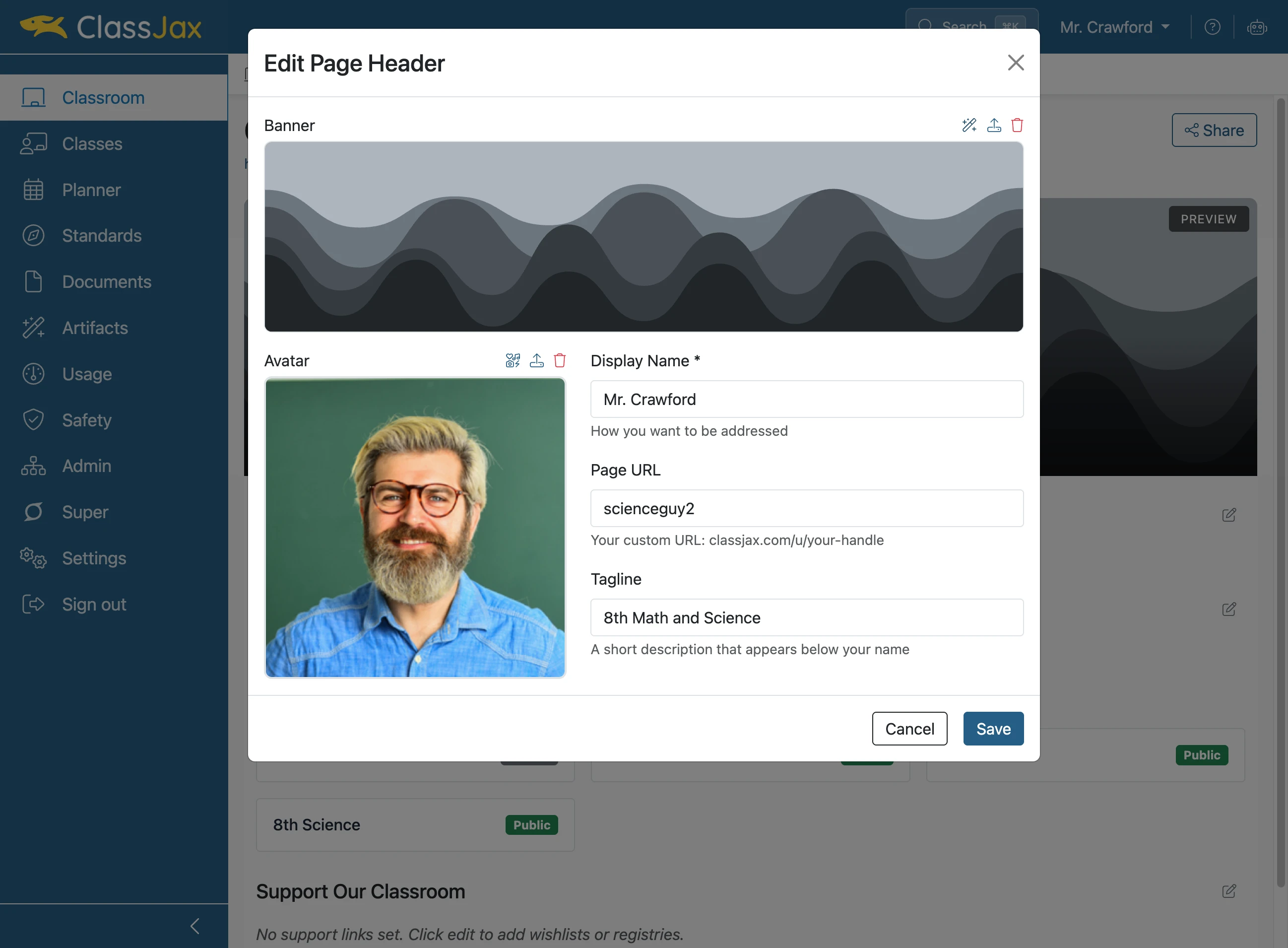
Complete your tagline and click 'Save'
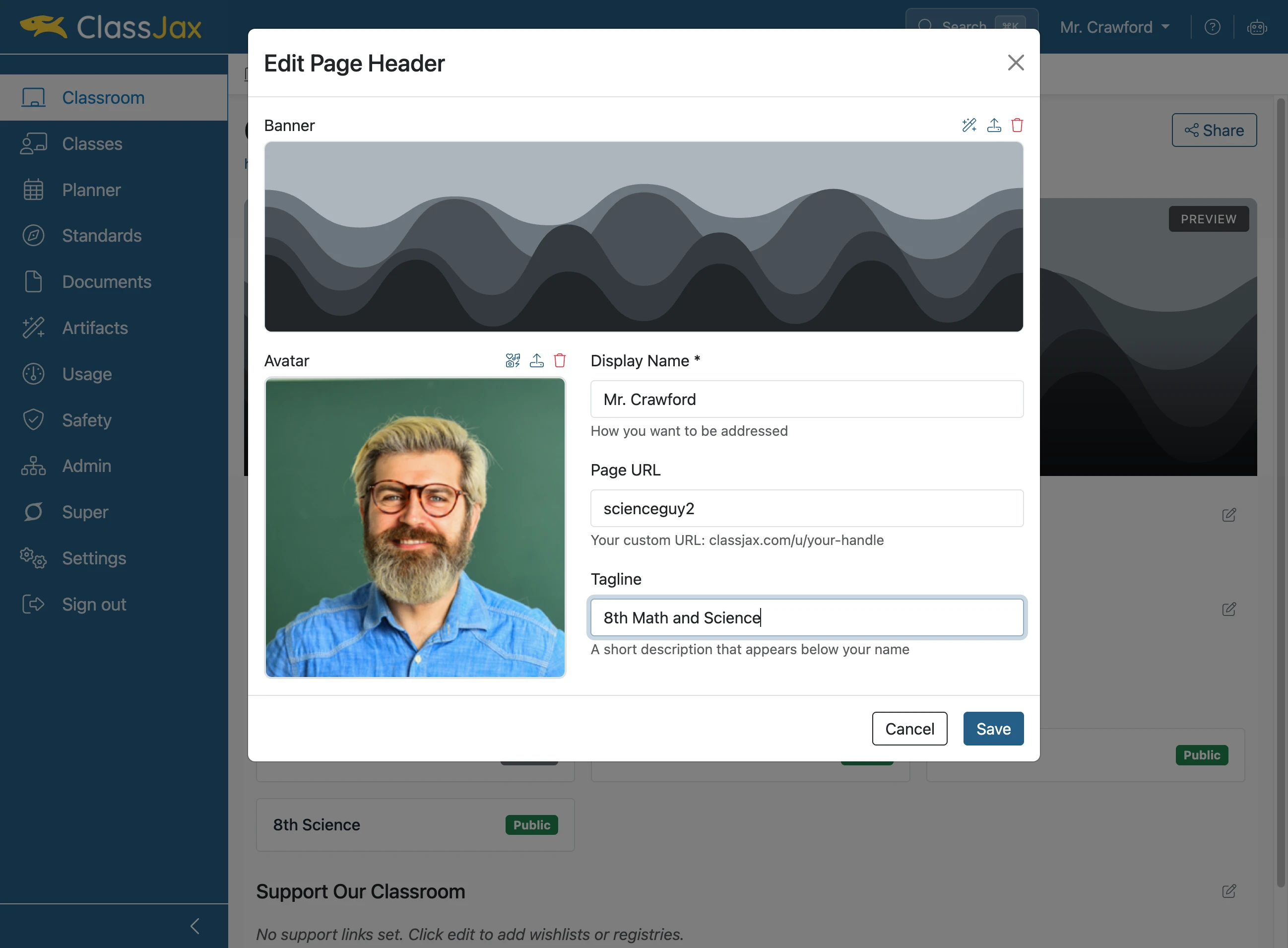
- 6
Click 'Generate banner' to create a background
- 7
Click your favorite color palette
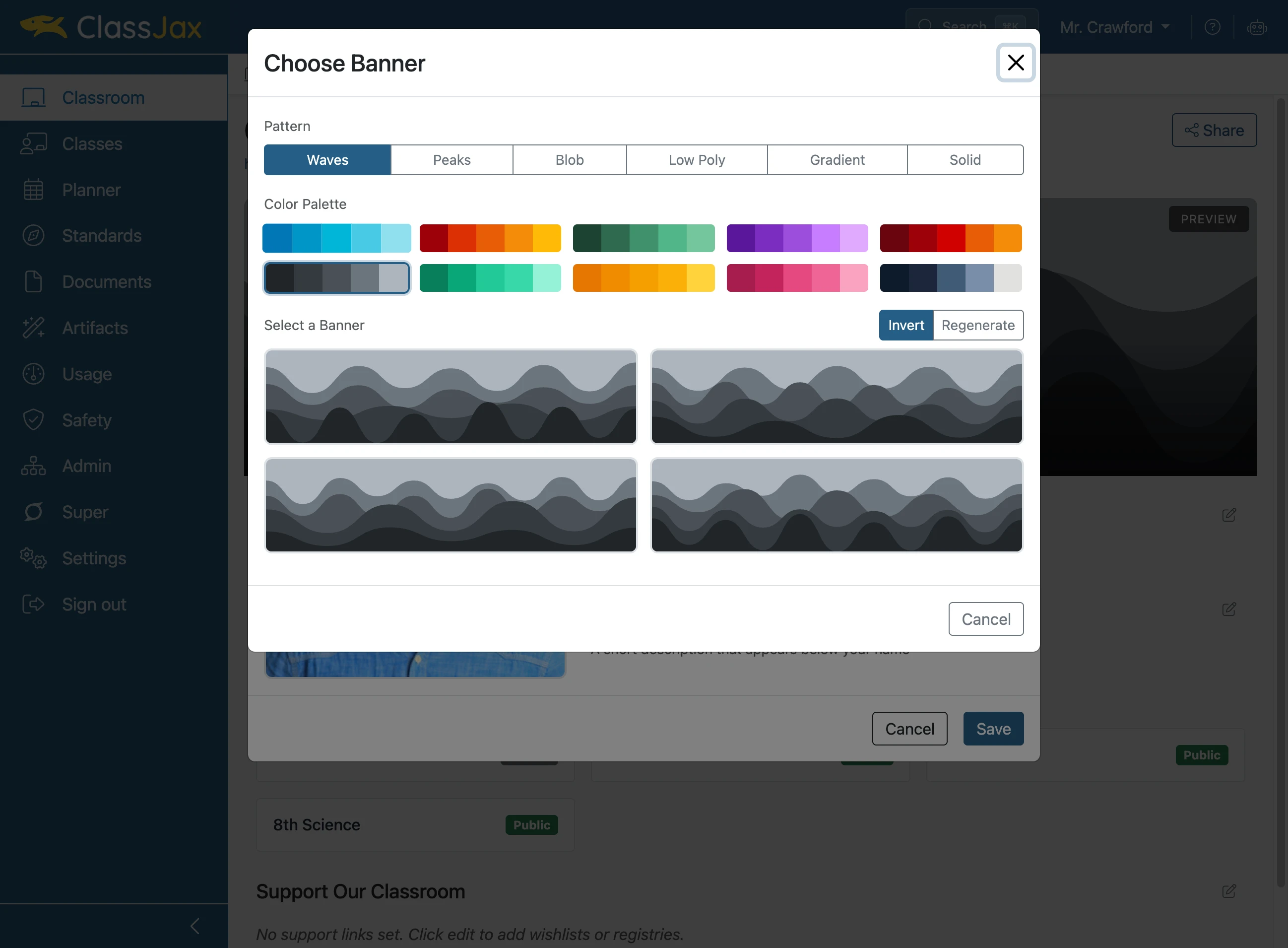
- 8
Choose your favorite banner style
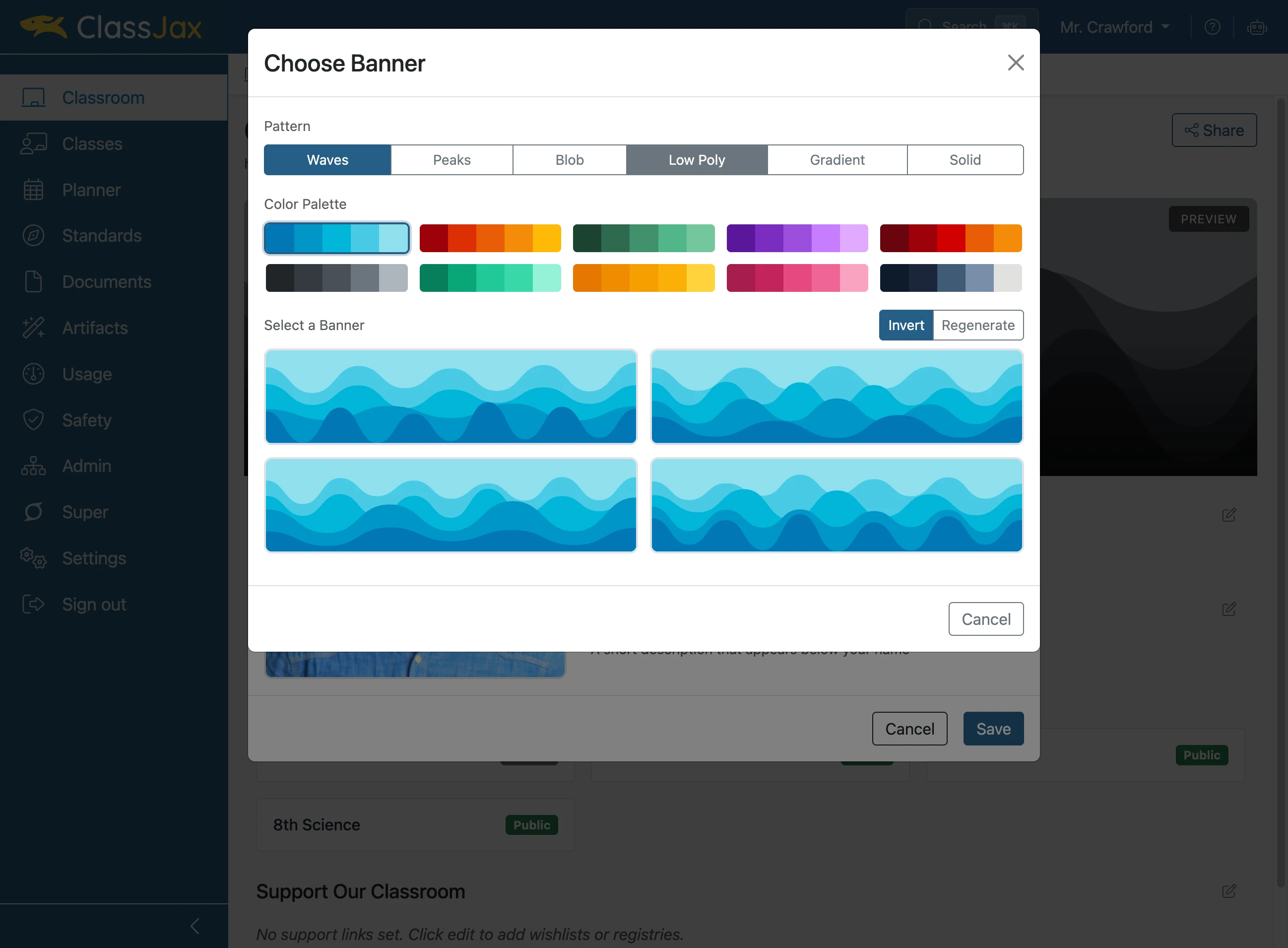
- 9
Choose one of the four generated options
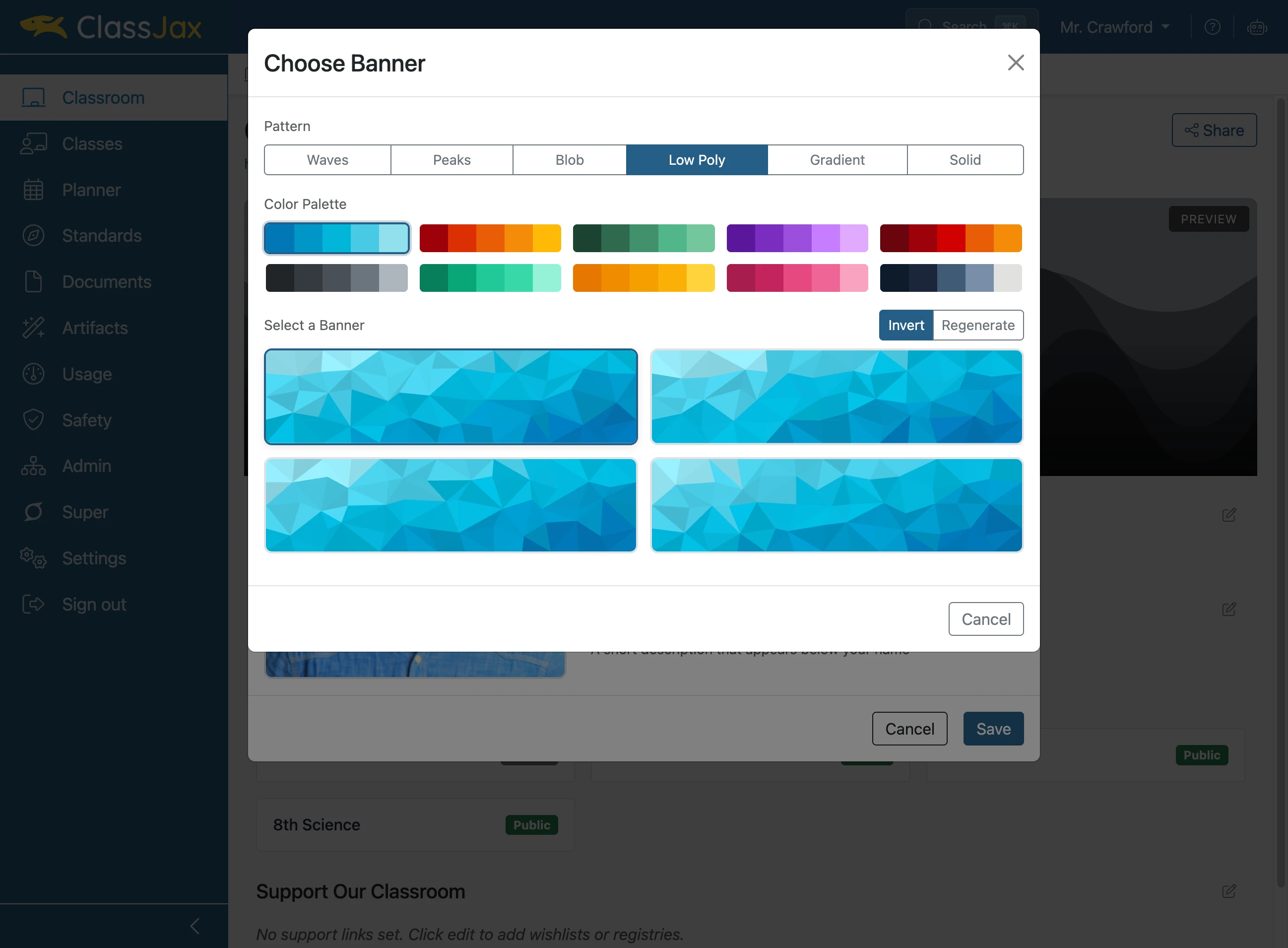
- 10
Click 'Save'
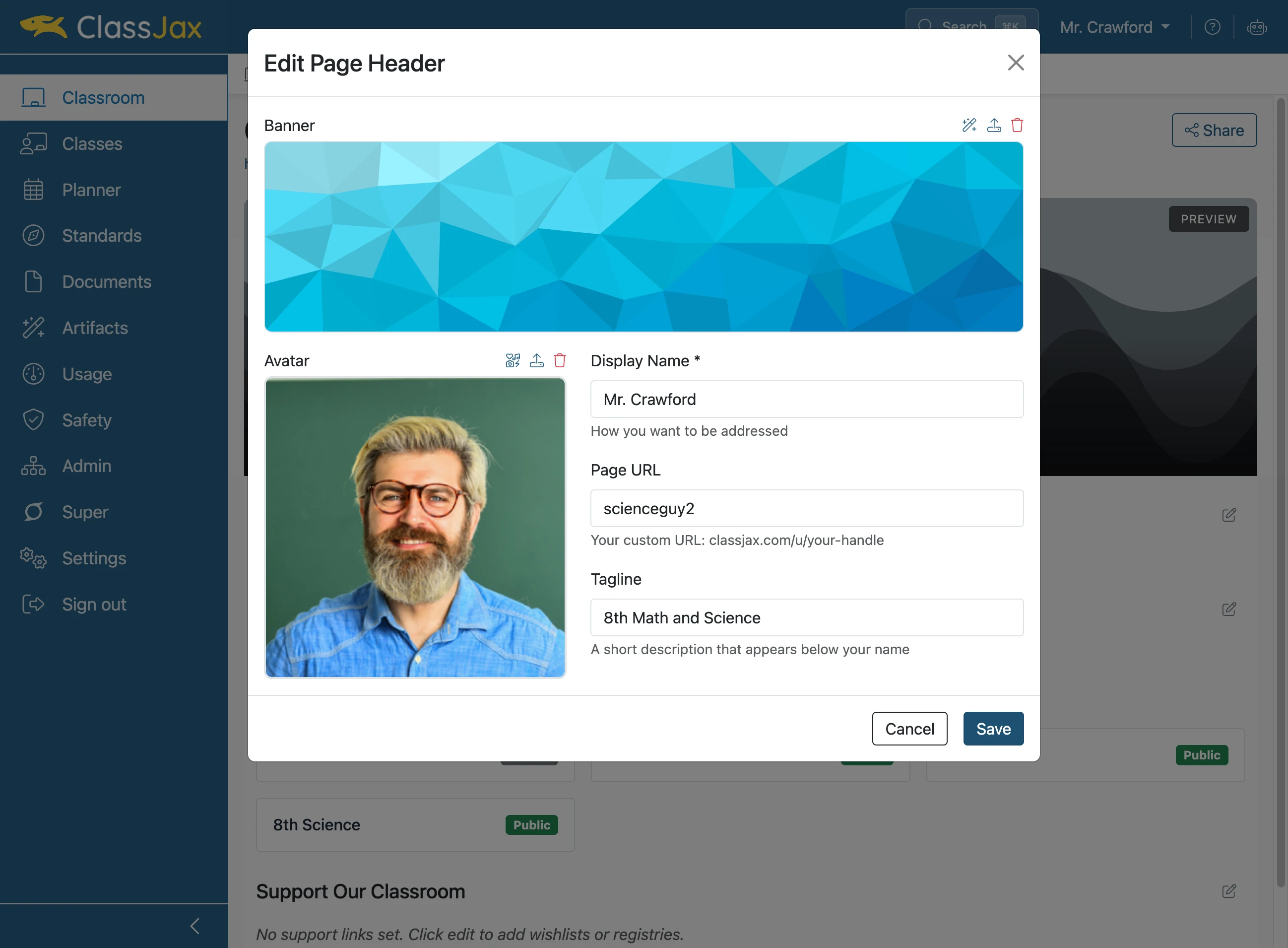
- 11
Click 'Edit pinned notice' to modify the Classroom Notice
The Pinned Notice is a yellow rectangle which can include the same type of content one can add to a lesson plan.
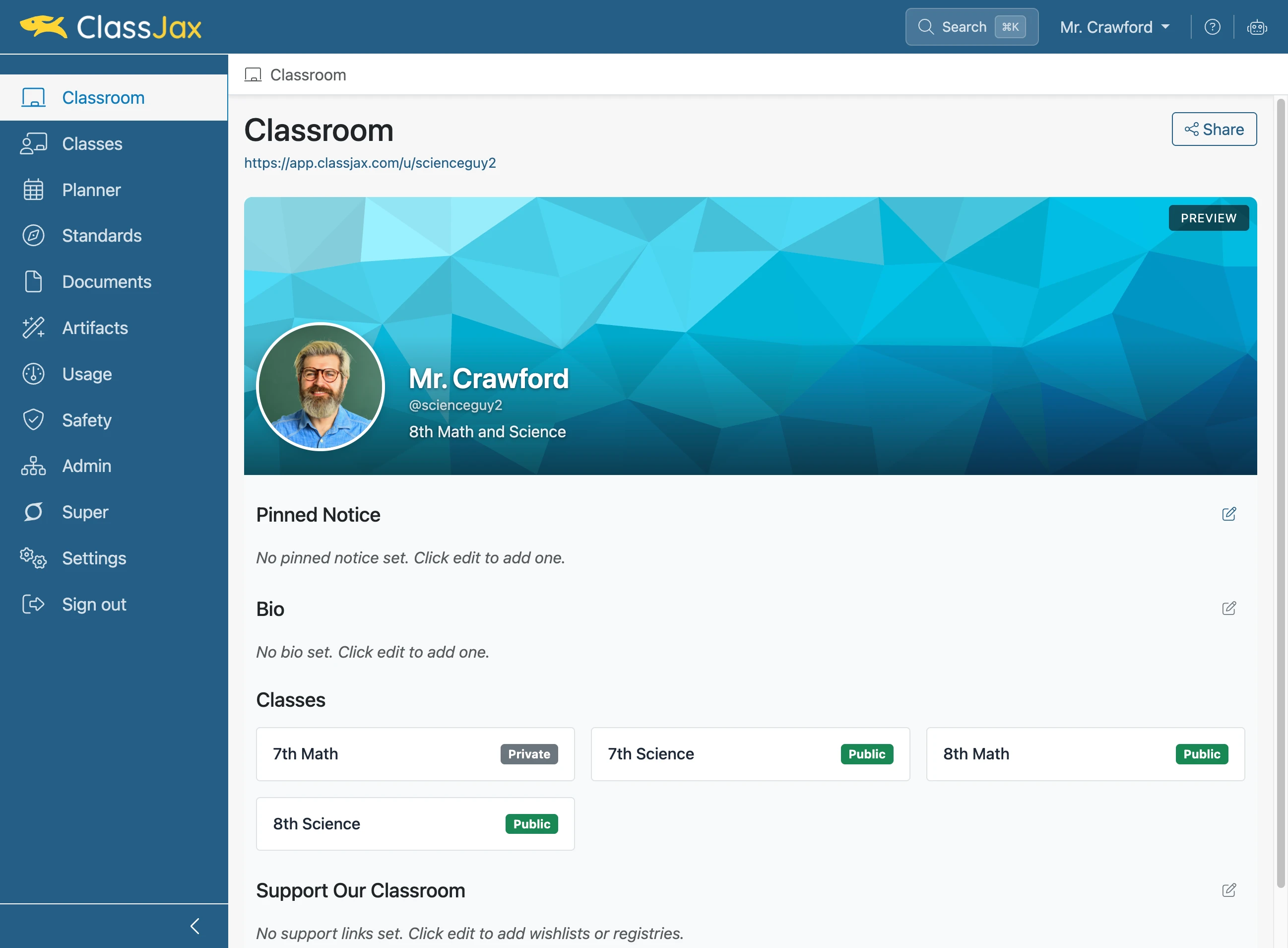
- 12
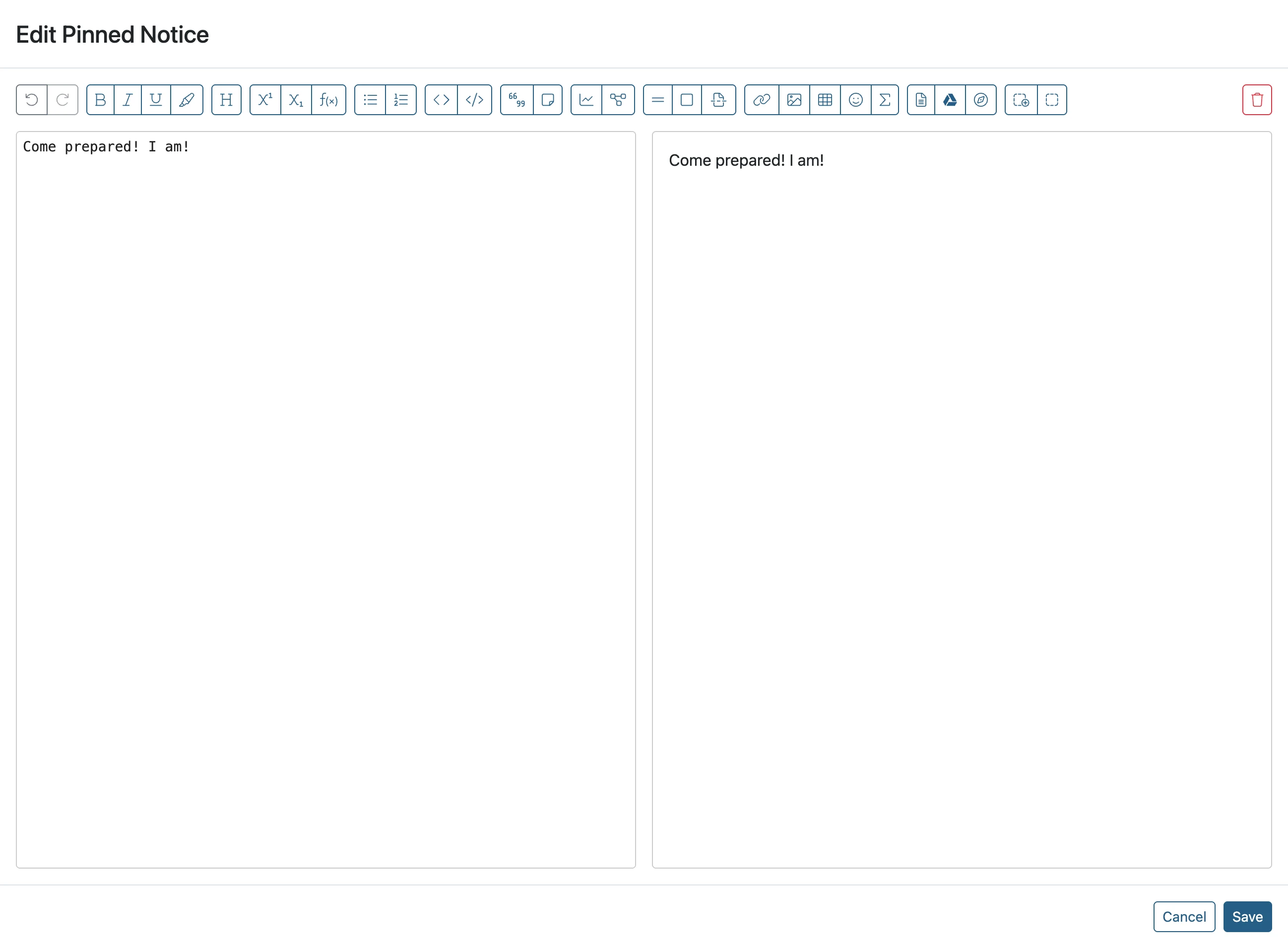
Add text to be pinned below the banner
Links, images and other content can be added.
- 13
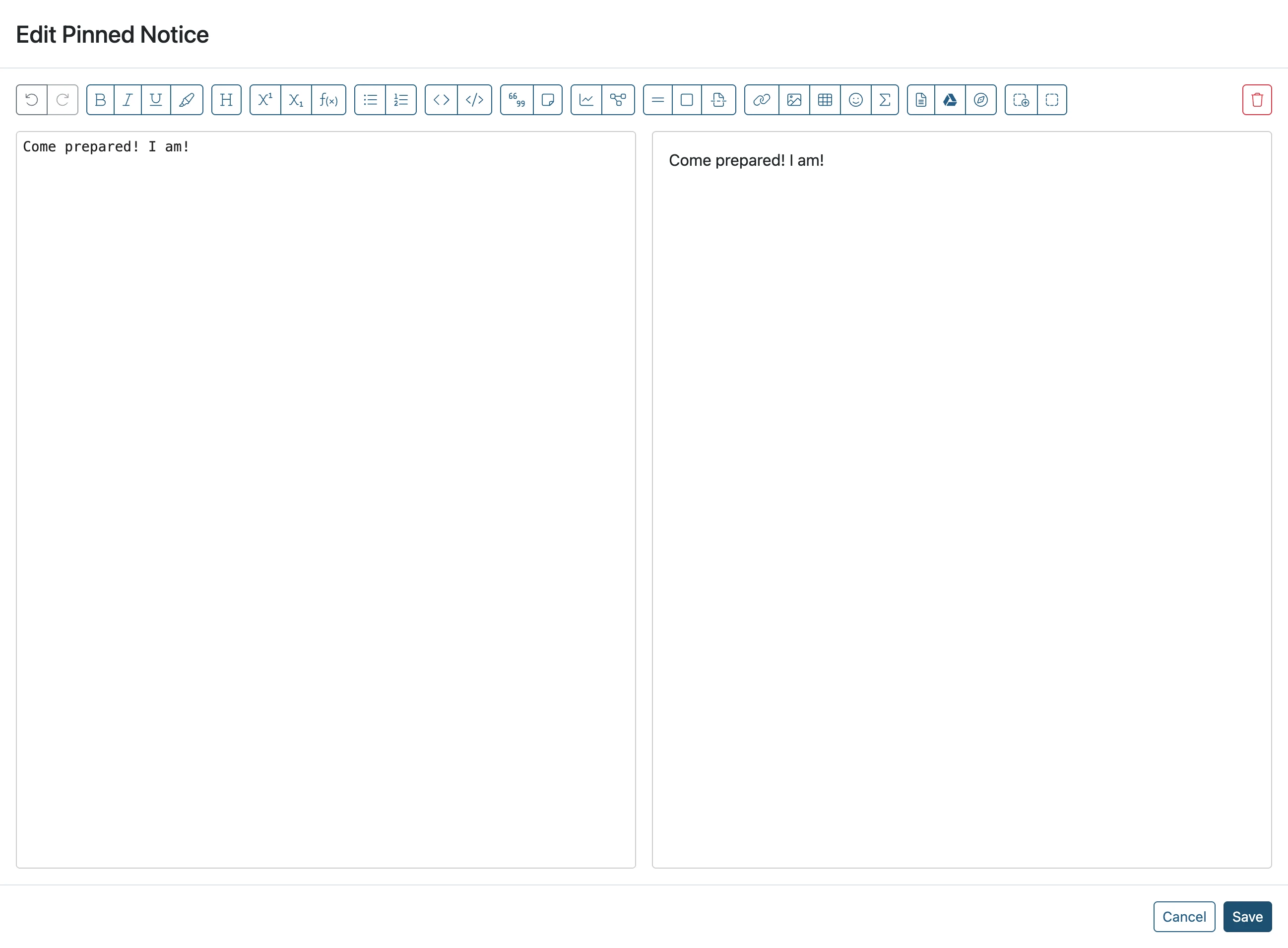
Click 'Save'
- 14
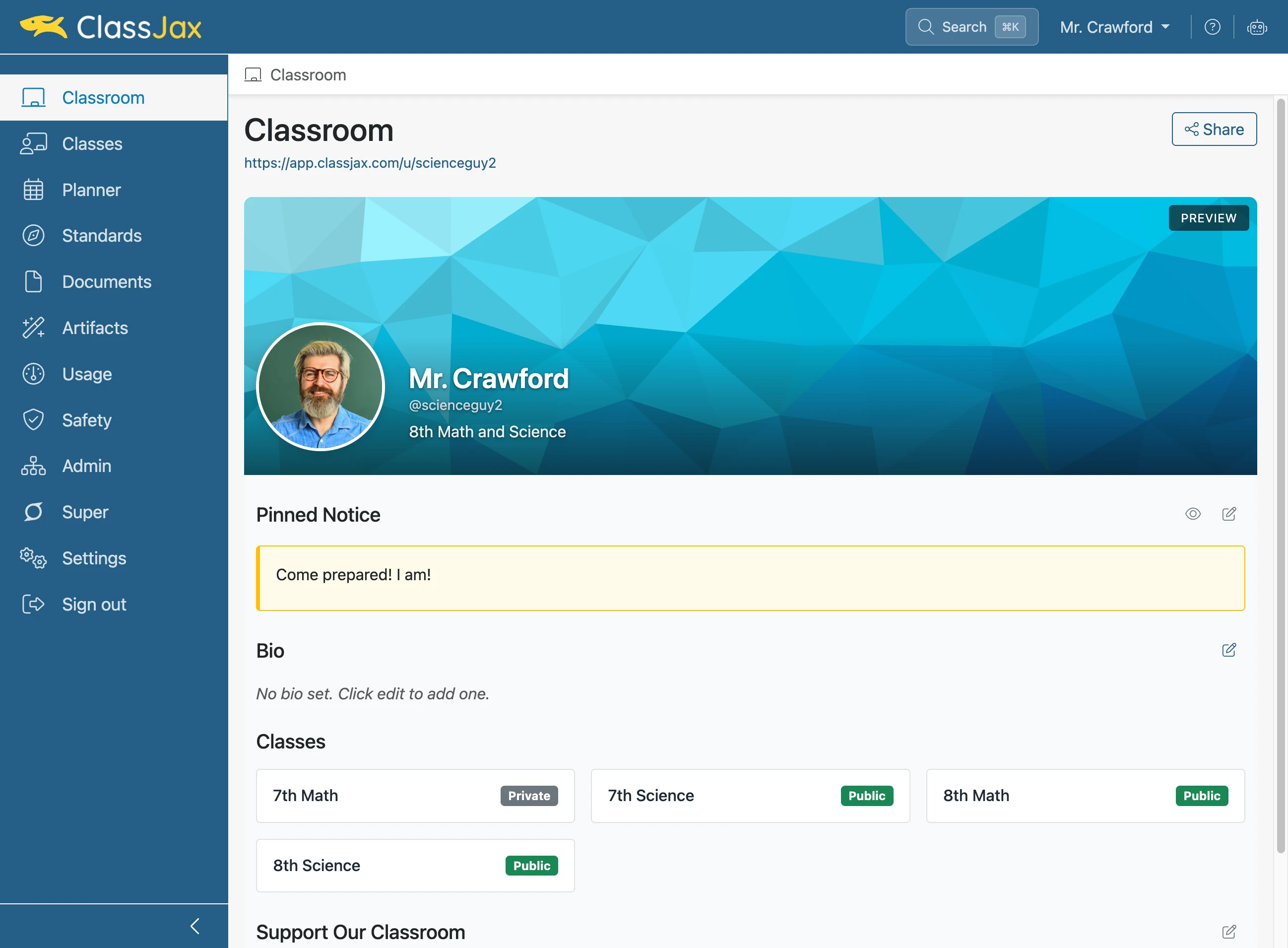
Click 'Edit bio'
- 15
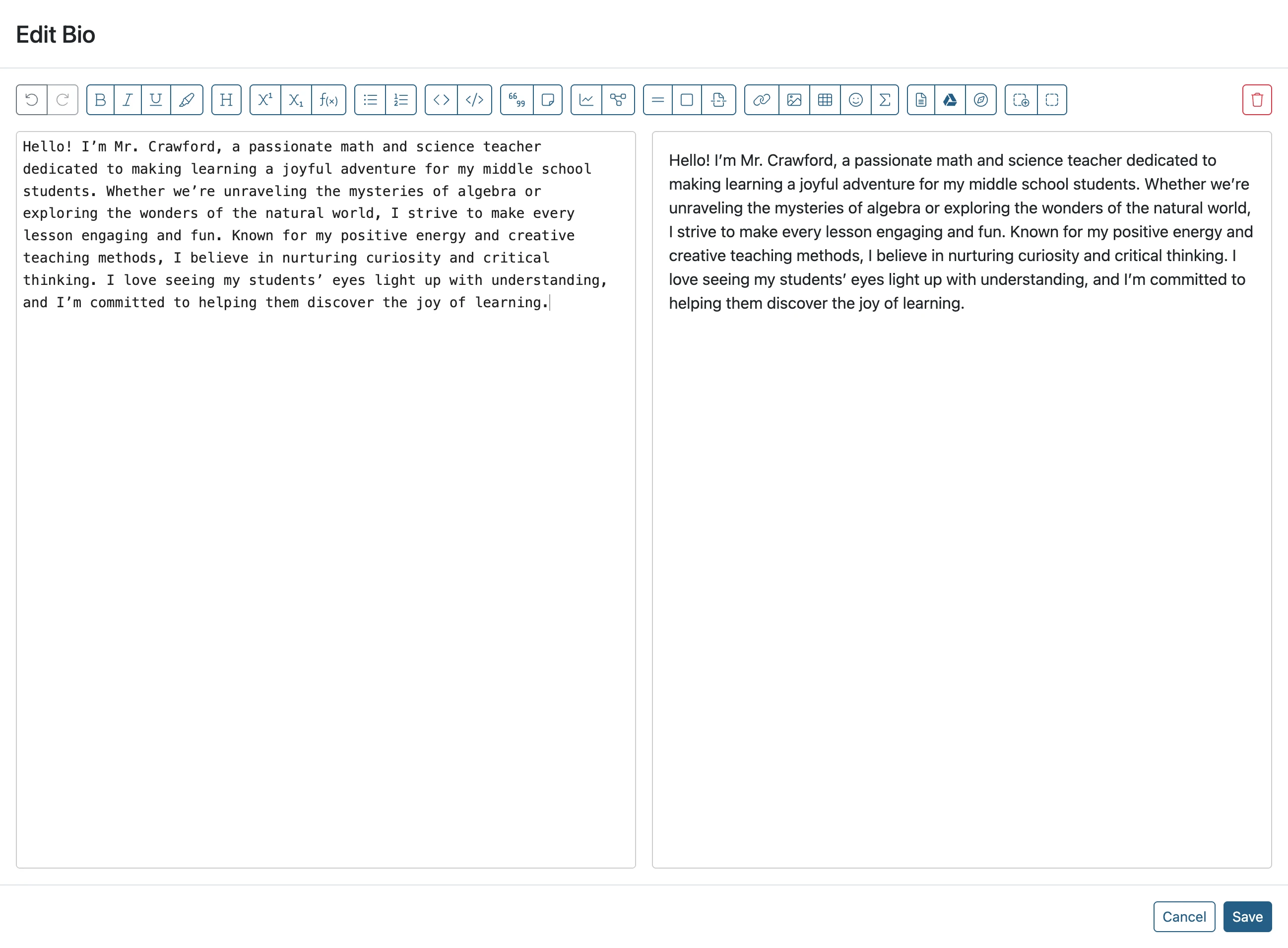
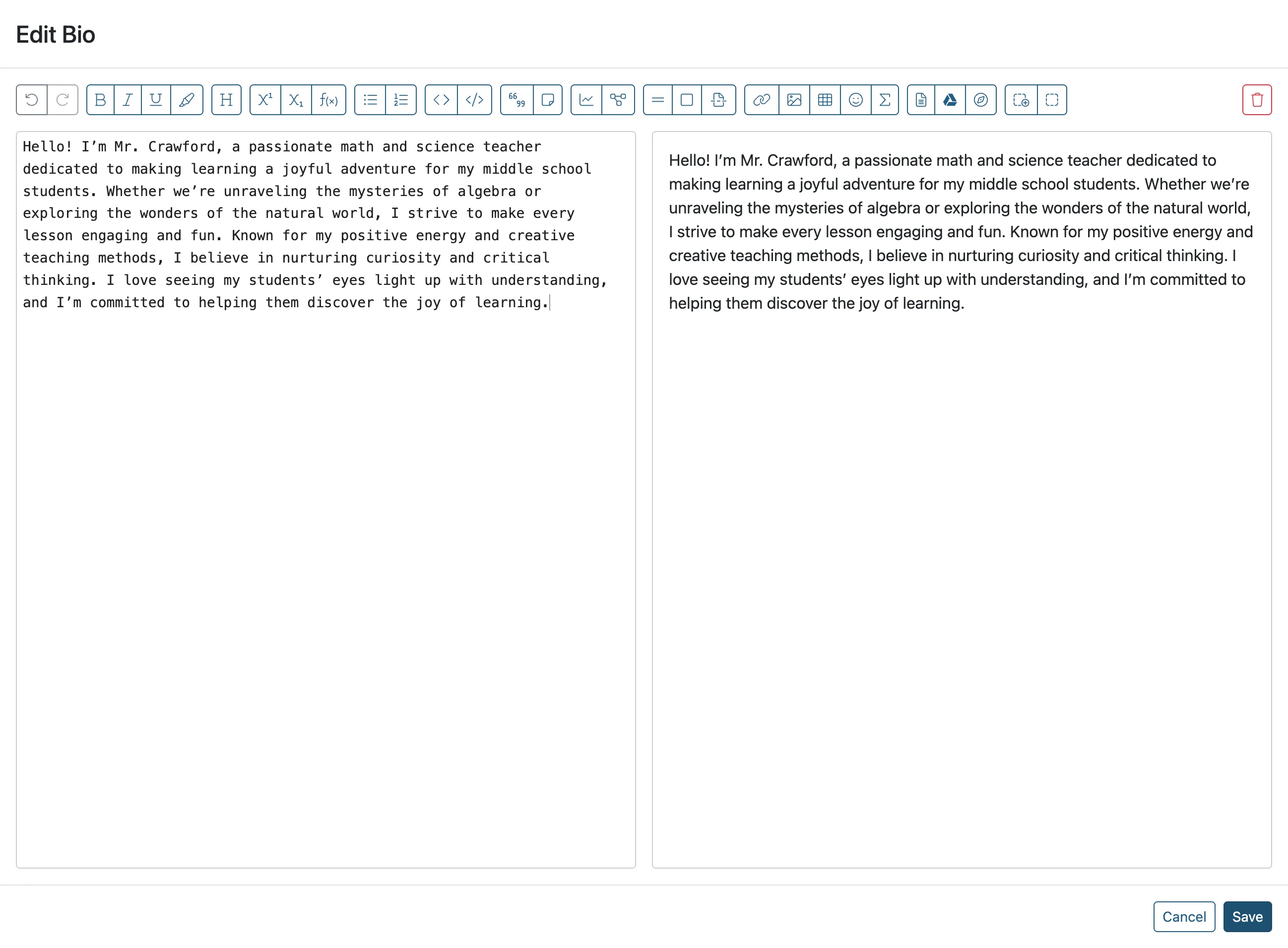
Add a Bio
- 16
Click 'Save'
- 17
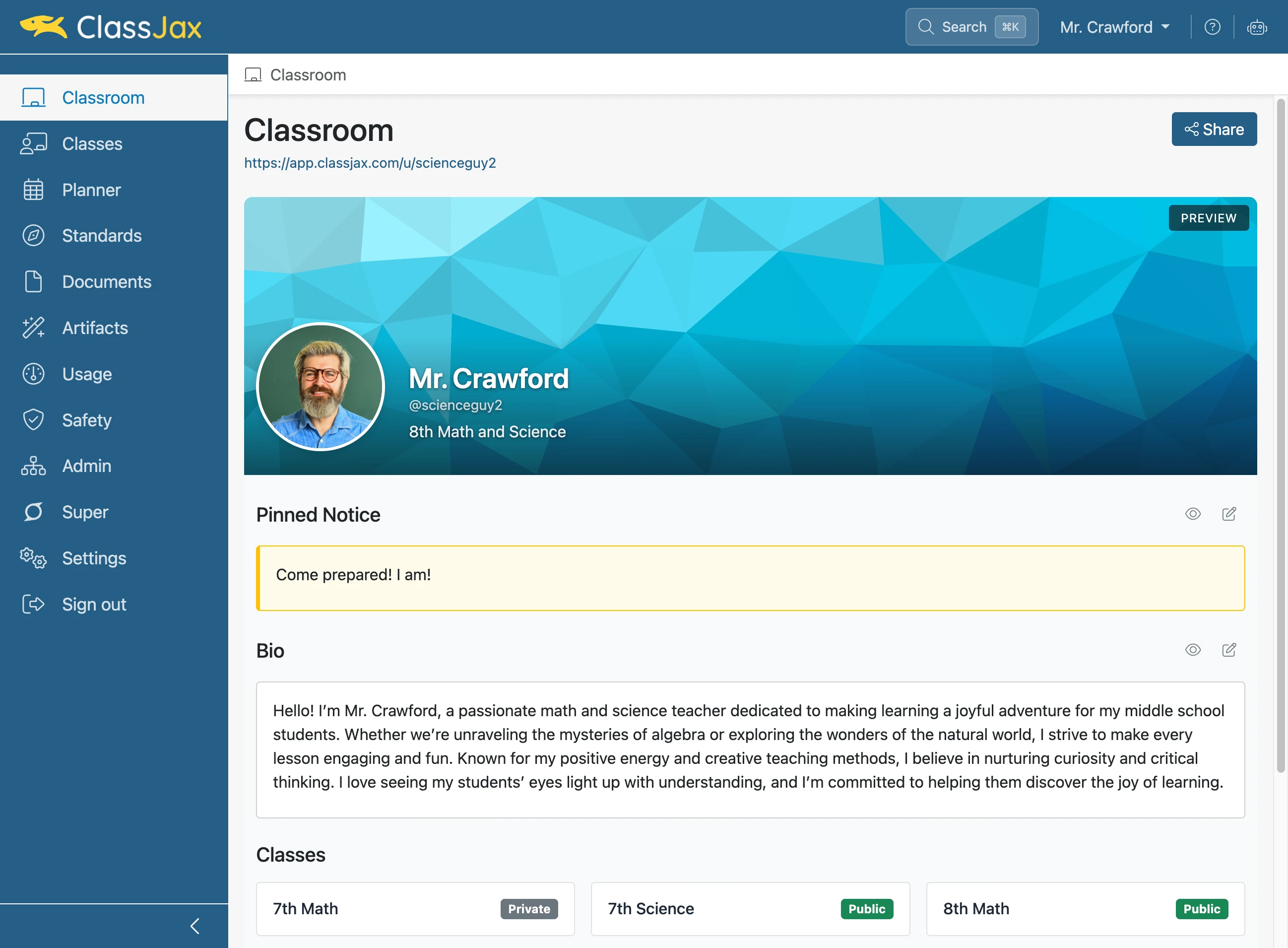
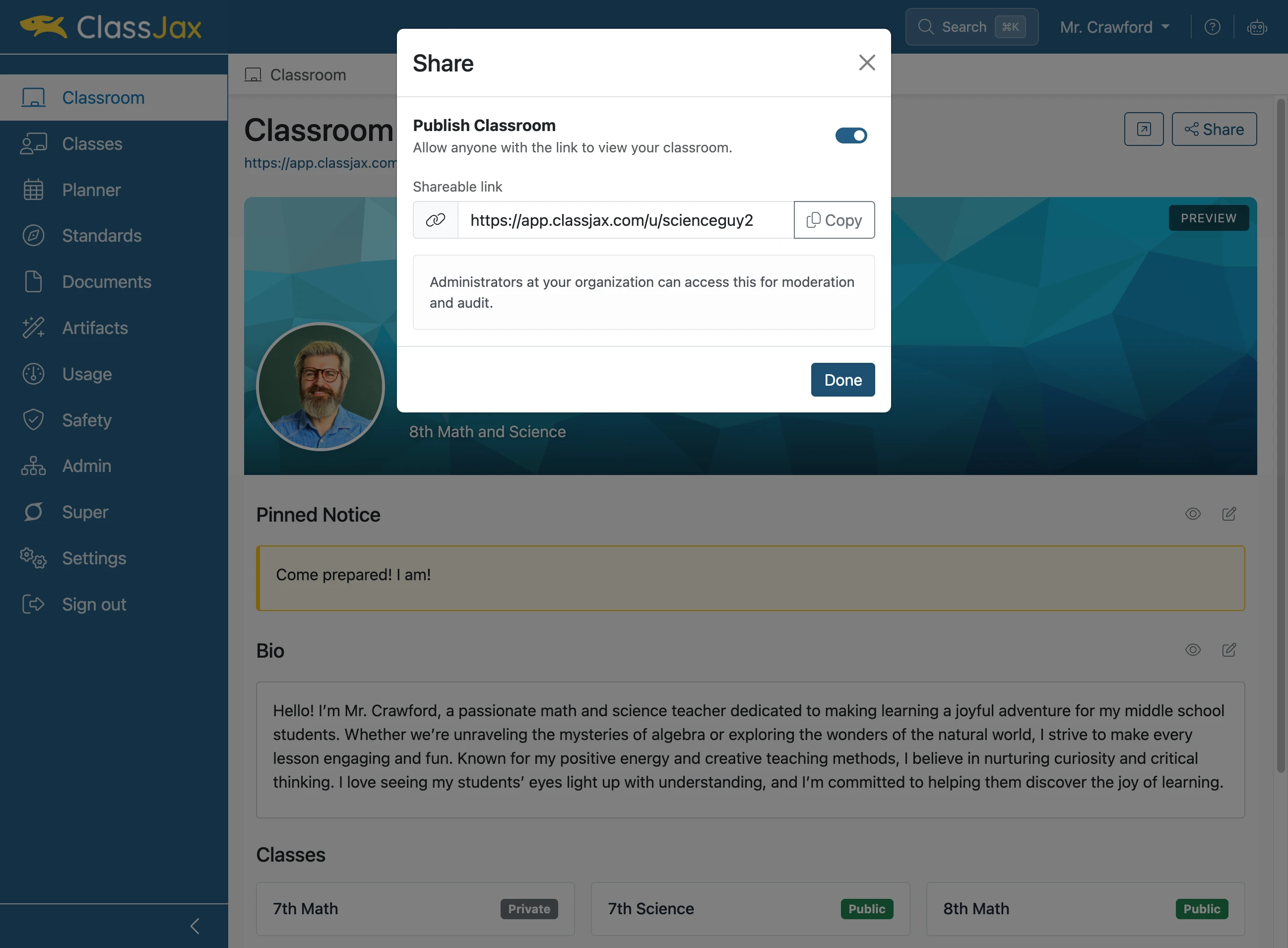
Click 'Share'
- 18
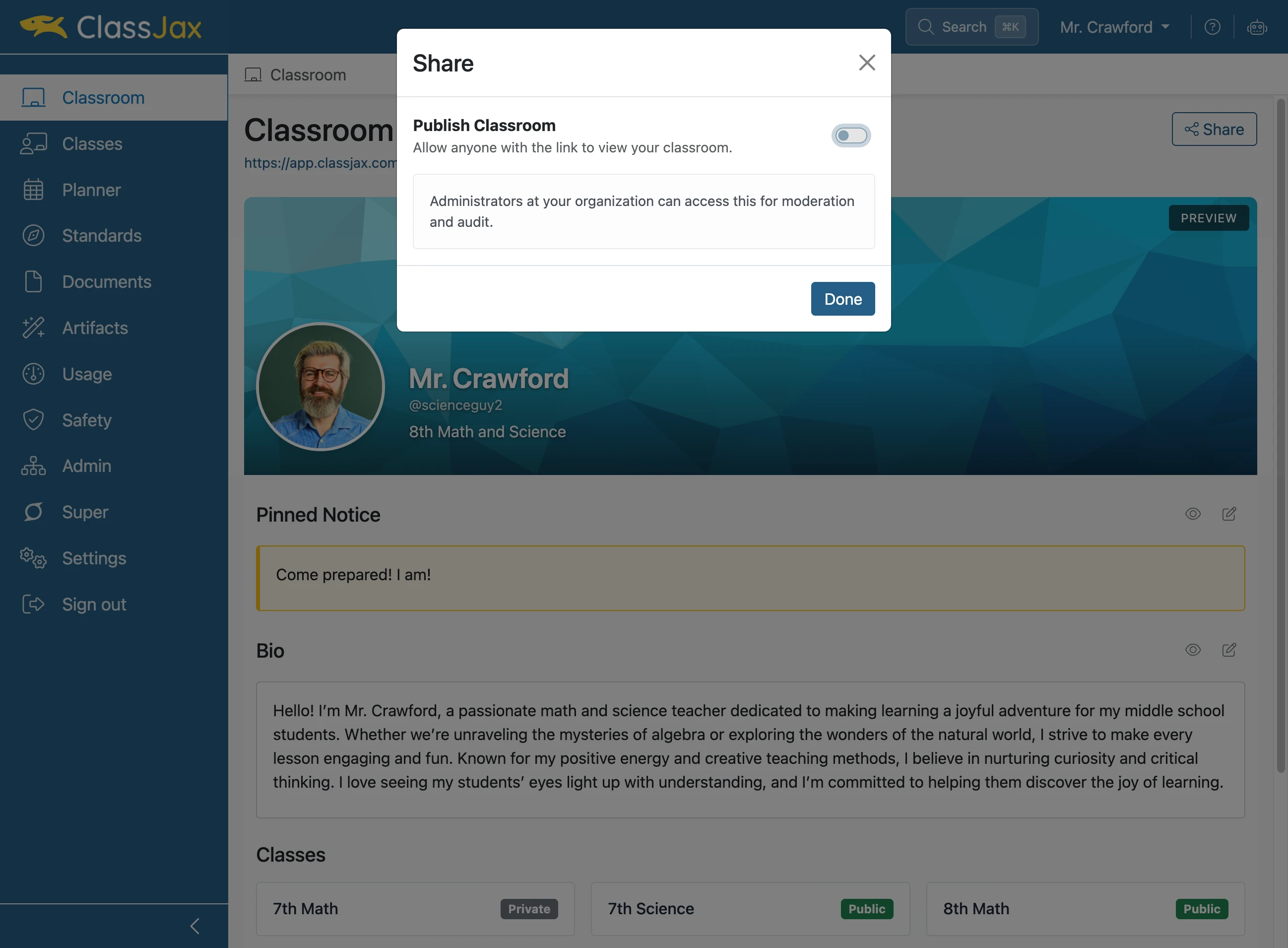
Publish the Classroom
- 19
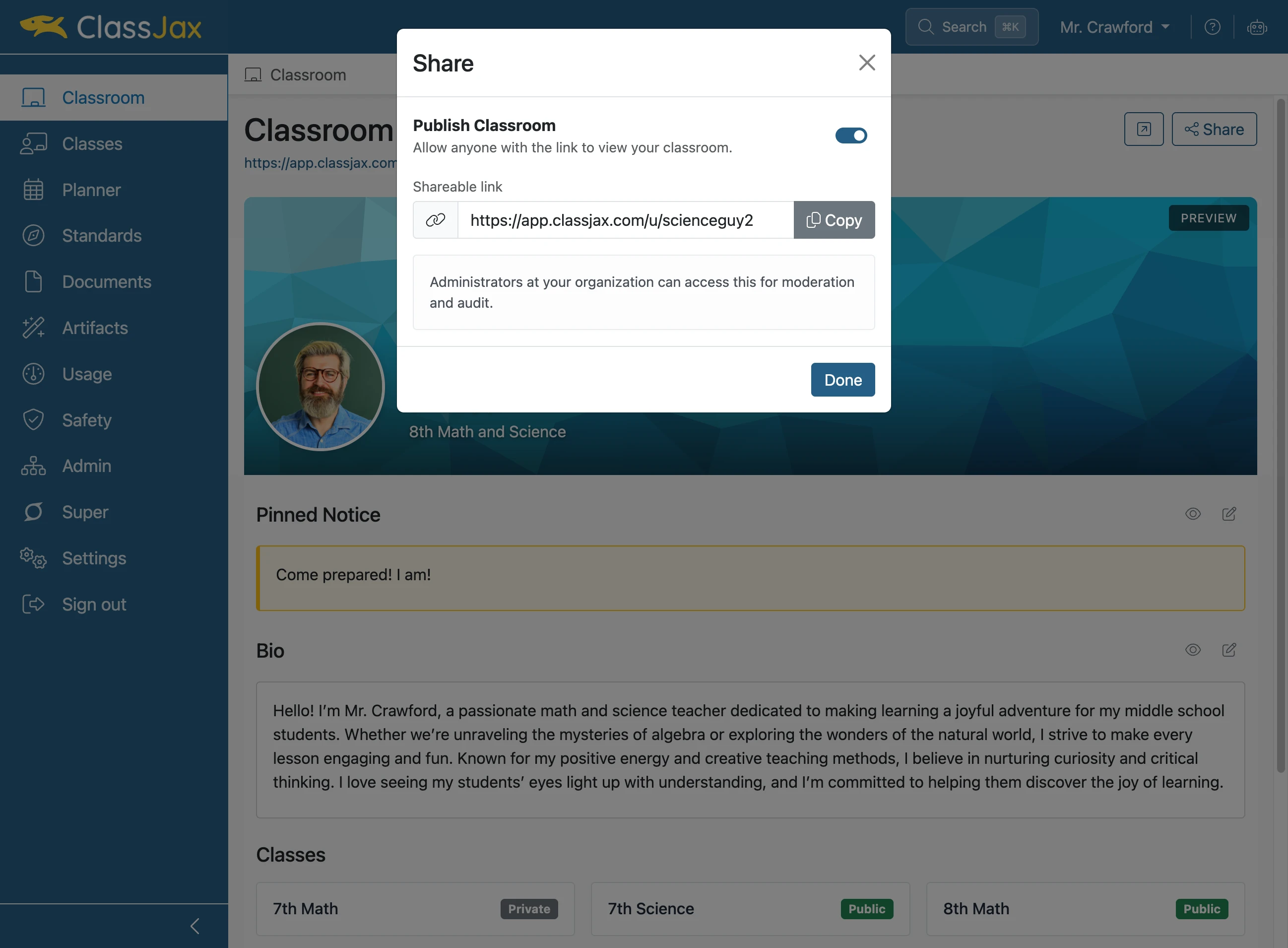
Click 'Copy' to share the Classroom
Share the Classroom via text, email or as link in a lesson plan or document.
- 20
Click 'Done'
- 21
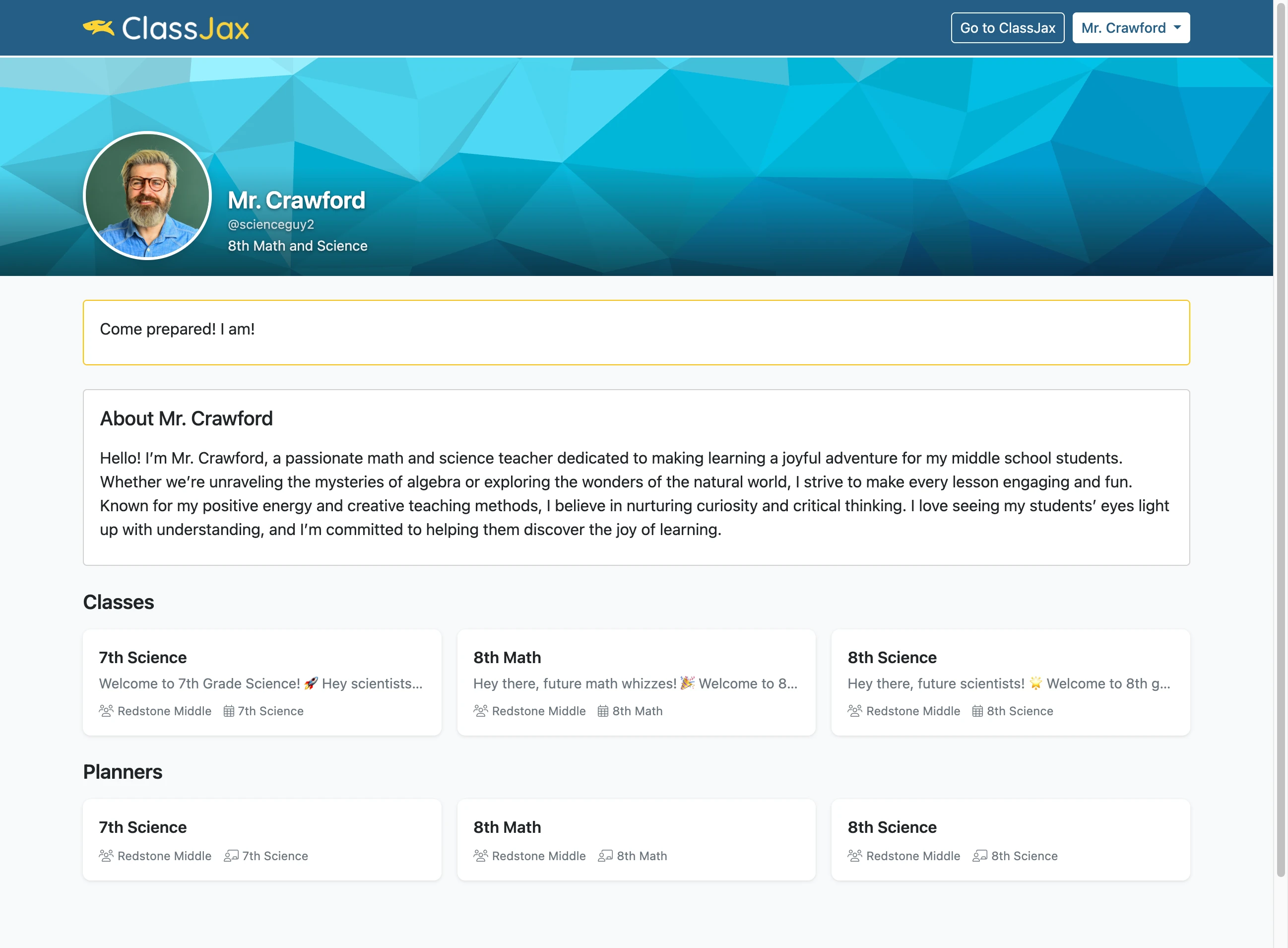
The Public View of the Classroom