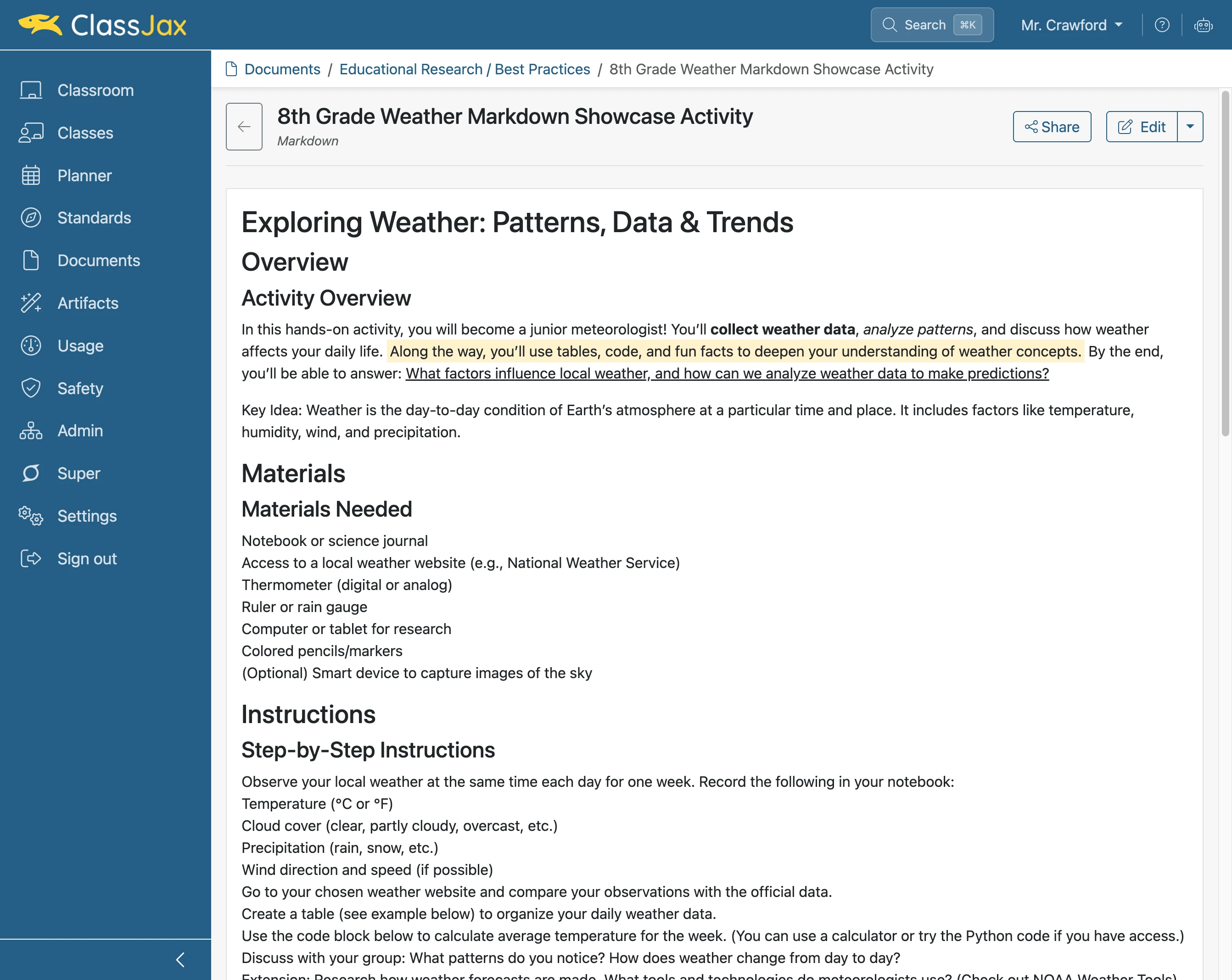

Format Text using Markdown
Markdown text formatting options include bold, italic, underline, and highlighting, among others. To apply formatting, select the desired text and click the corresponding formatting option.
Plan smarter this year
ClassJax is free for teachers. No credit card required.
- 1
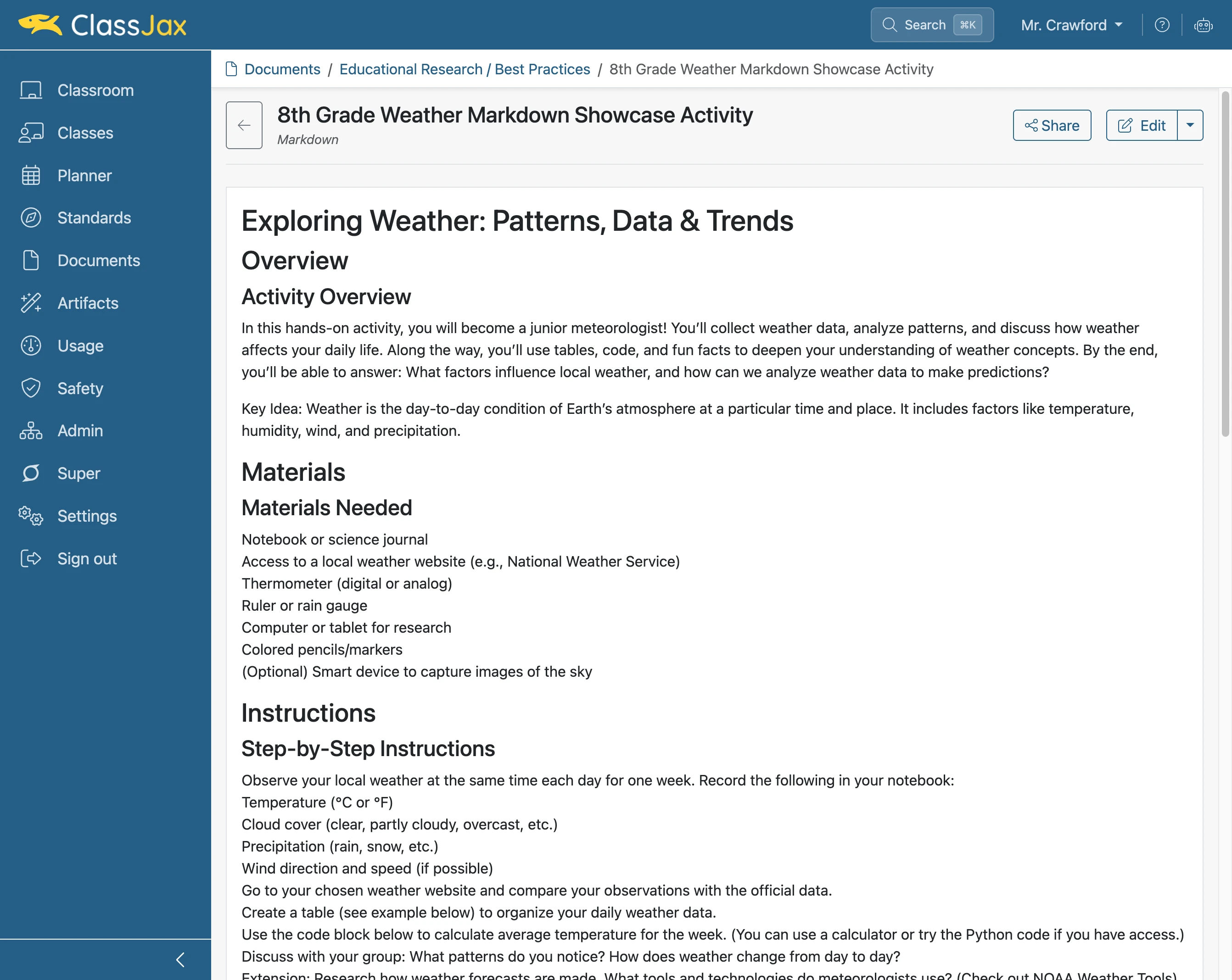
Identify text to format
Understand how to format text within paragraphs using Markdown formatting options.
- 2
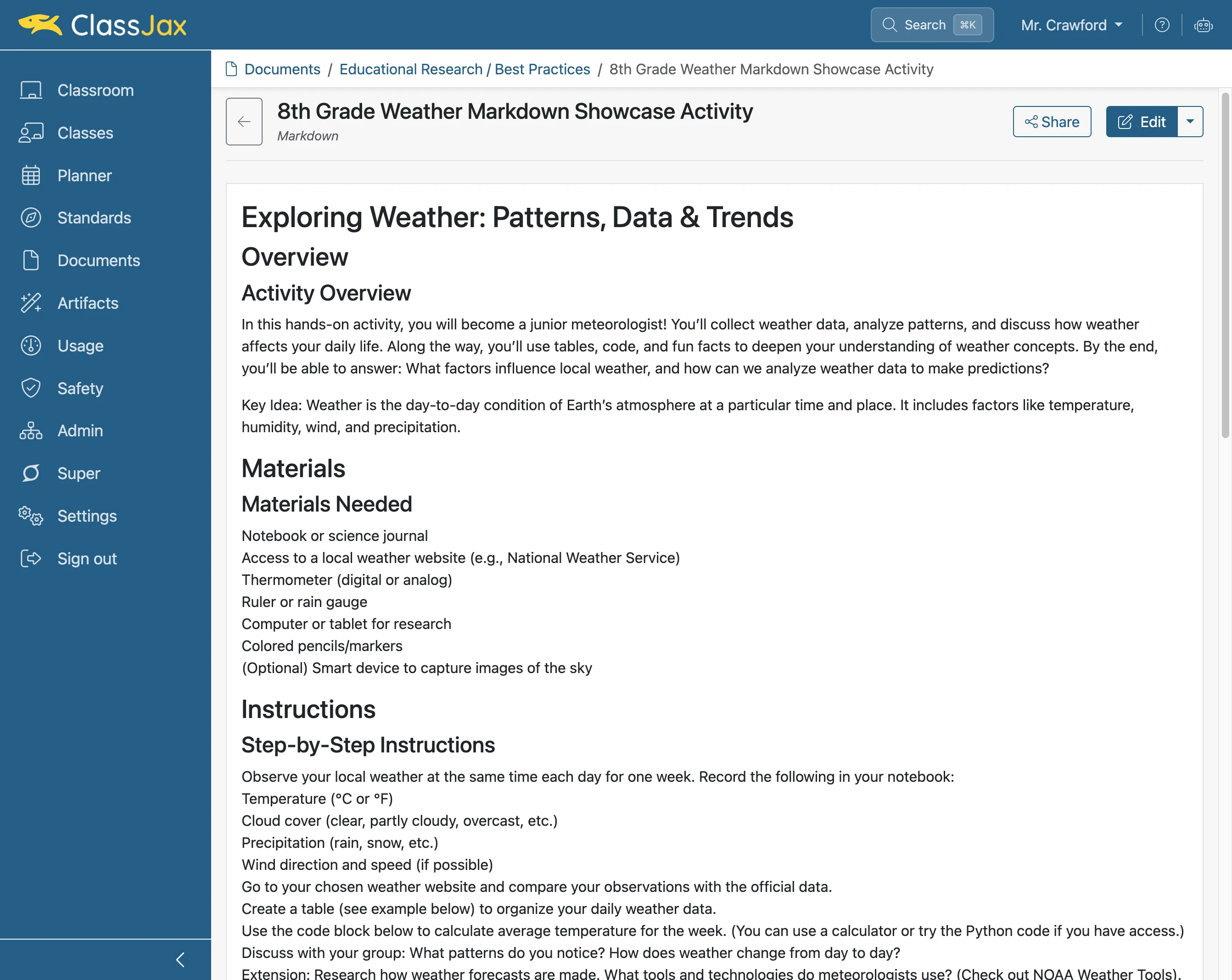
Click 'Edit'
This Markdown example is from a Document. Markdown is also used in lesson plans within the Planner and throughout other areas of ClassJax.
- 3
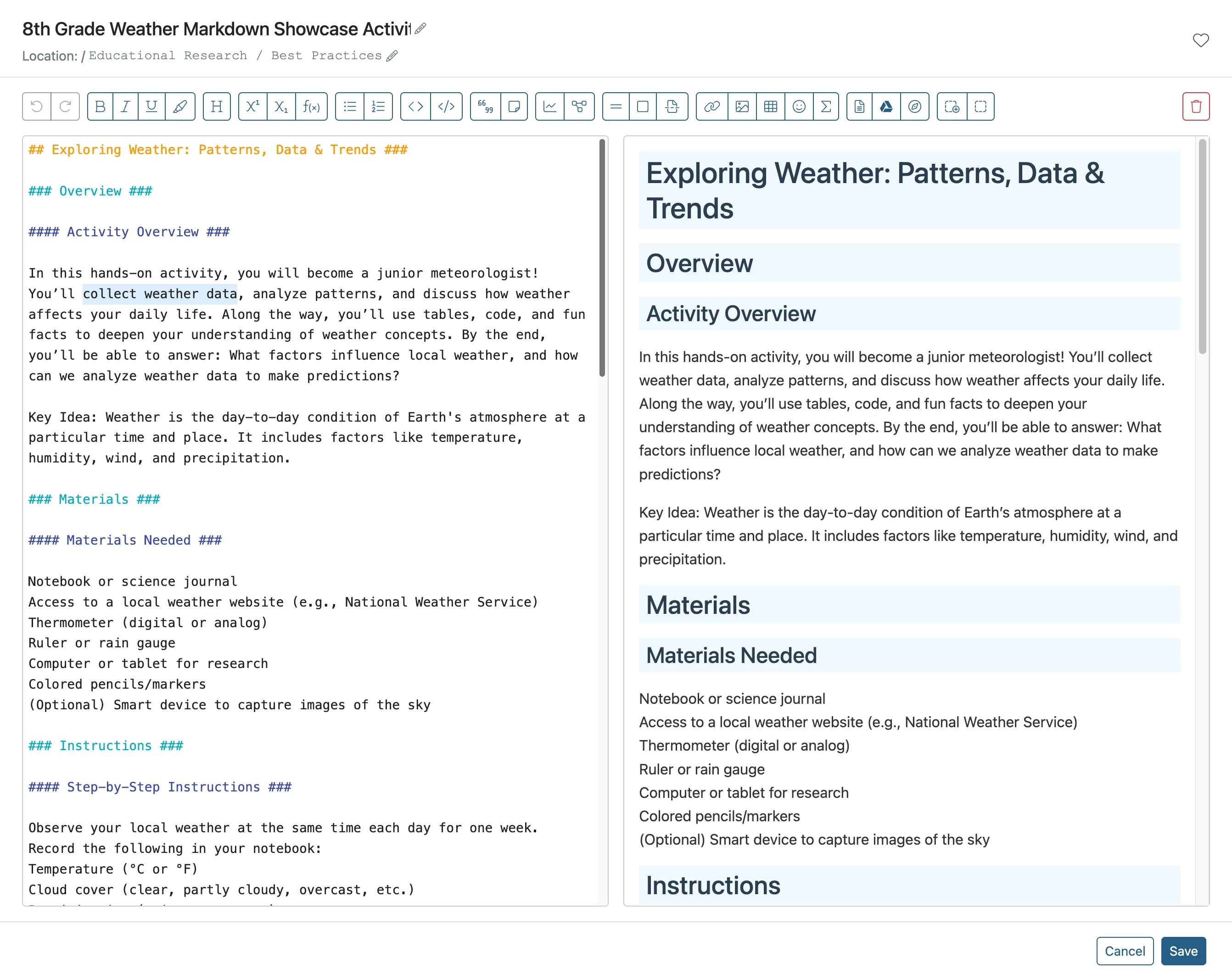
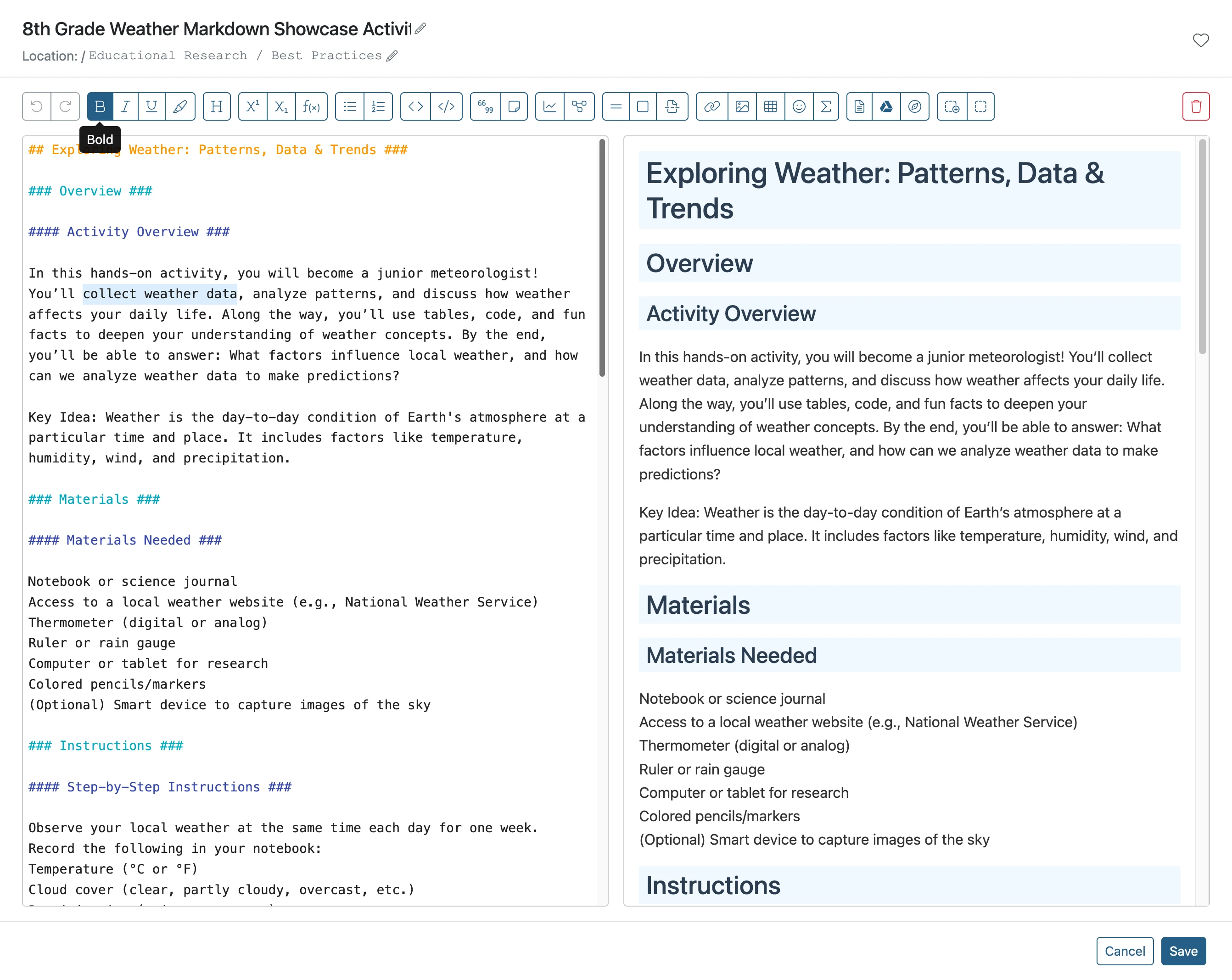
Select text to bold
Select the text you want to format as bold by clicking and dragging over it.
- 4
Click the 'Bold' button
Click the bold formatting option.
- 5
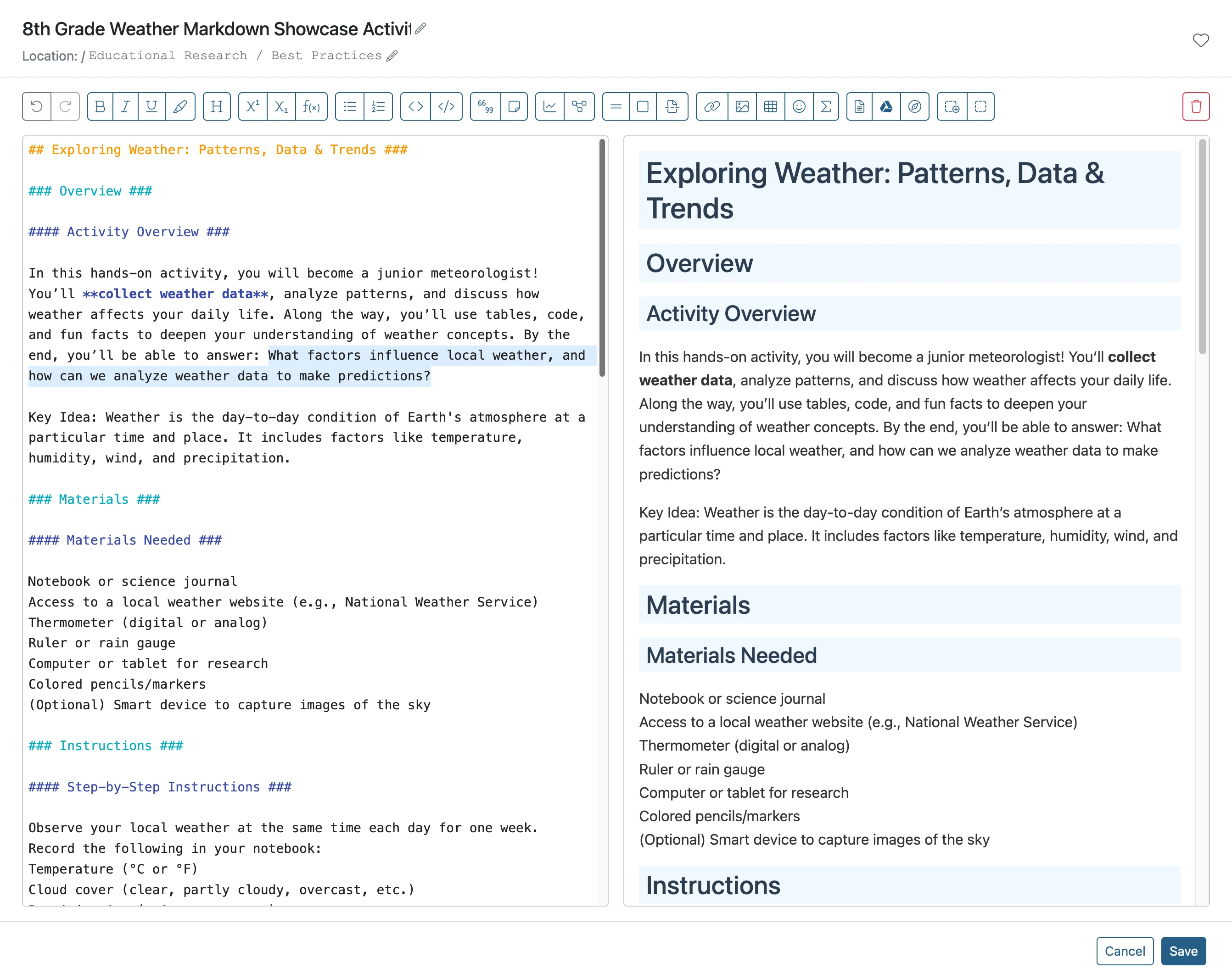
Select text to underline
Select the text you want to underline by clicking and dragging over it.
- 6
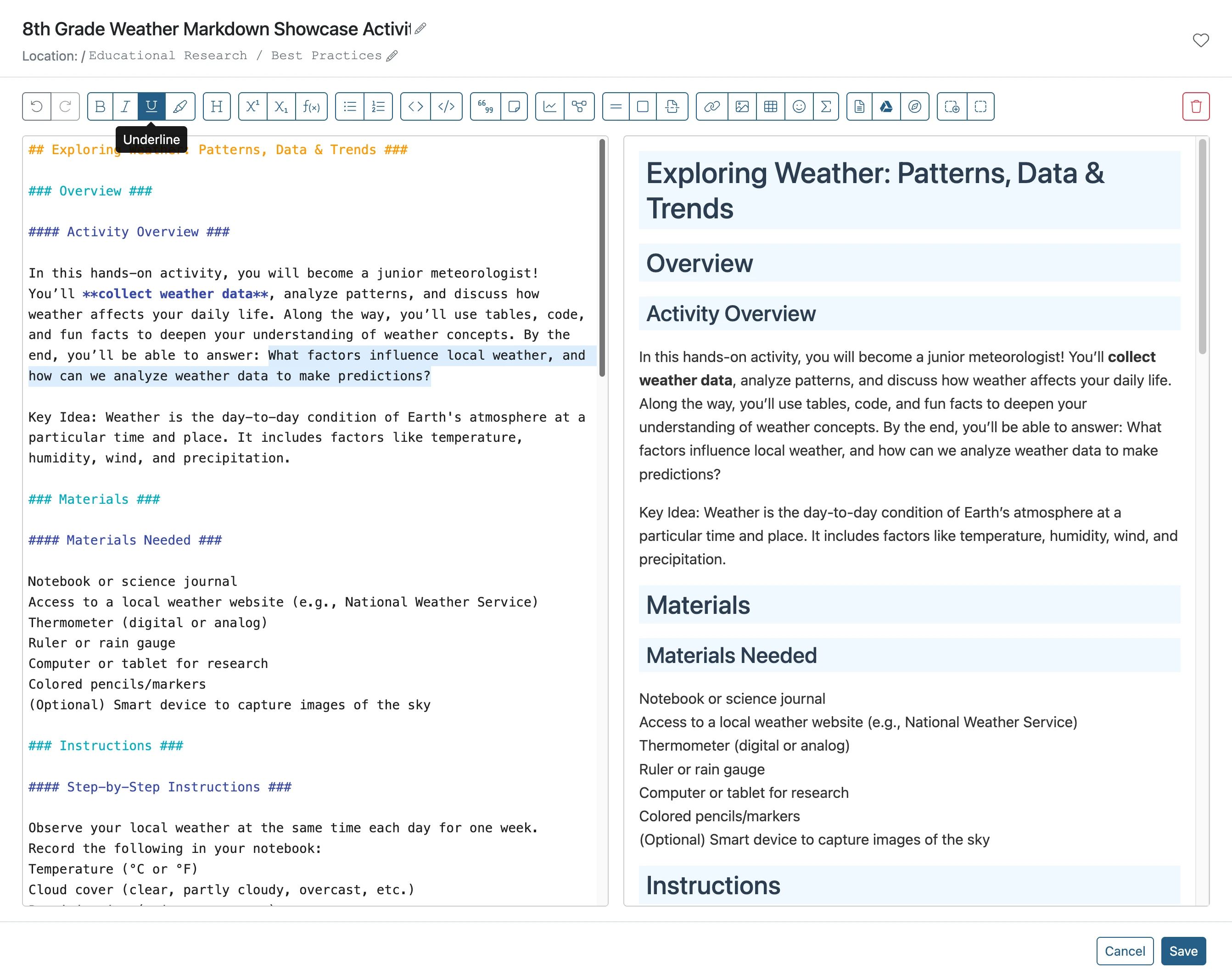
Click the 'Underline' button
Click the underline formatting option.
- 7
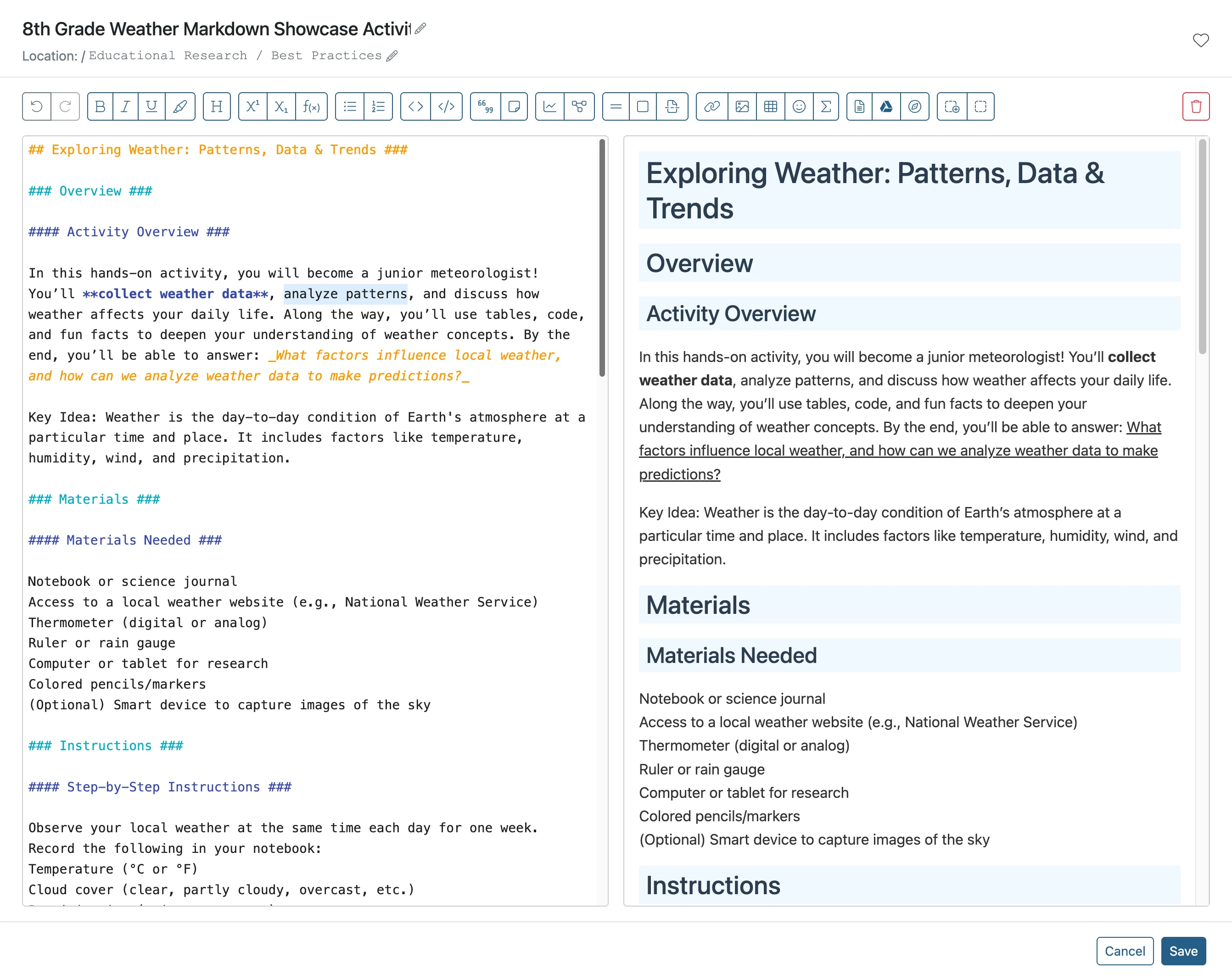
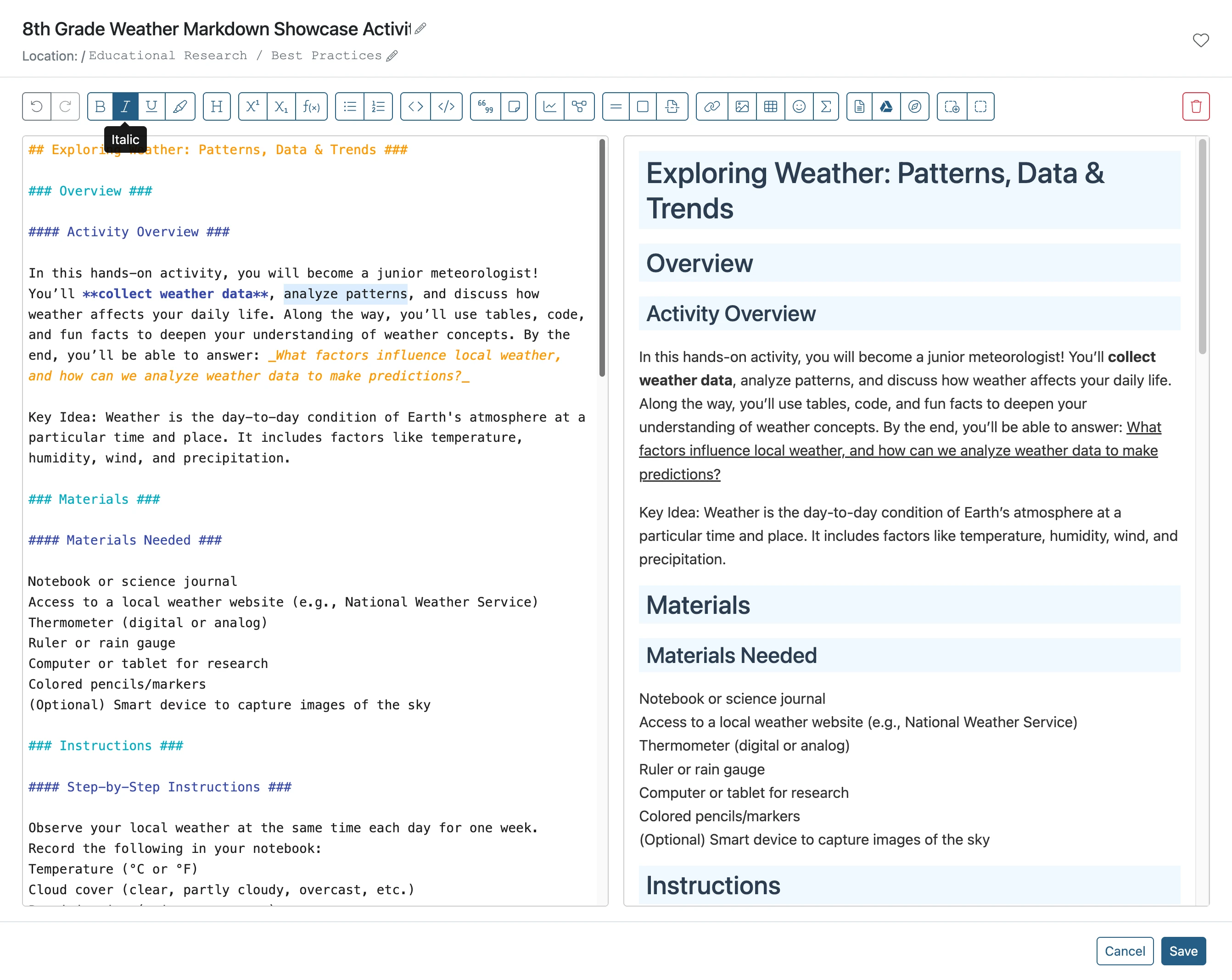
Select text to italize
Select the text you want to italize by clicking and dragging over it.
- 8
Click the Italicize button
Click the italicize formatting option.
- 9
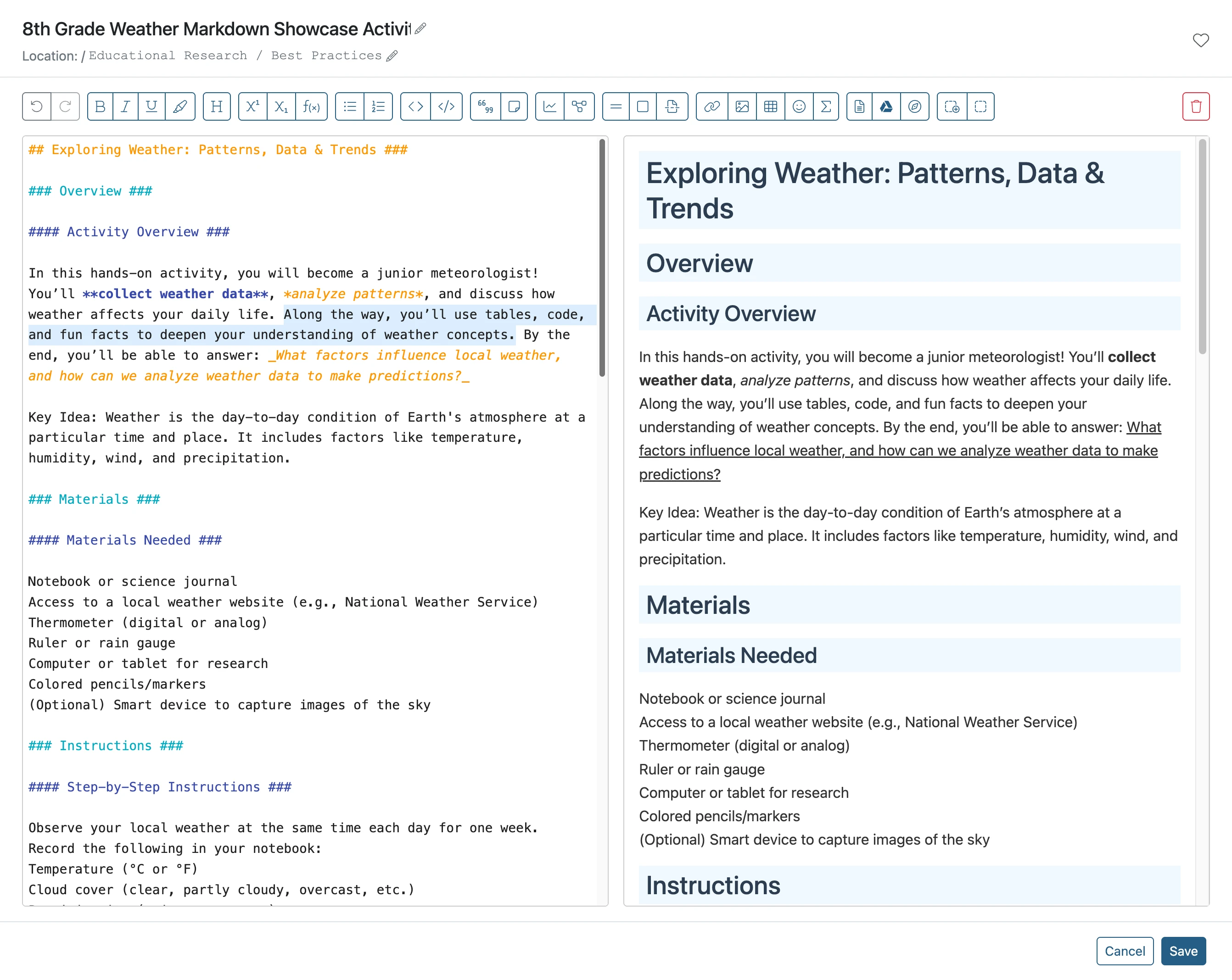
Select the text to highlight
Select the text you want to highlight by clicking and dragging over it.
- 10
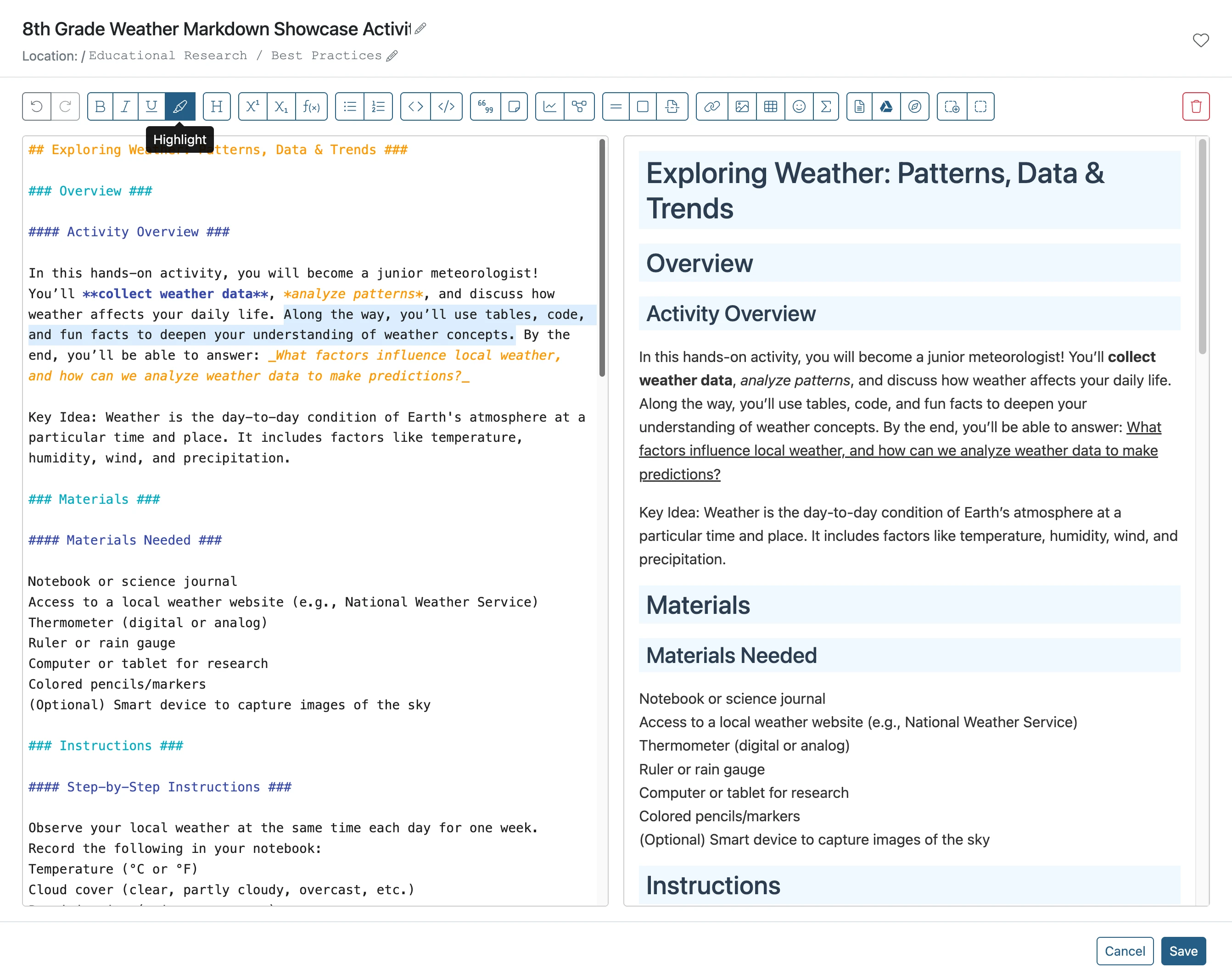
Click the Highlight button
Click the highlight formatting option.
- 11
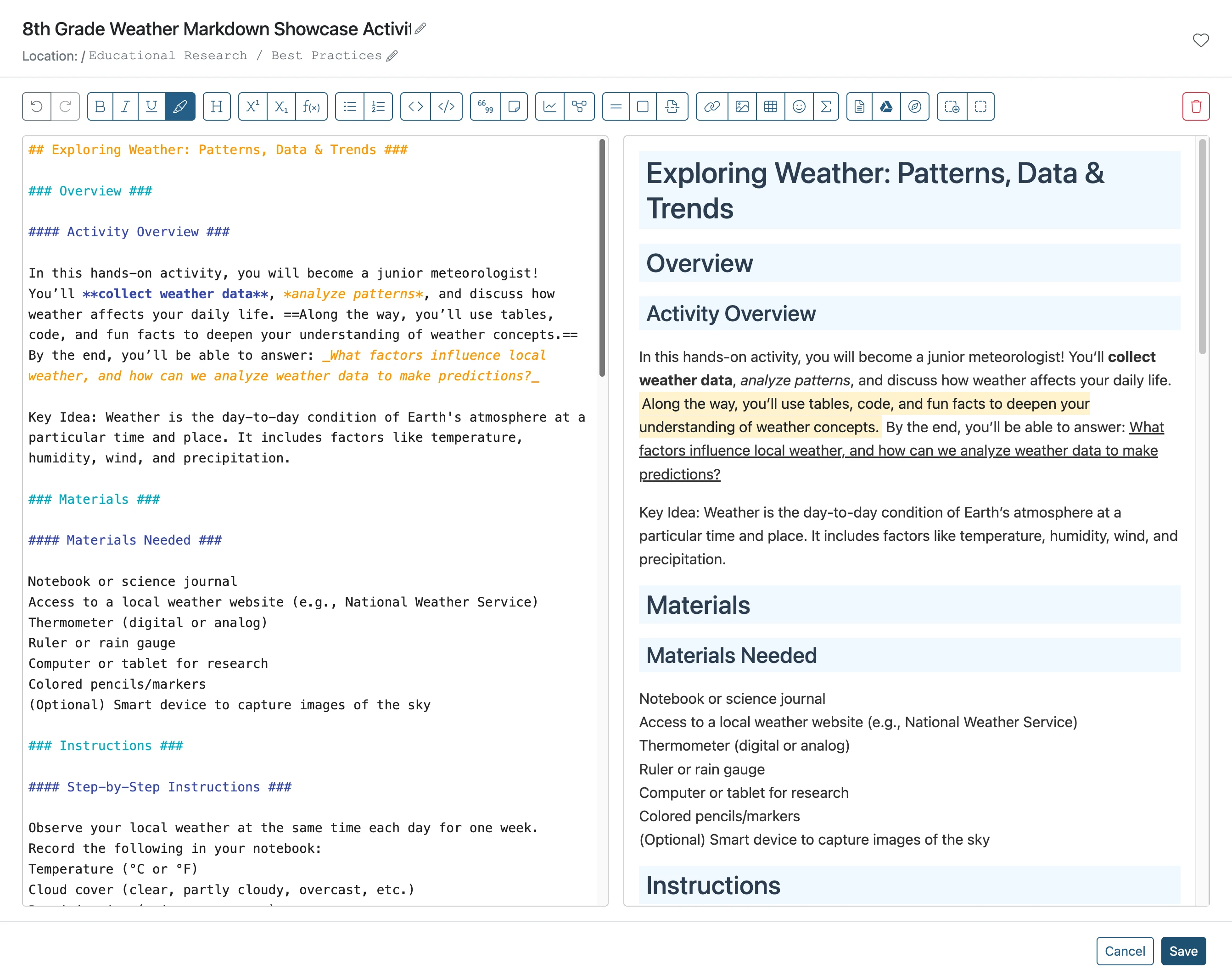
Click 'Save'
- 12
Formatting Results