
Create a Campus Template
Lesson Plan templates can be created for use by faculty across a school campus.
Plan smarter this year
ClassJax is free for teachers. No credit card required.
- 1
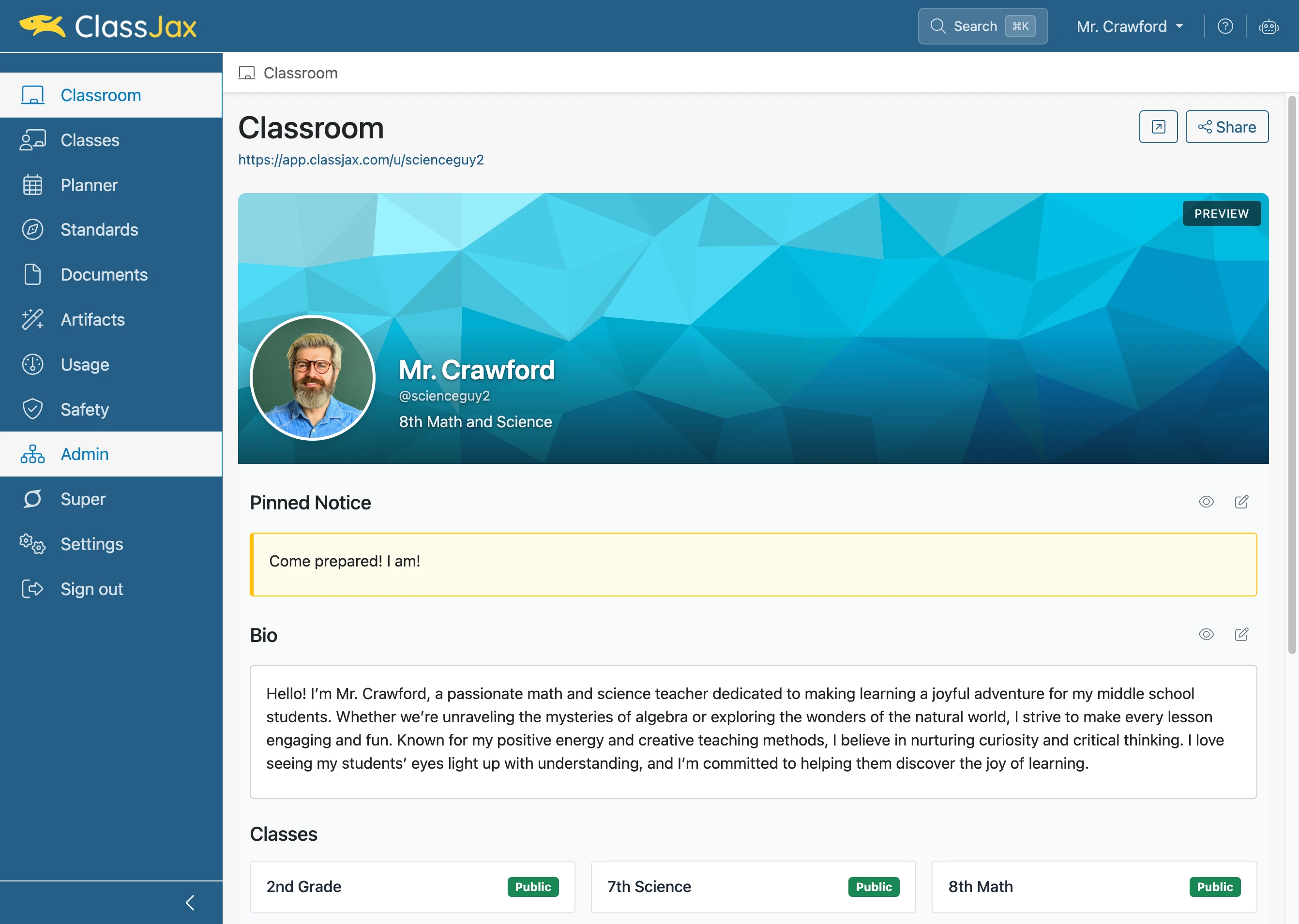
Click the 'Admin' link
- 2
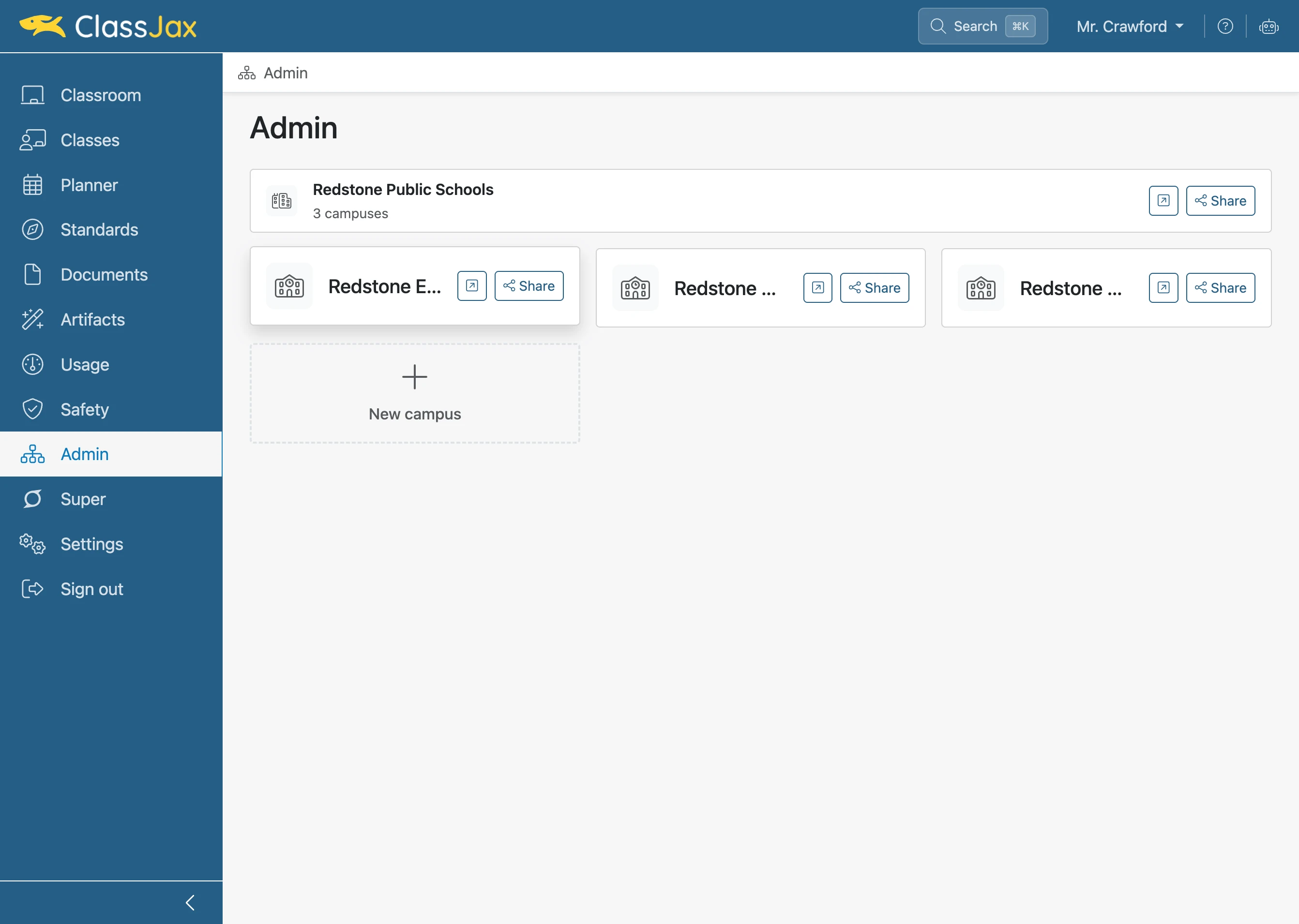
Click 'Redstone Elementary'
- 3
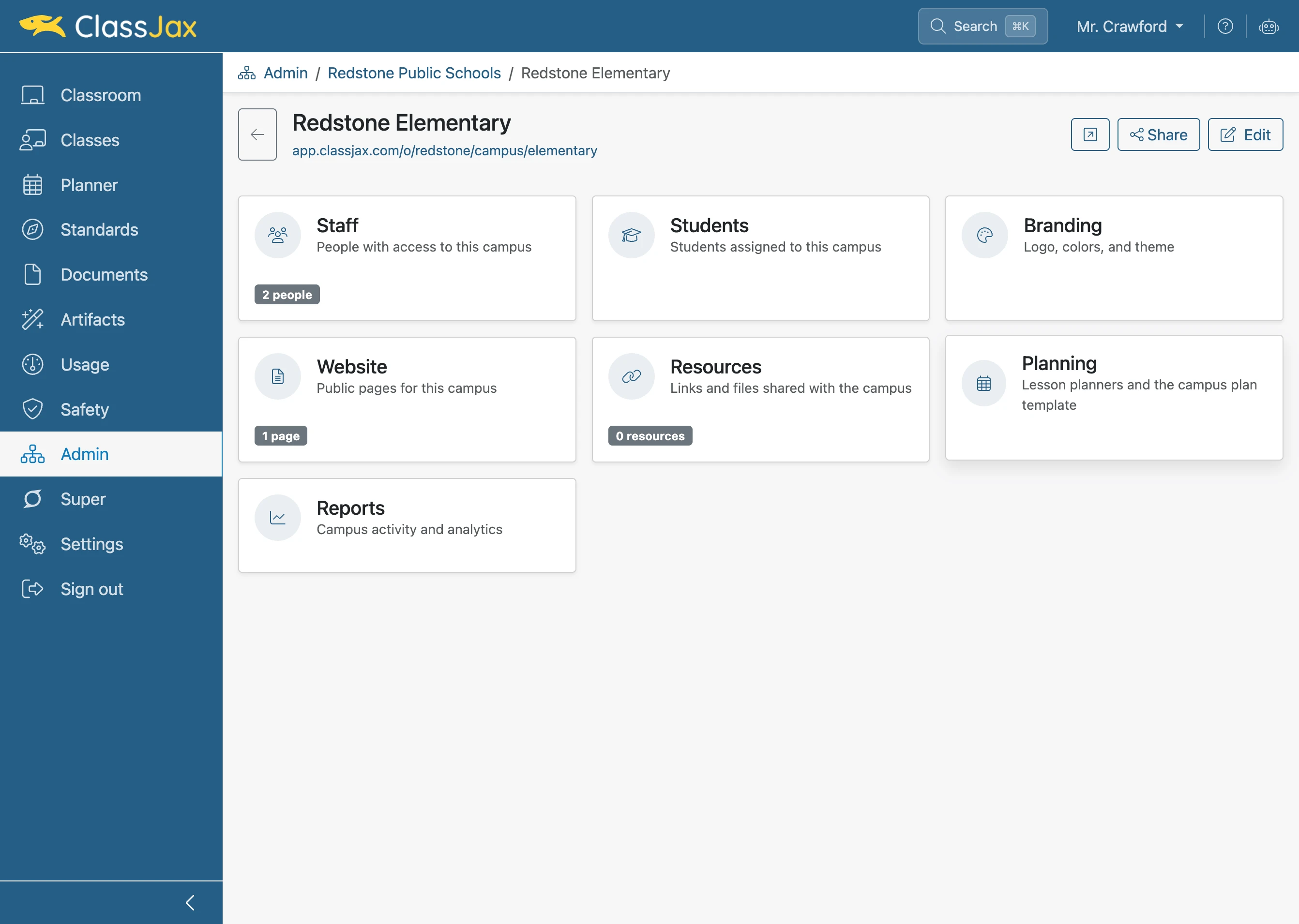
Click 'Planning'
- 4
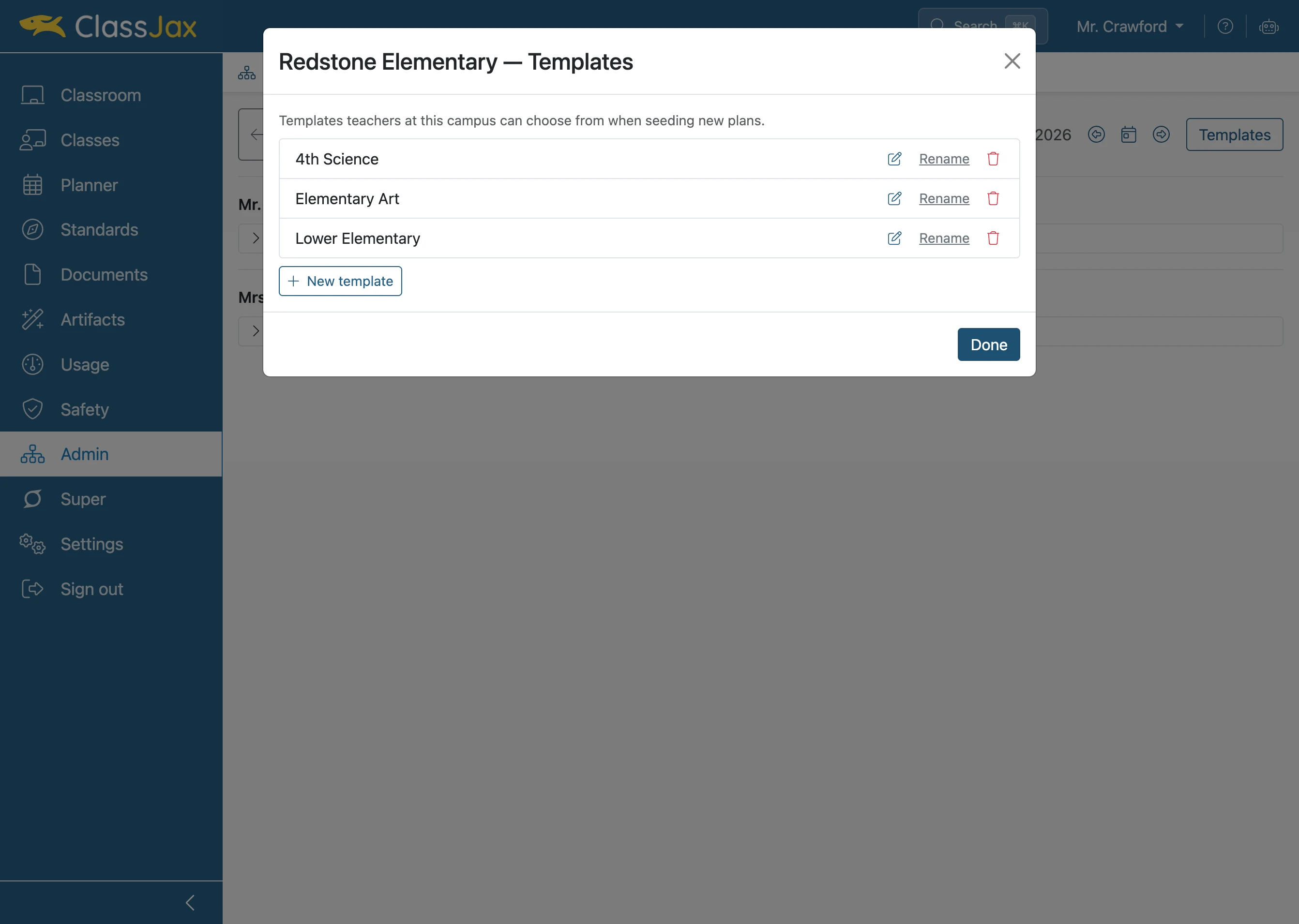
Click 'Templates'
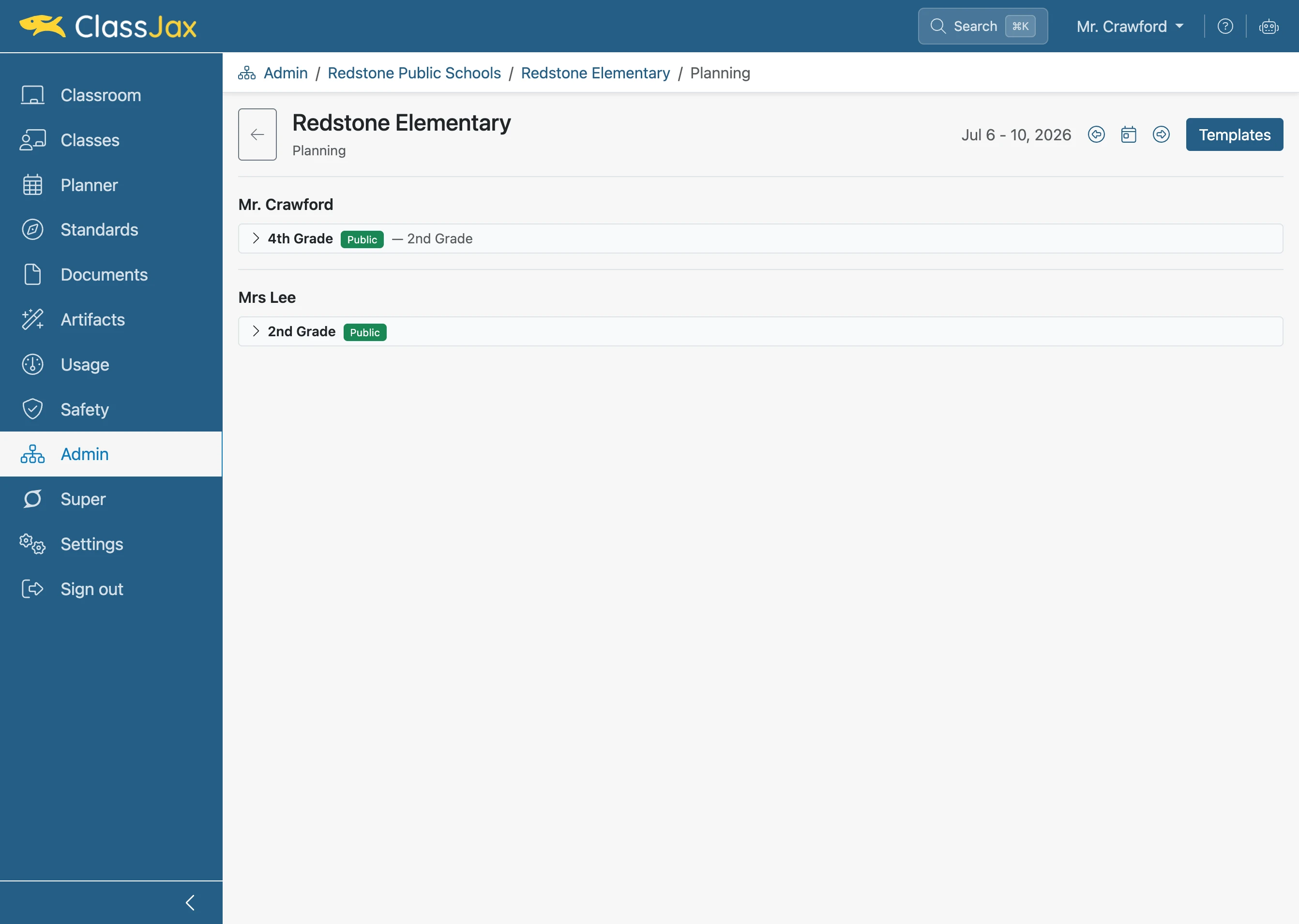
- 5
Click 'New template'
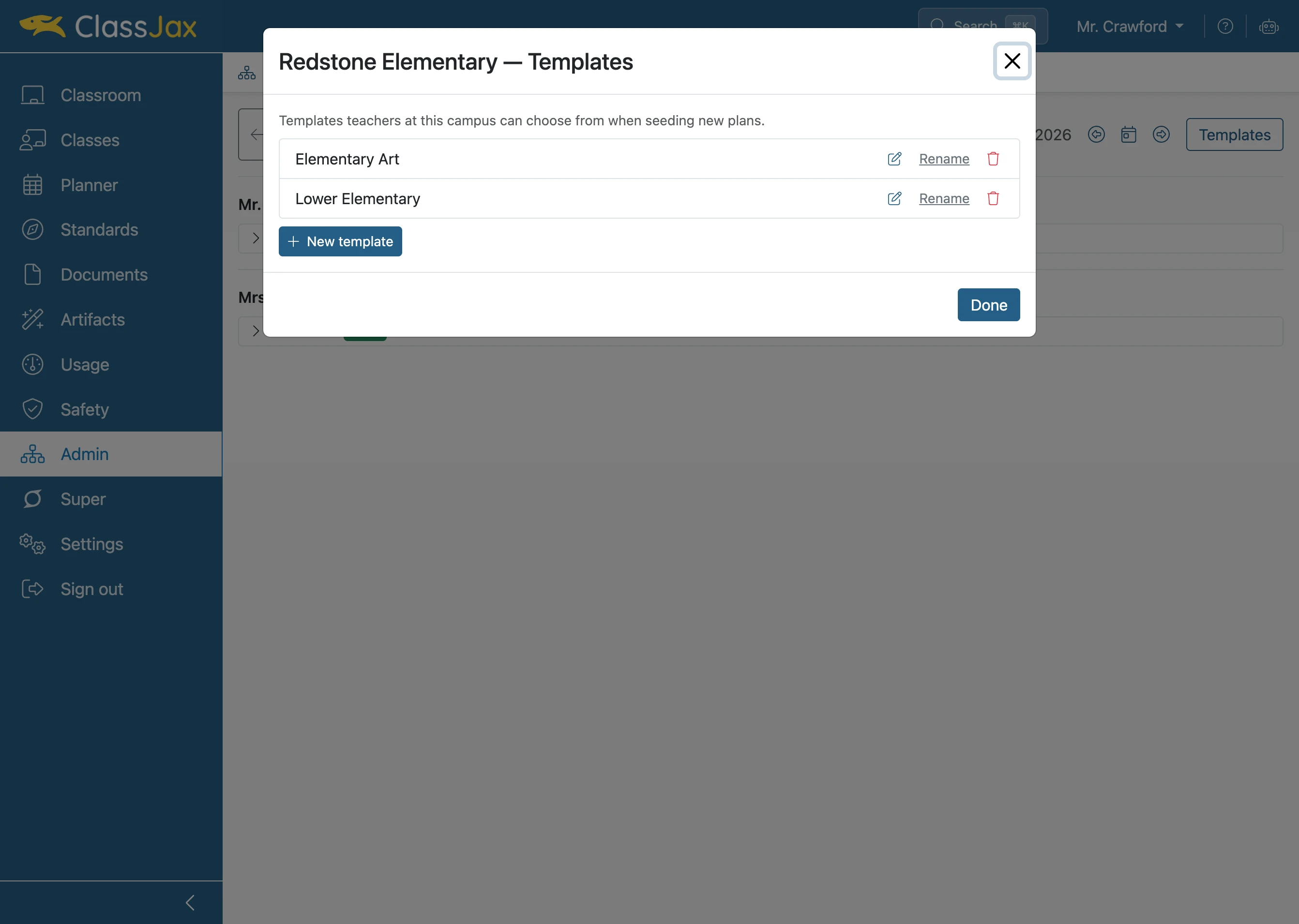
- 6
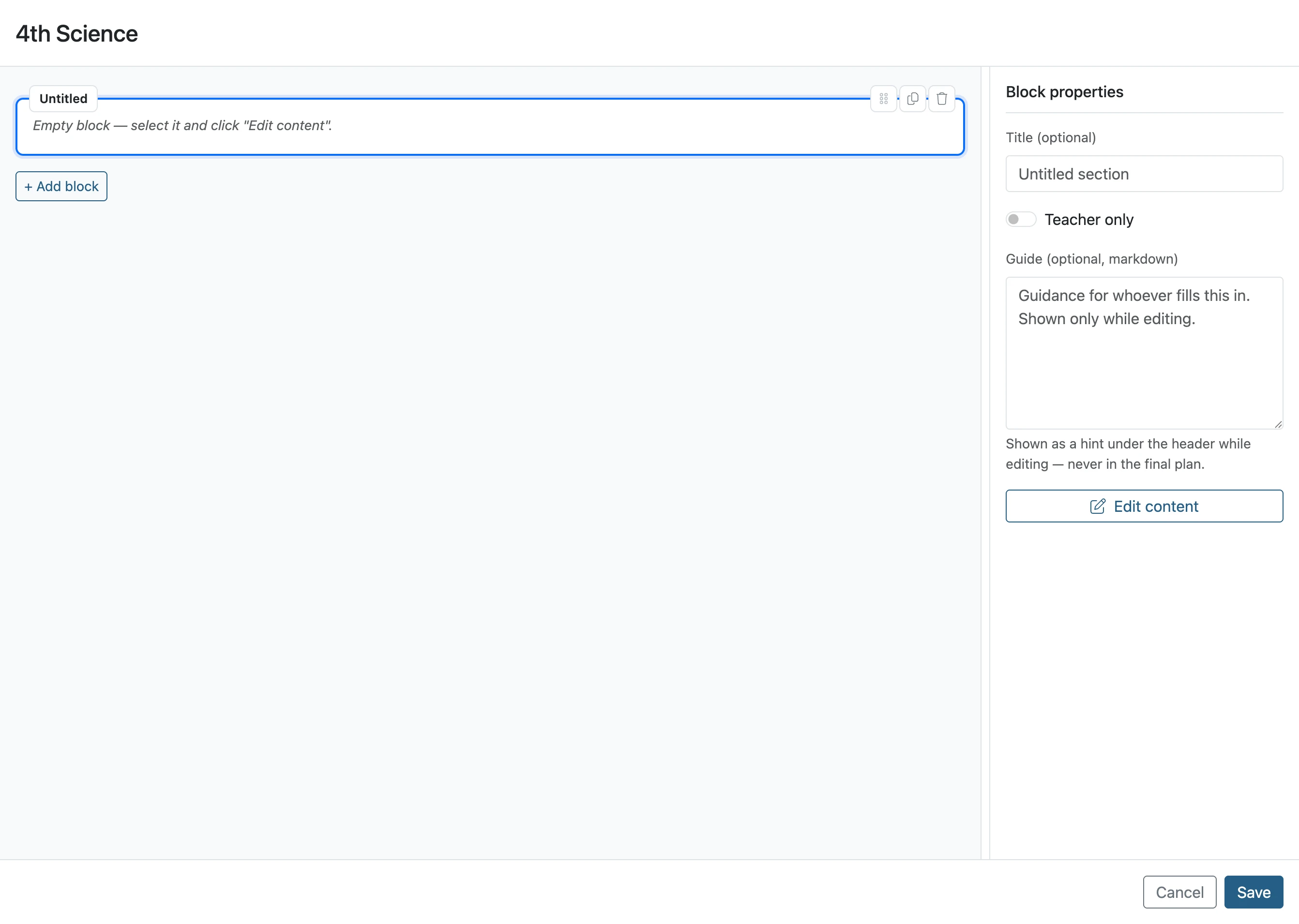
Click 'Guidance' field
Add text to guide the content expected to be included in this block. Adding a title provides a blue header that can not be deleted or its order changed when editing in a lesson plan.
- 7
Click 'Edit content'
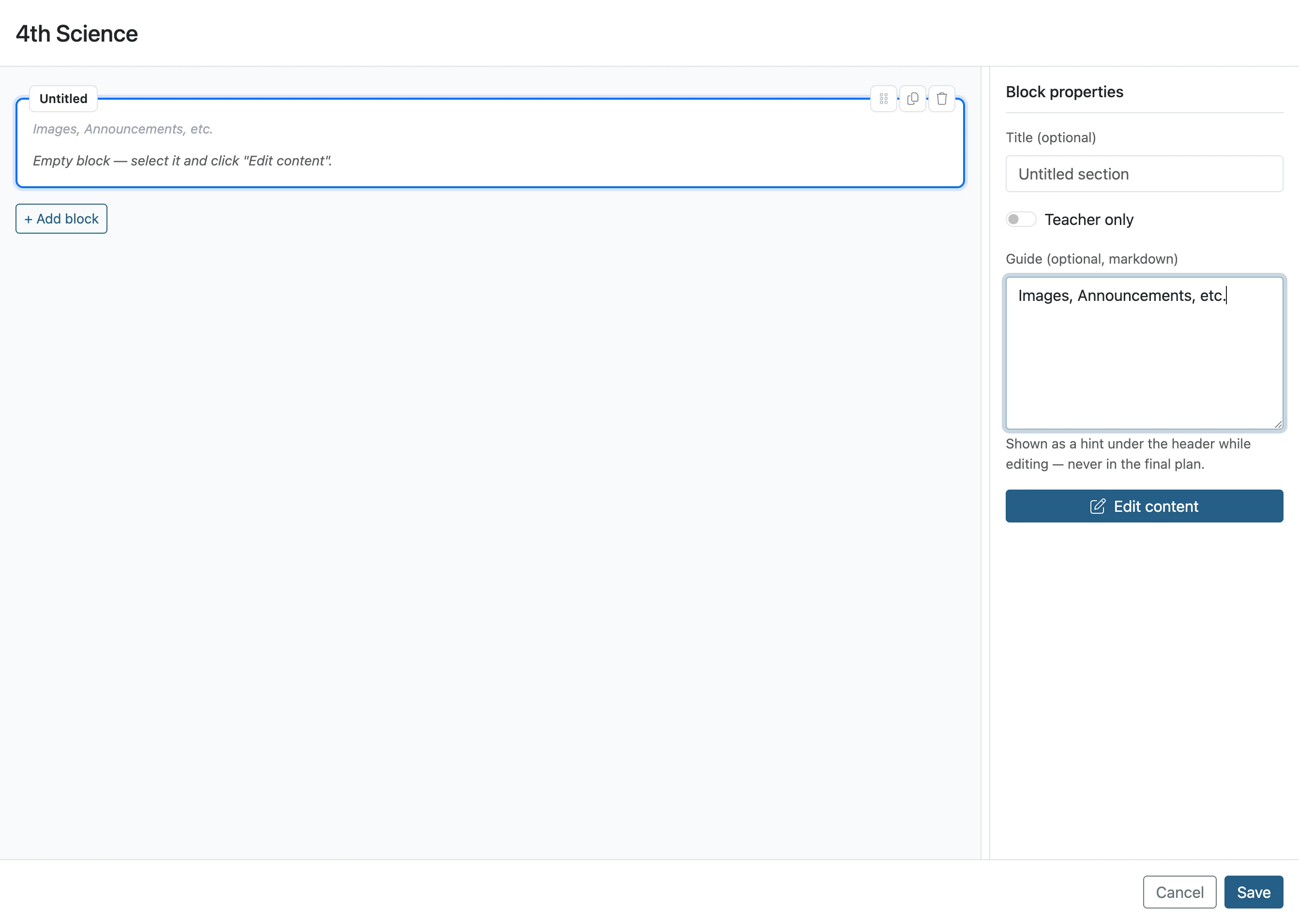
- 8
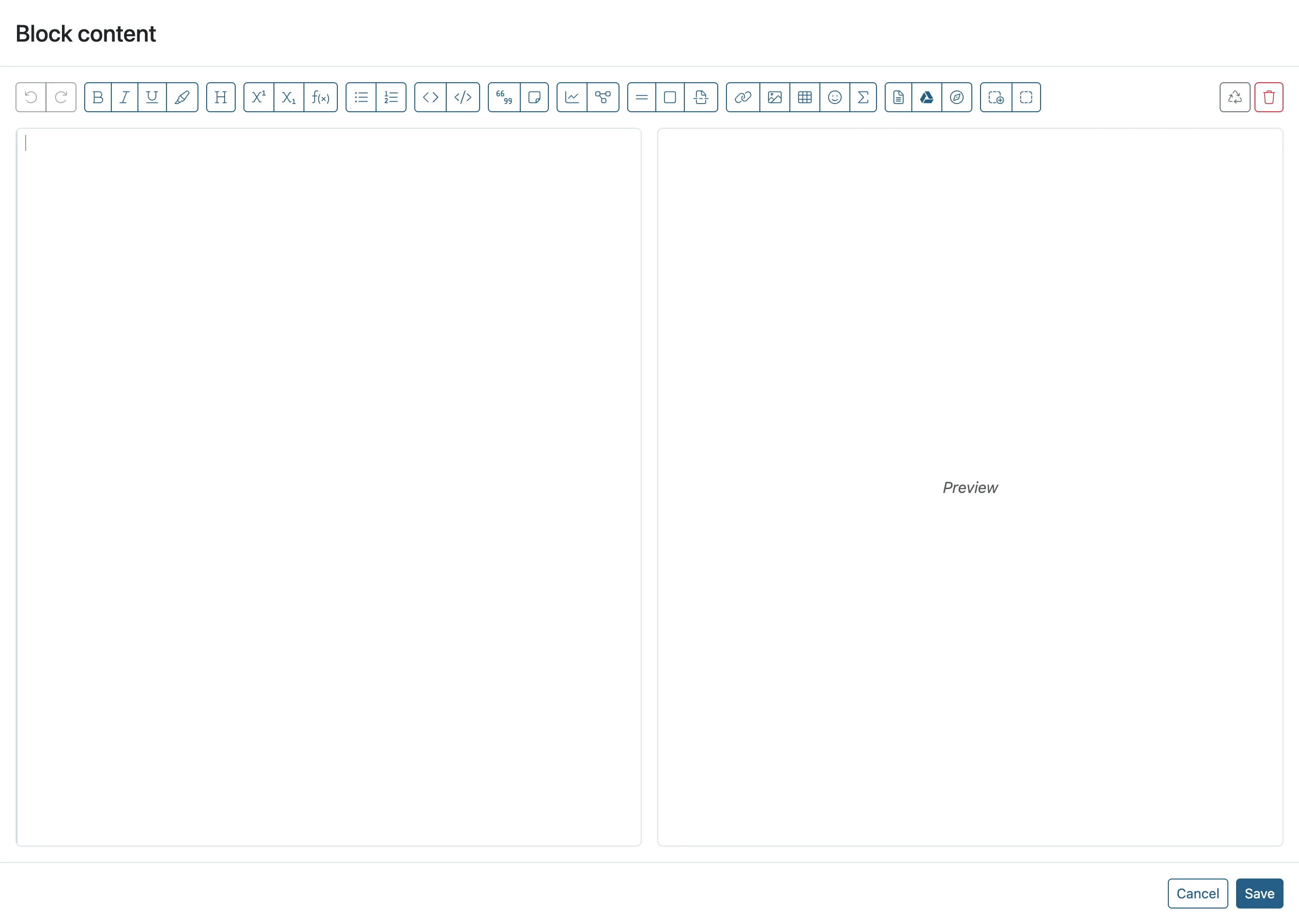
Add Default Content
Add default content that can be edited in the lesson plan.
- 9
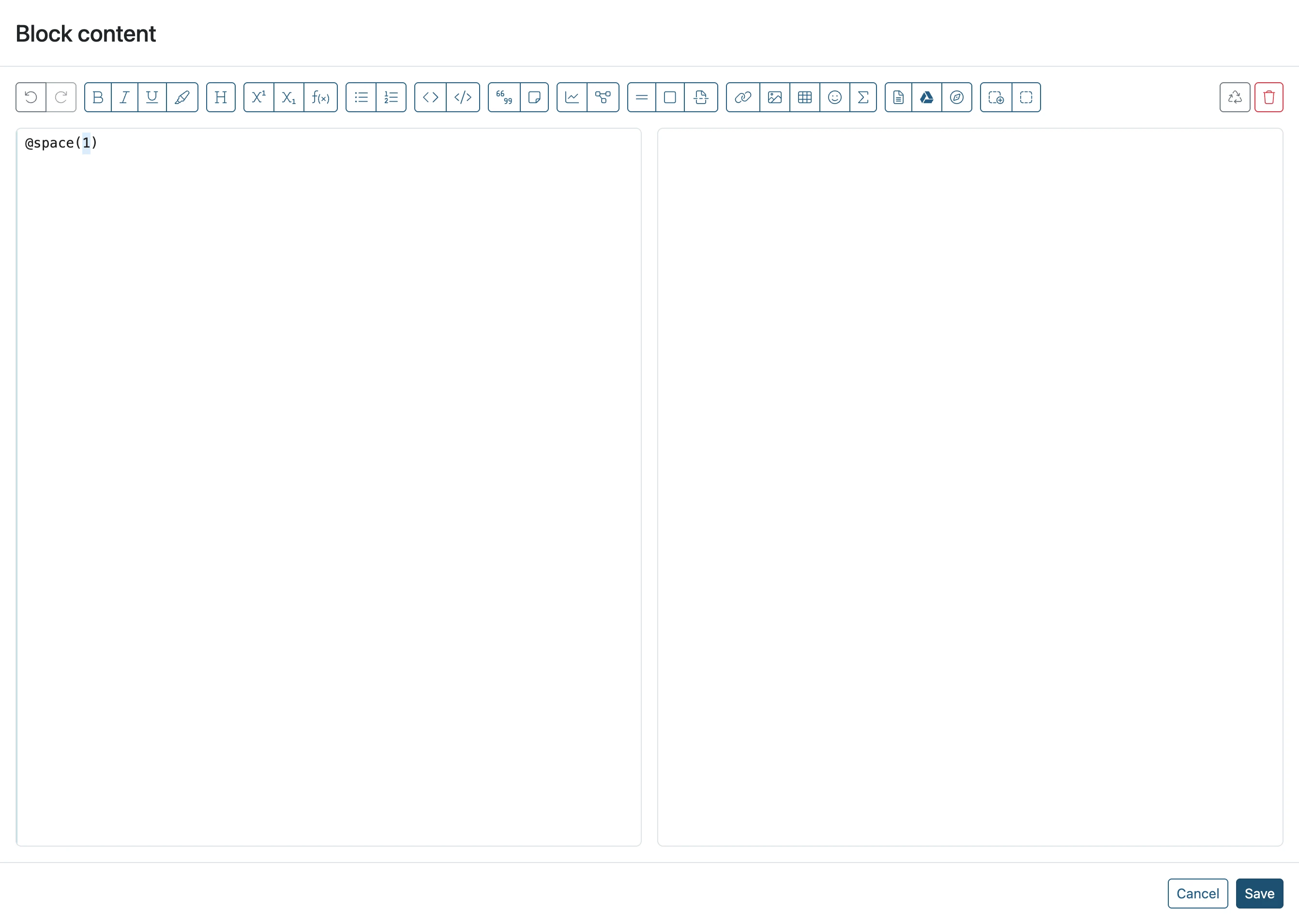
Click 'Save'
Save the default content for the block.
- 10
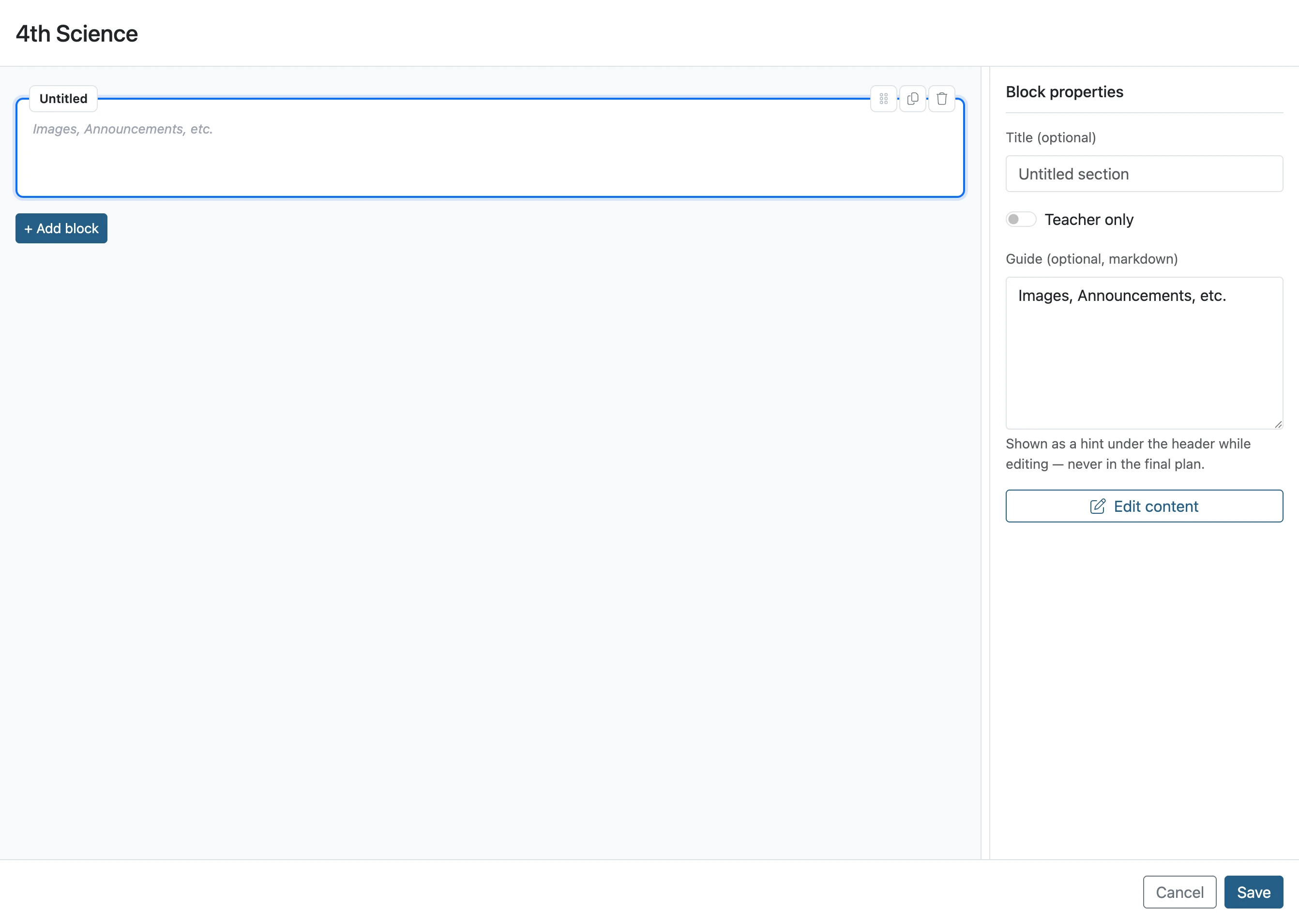
Click '+ Add block'
Add additional blocks to complete all the elements of the template.
- 11
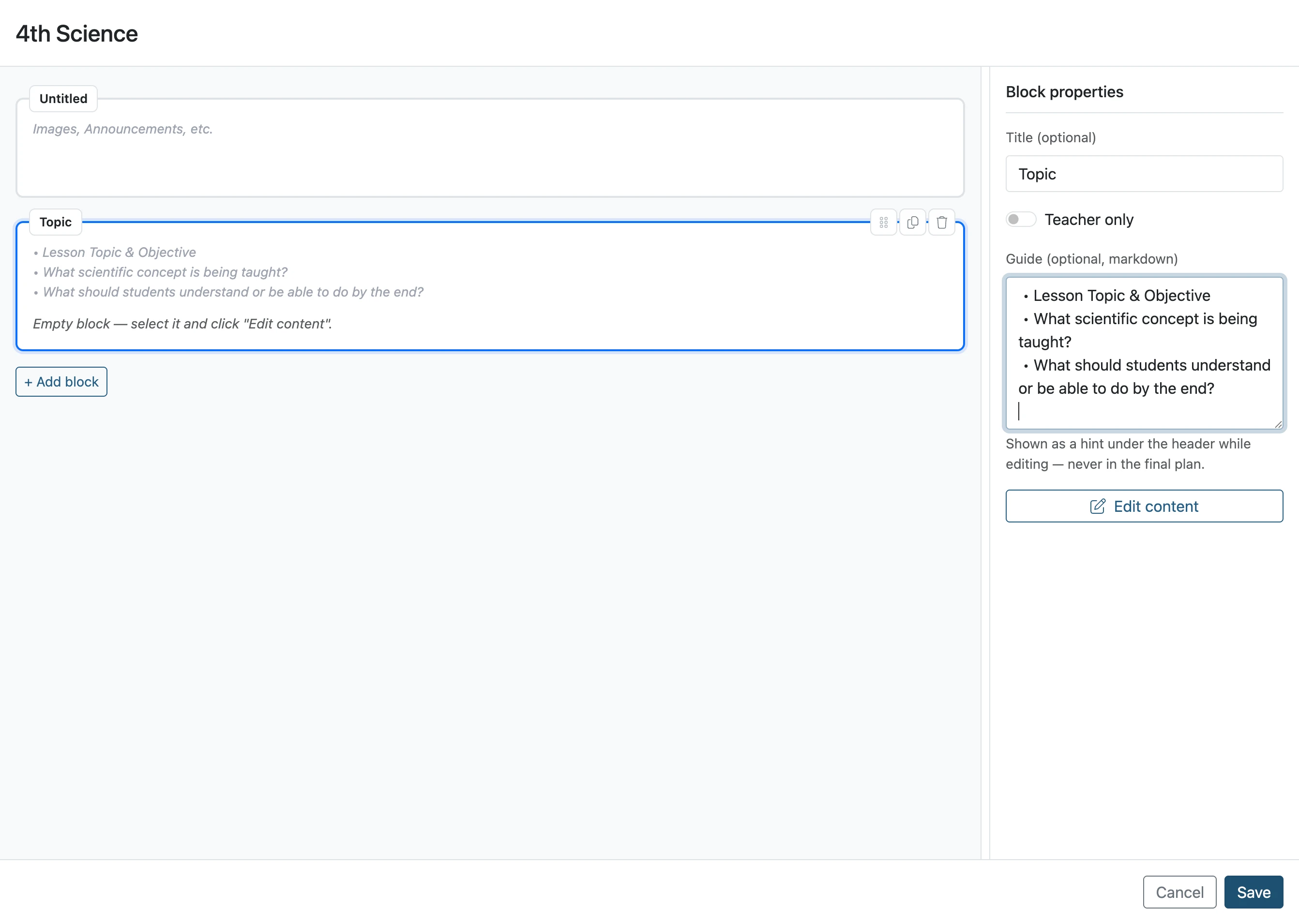
Click 'Save'
Click Save when the template is finished.
- 12
Click 'Done'
The template is now available for campus faculty to begin to use.