
Create a Lesson Plan Template
Teachers can design custom lesson plan templates to promote consistency and save time. Follow the instructions below to create a new lesson plan template.
Plan smarter this year
ClassJax is free for teachers. No credit card required.
- 1
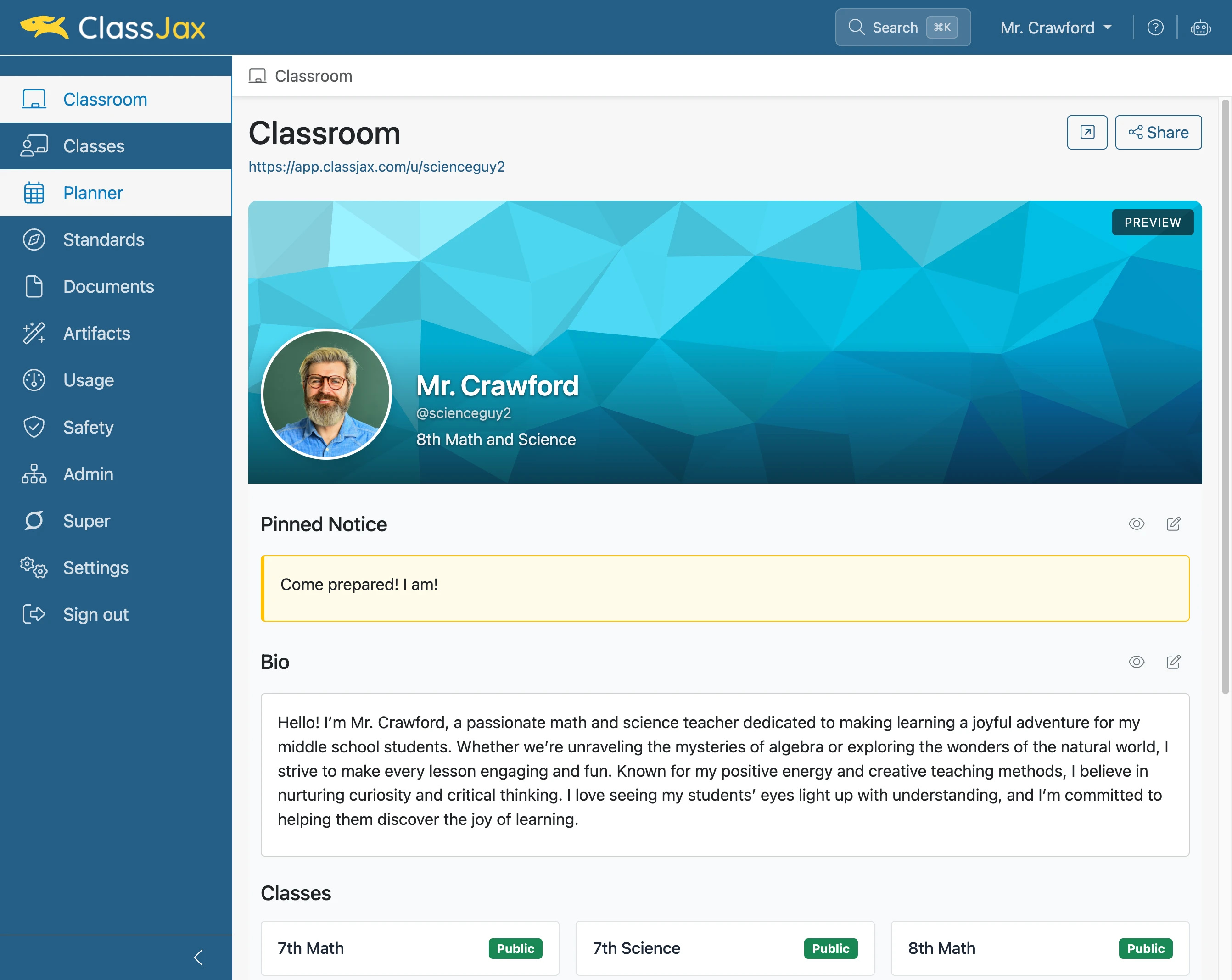
Click the 'Planner' link
- 2
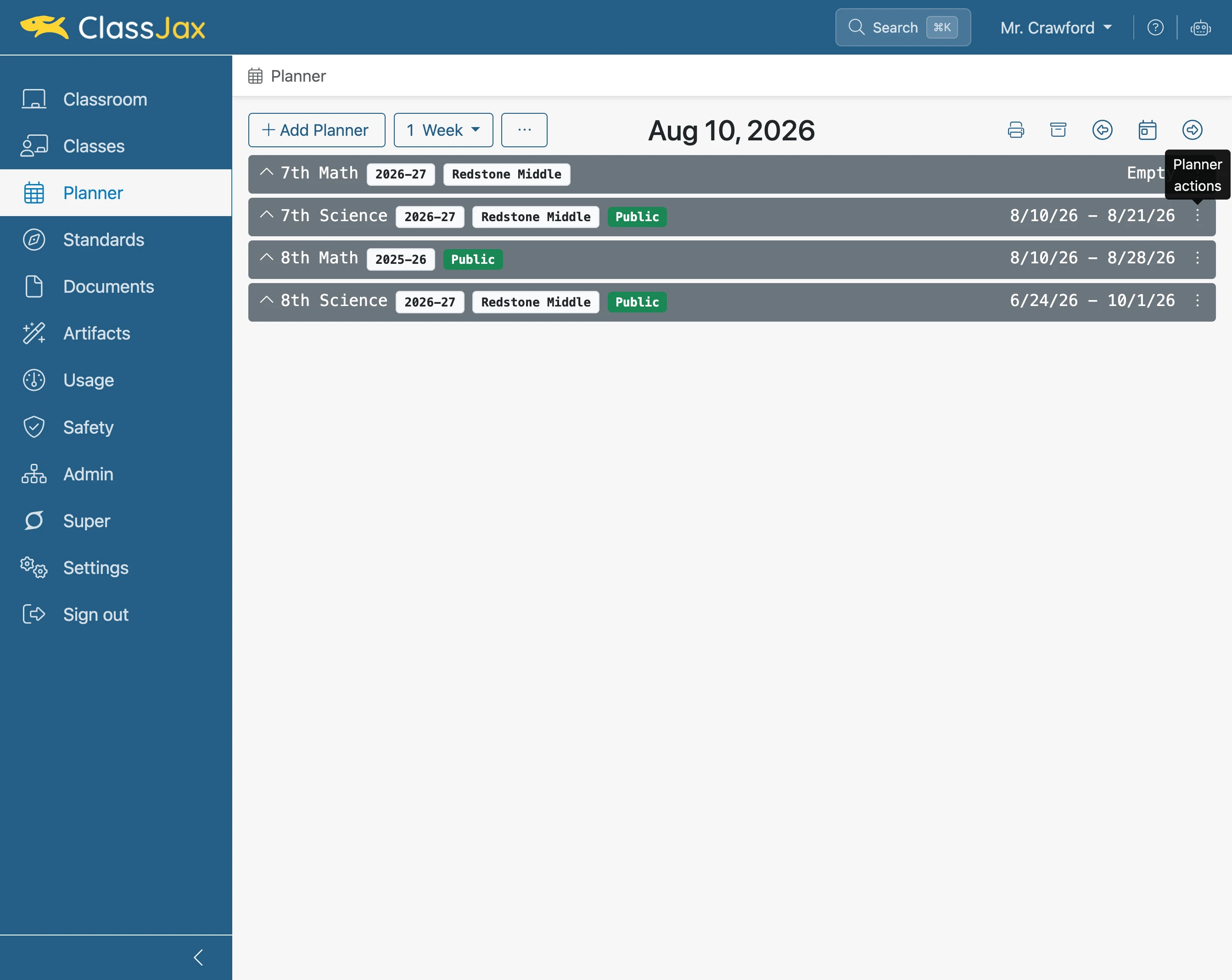
Click 'Planner actions' on any planner
- 3
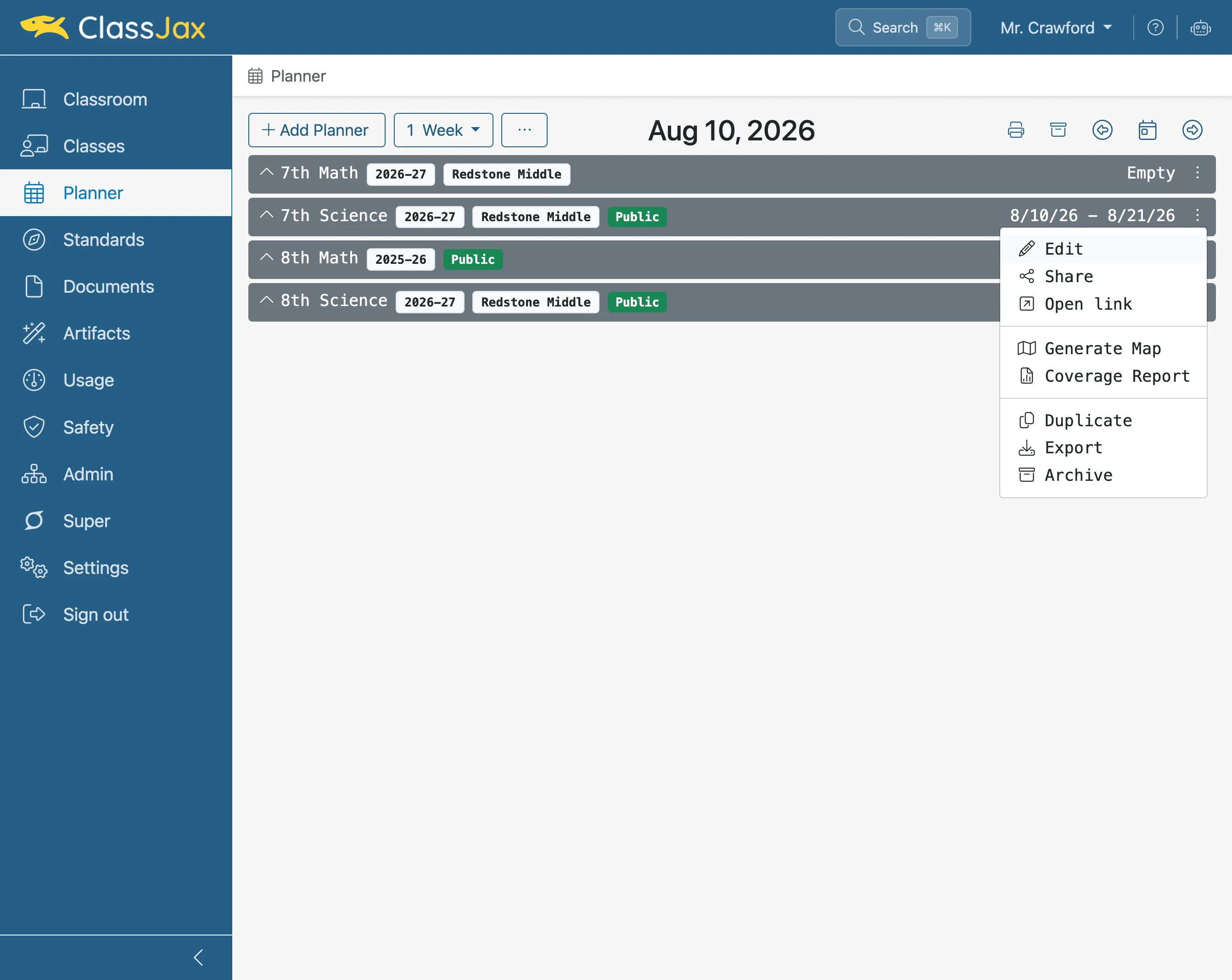
Click 'Edit'
- 4
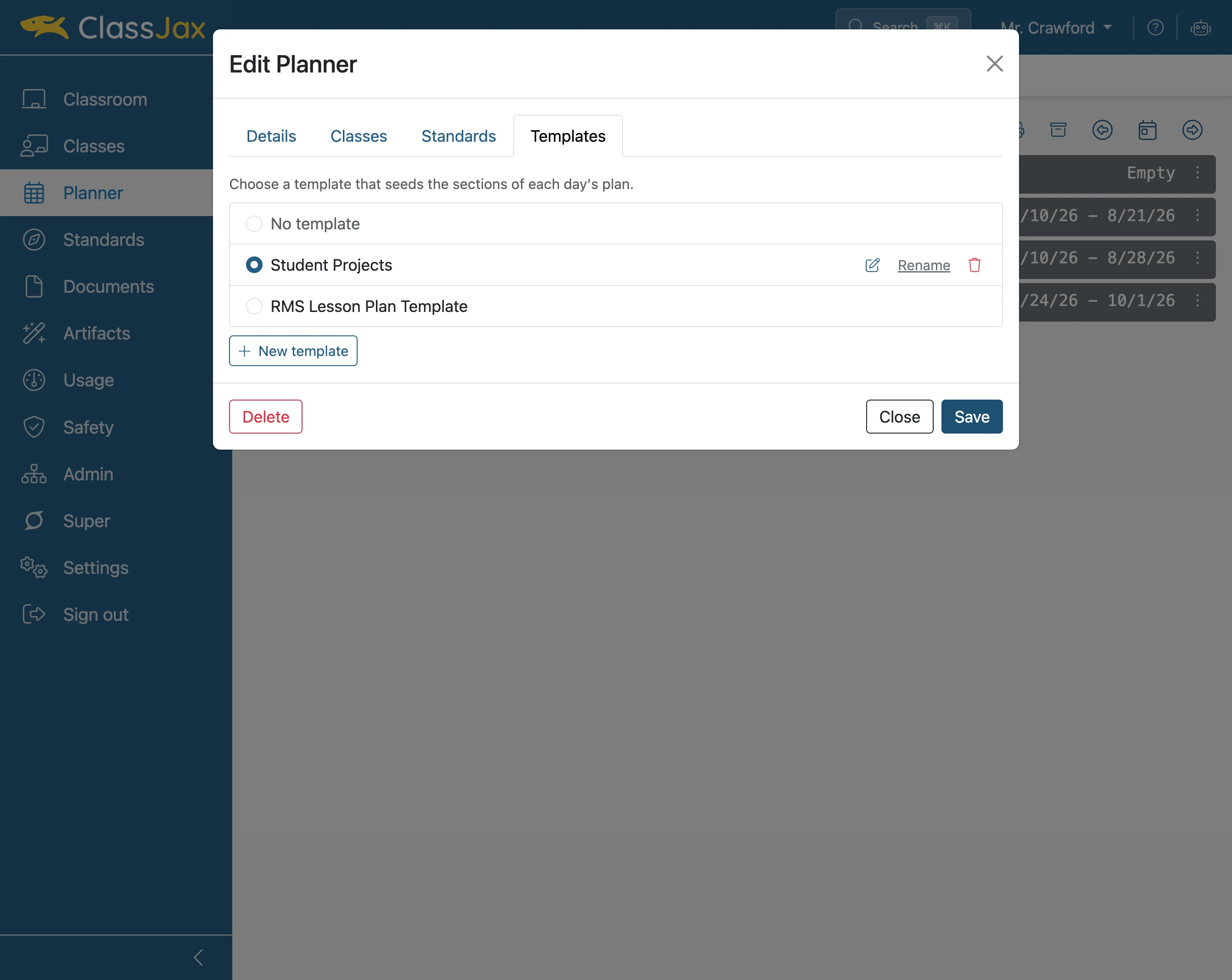
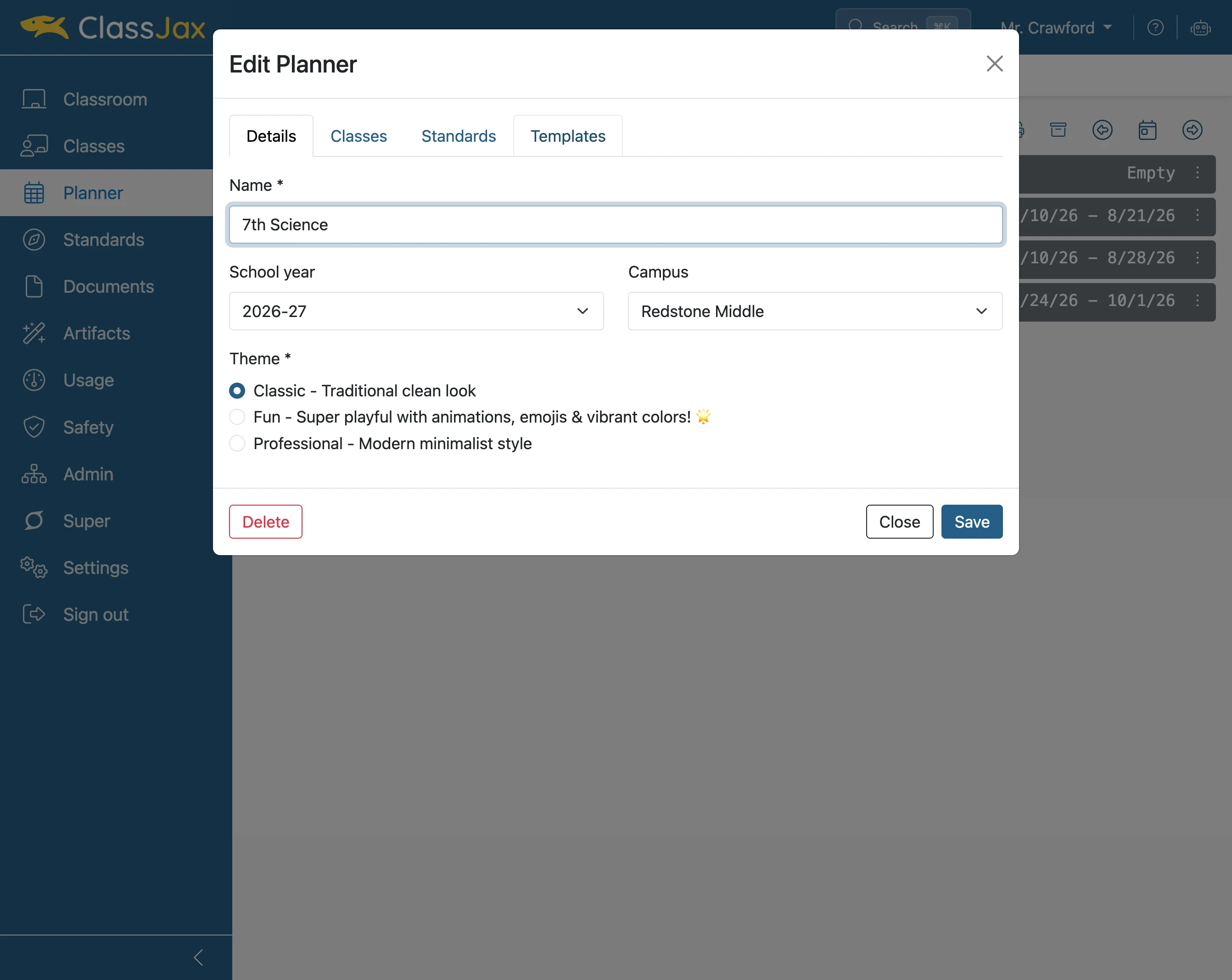
Click the 'Templates' link
- 5
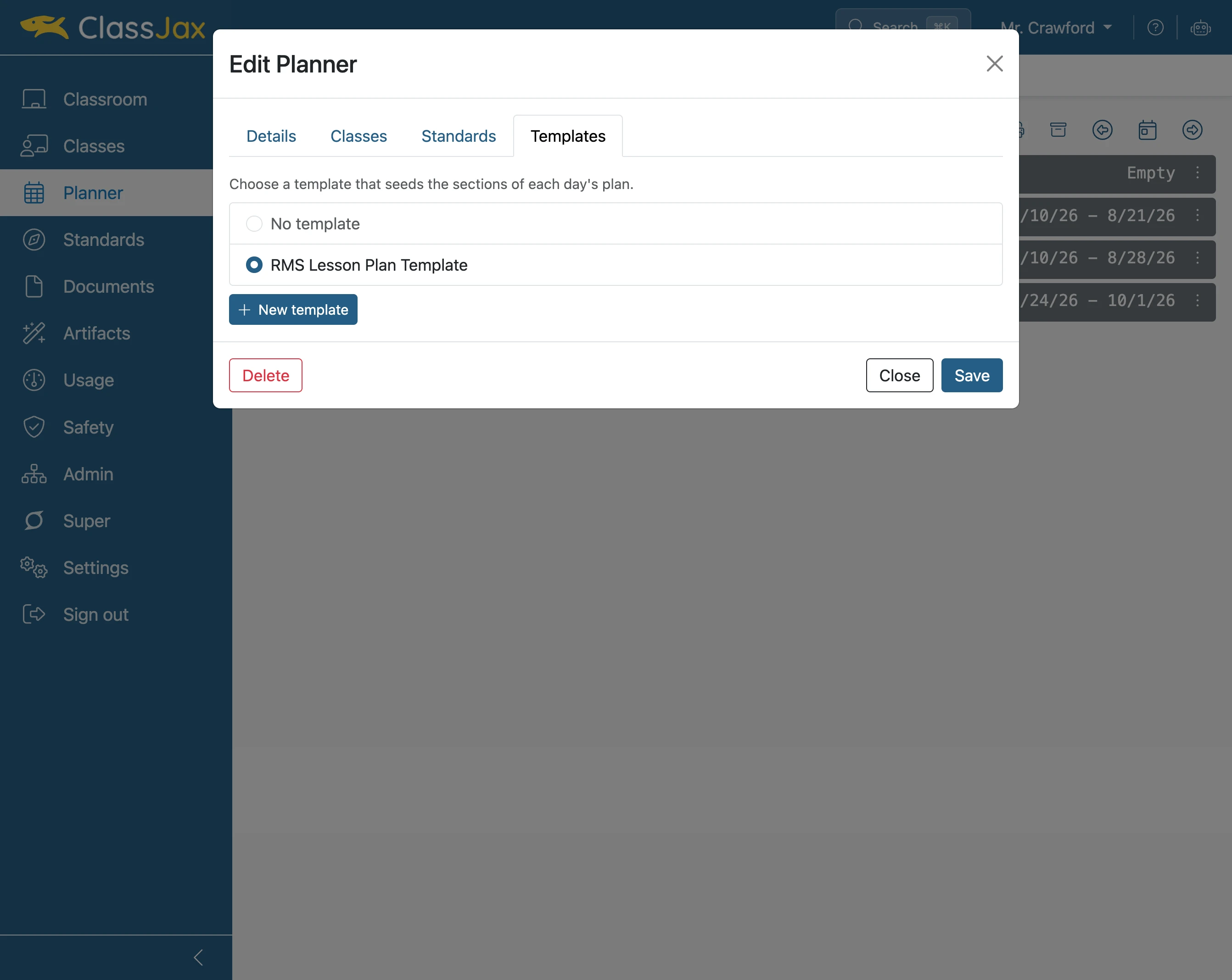
Click 'New template'
- 6
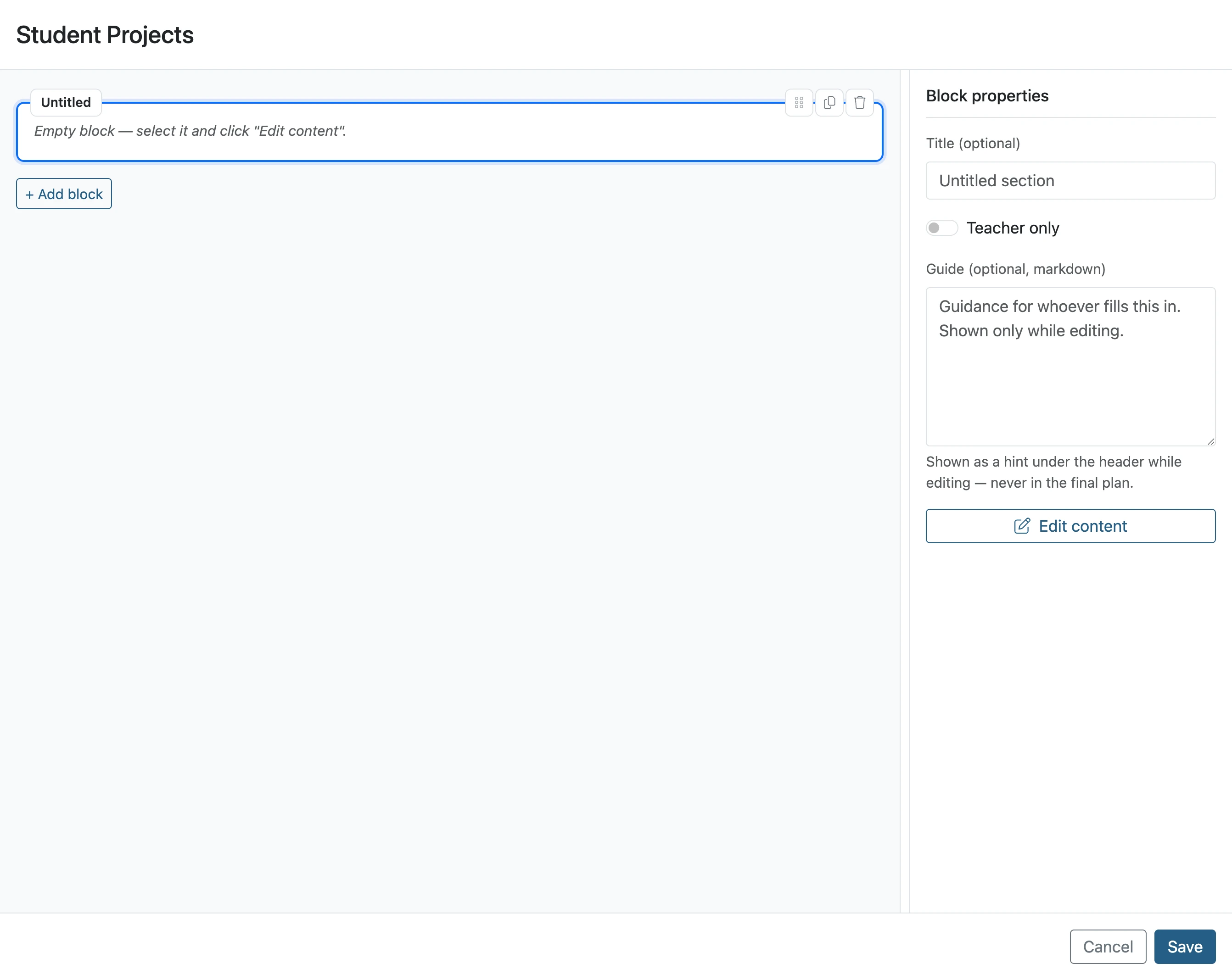
Click 'Untitled section'
Enter a title for the Block being edited.
- 7
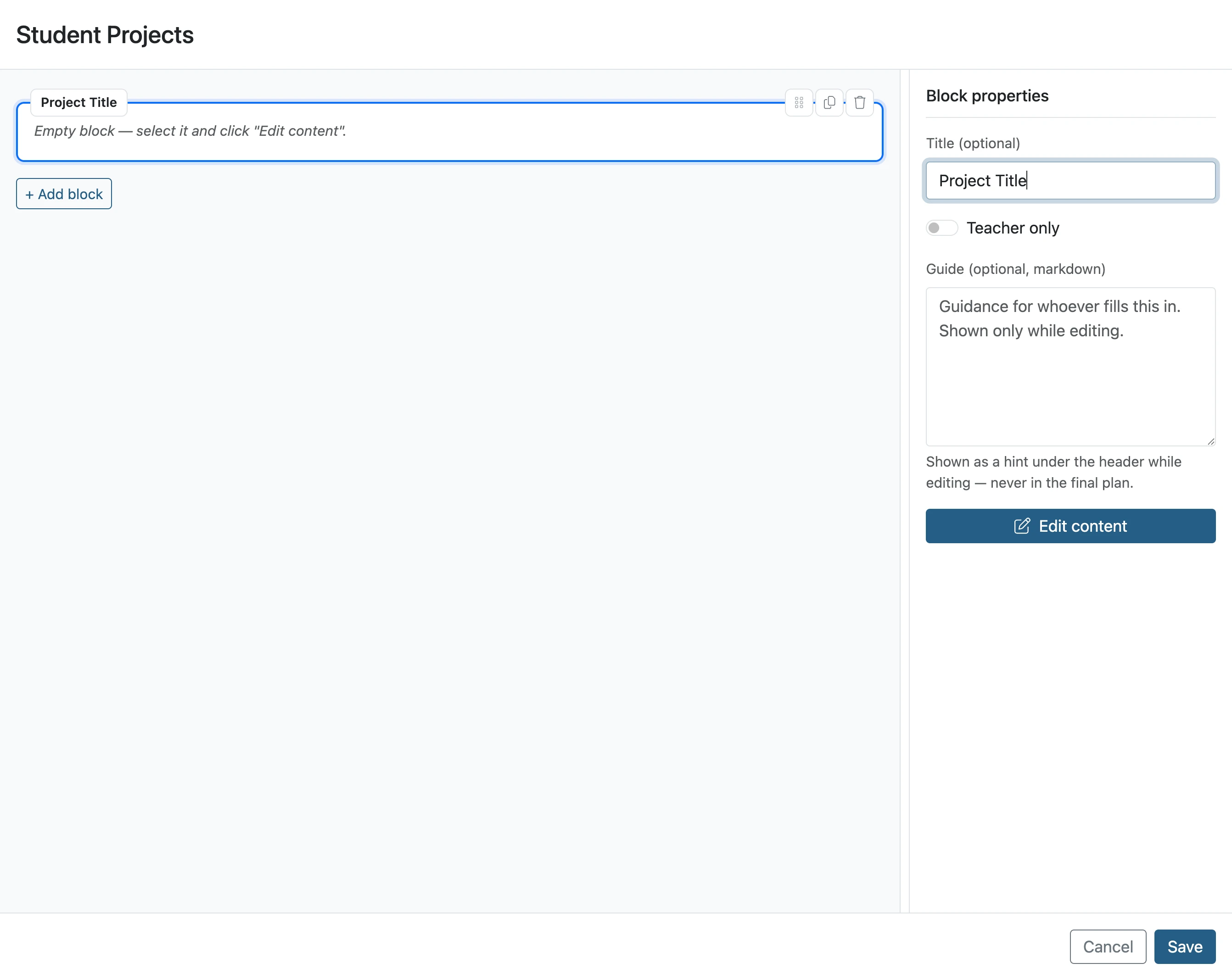
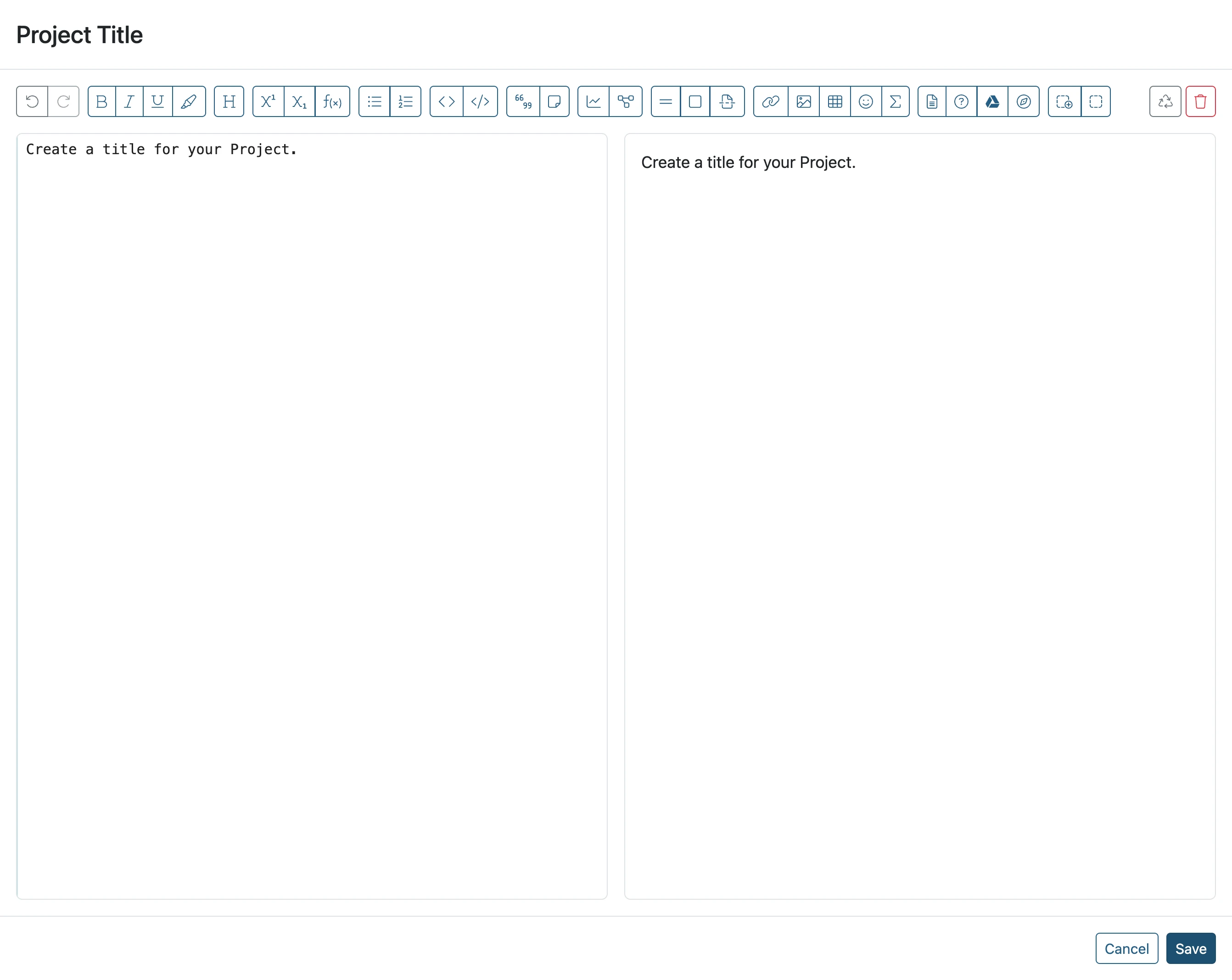
Click 'Edit content'
Click this option to add editable content under the title of the block.
- 8
Click 'Save'
After adding the editable content in the block, click Save.
- 9
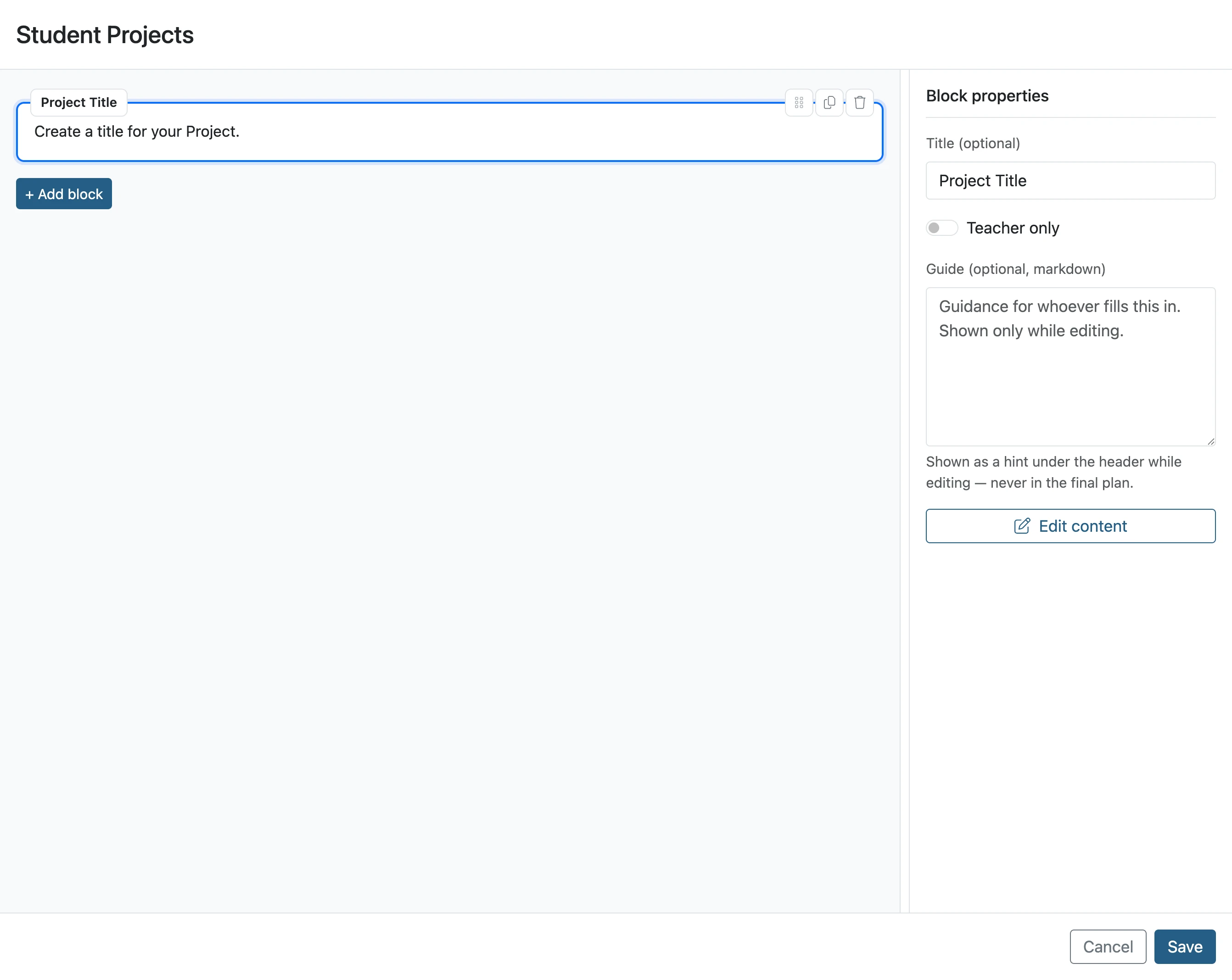
Click '+ Add block'
Click this option to add an additional block to the template. Continue adding and editing the blocks’ content.
- 10
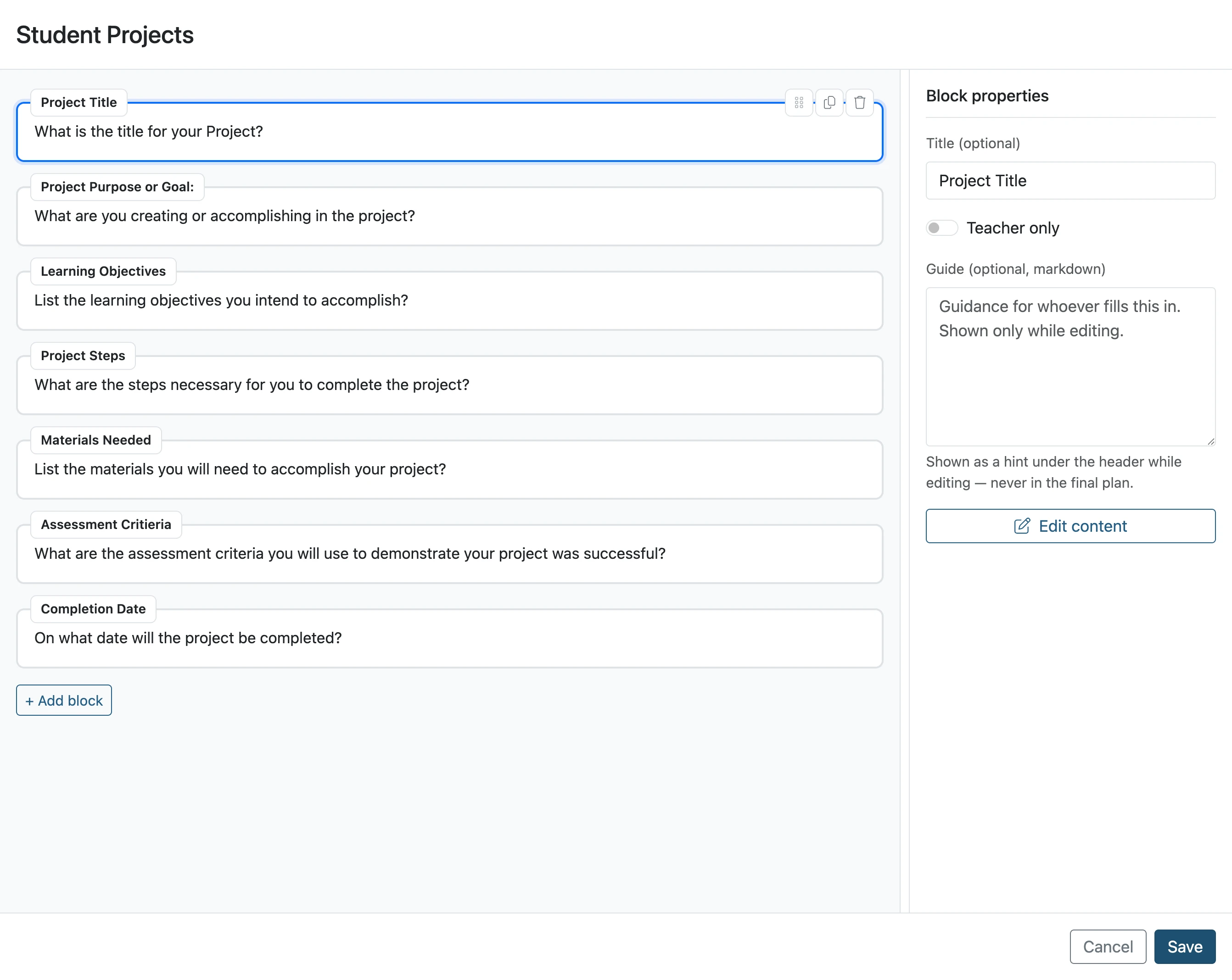
Click 'Save' to save the Template
After all the template’s blocks have been added and edited, click the Save button.
- 11
Select desired template option and 'Save'
Once the template is saved, it can be used in any planner. Templates can be changed for a particular lesson plan by editing the Planner, selecting Templates and then selecting the desired template.