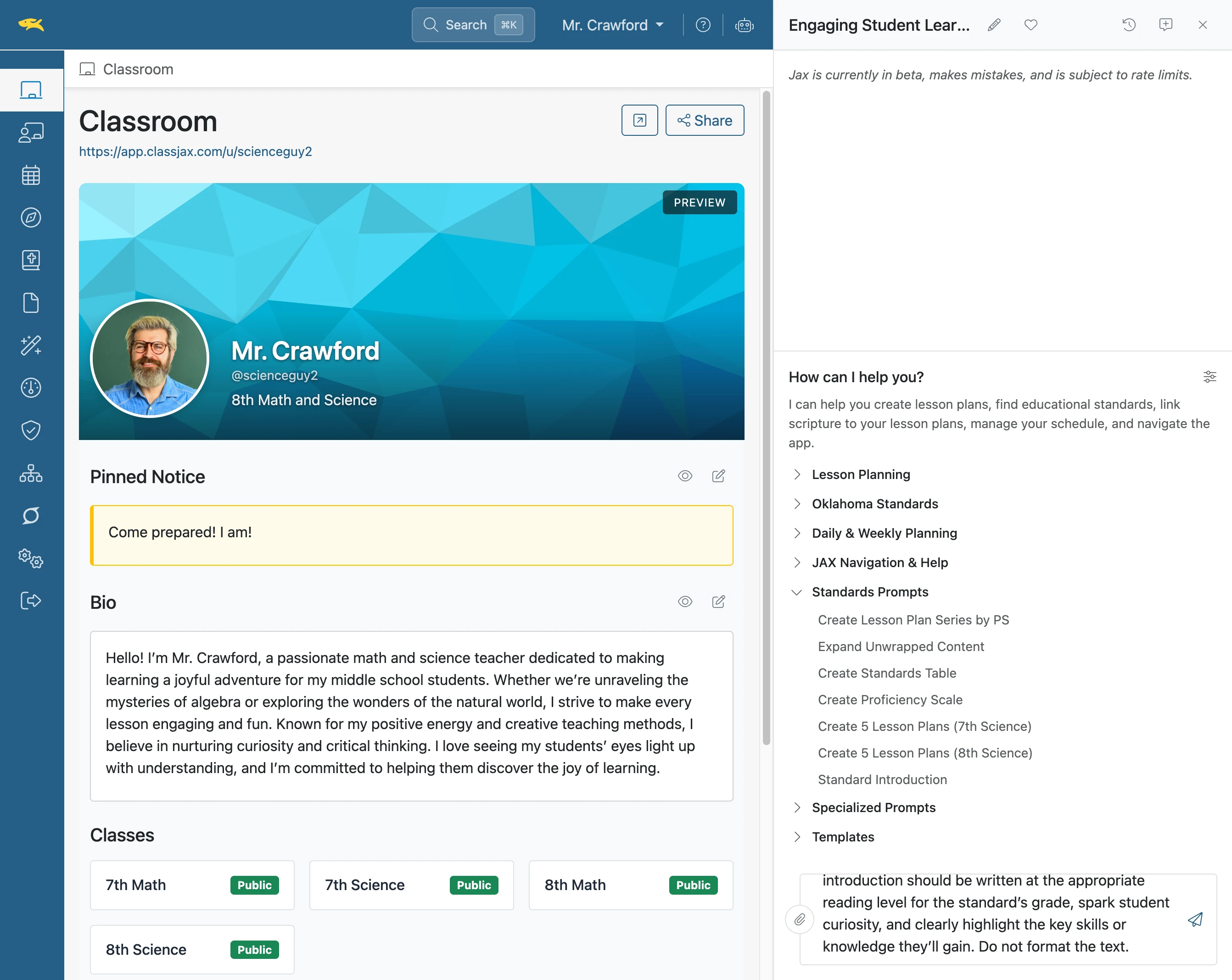

Add a Prompt to the Prompt Manager
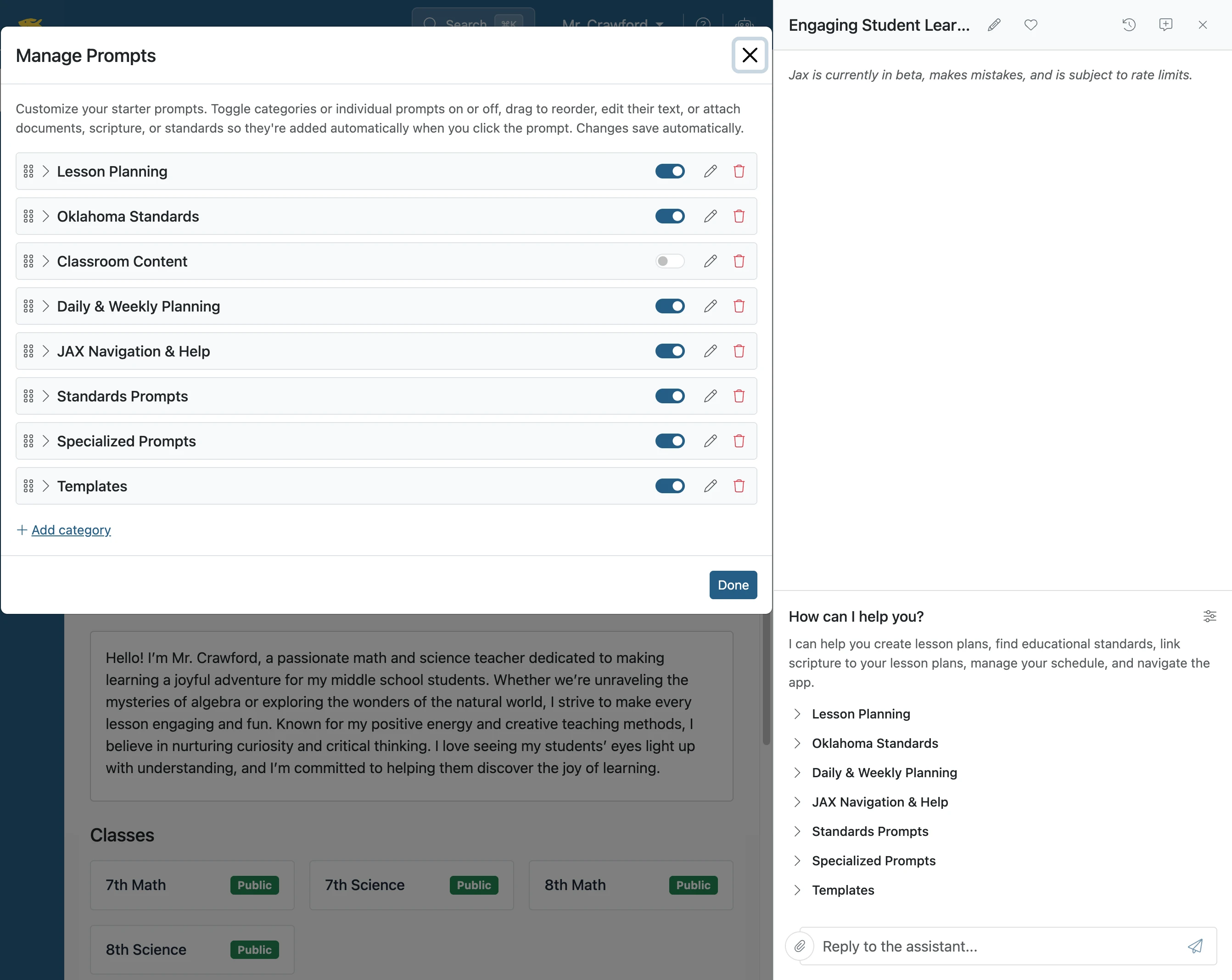
Jax Certainly! Here’s a revised version using technical writing best practices: Prompts that are used frequently can be saved in the Prompt Manager for easy selection and reuse. The following instructions demonstrate how to add prompts to the Prompt Manager.
Plan smarter this year
ClassJax is free for teachers. No credit card required.
- 1
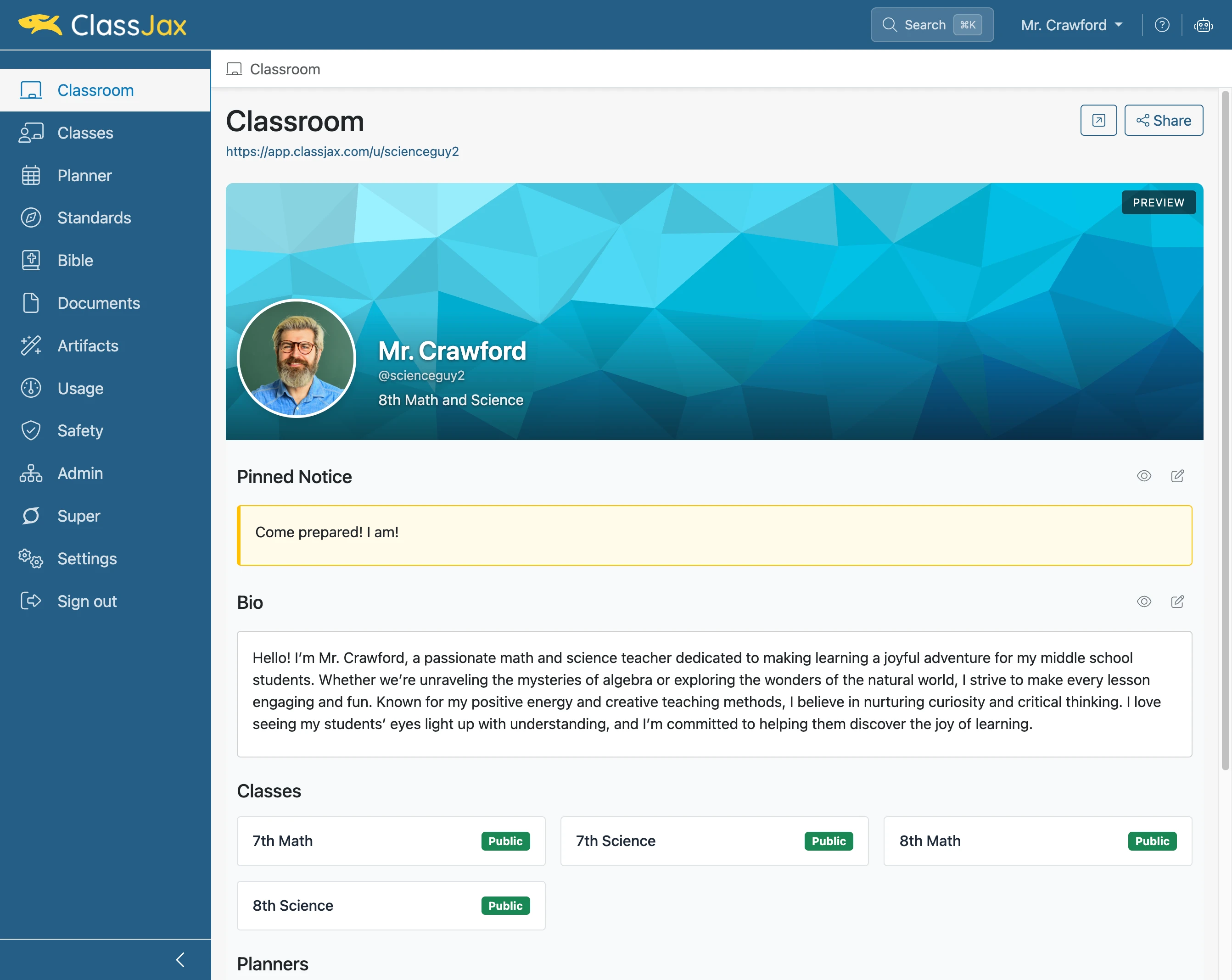
Click 'AI Assistant'
- 2
Click element
- 3
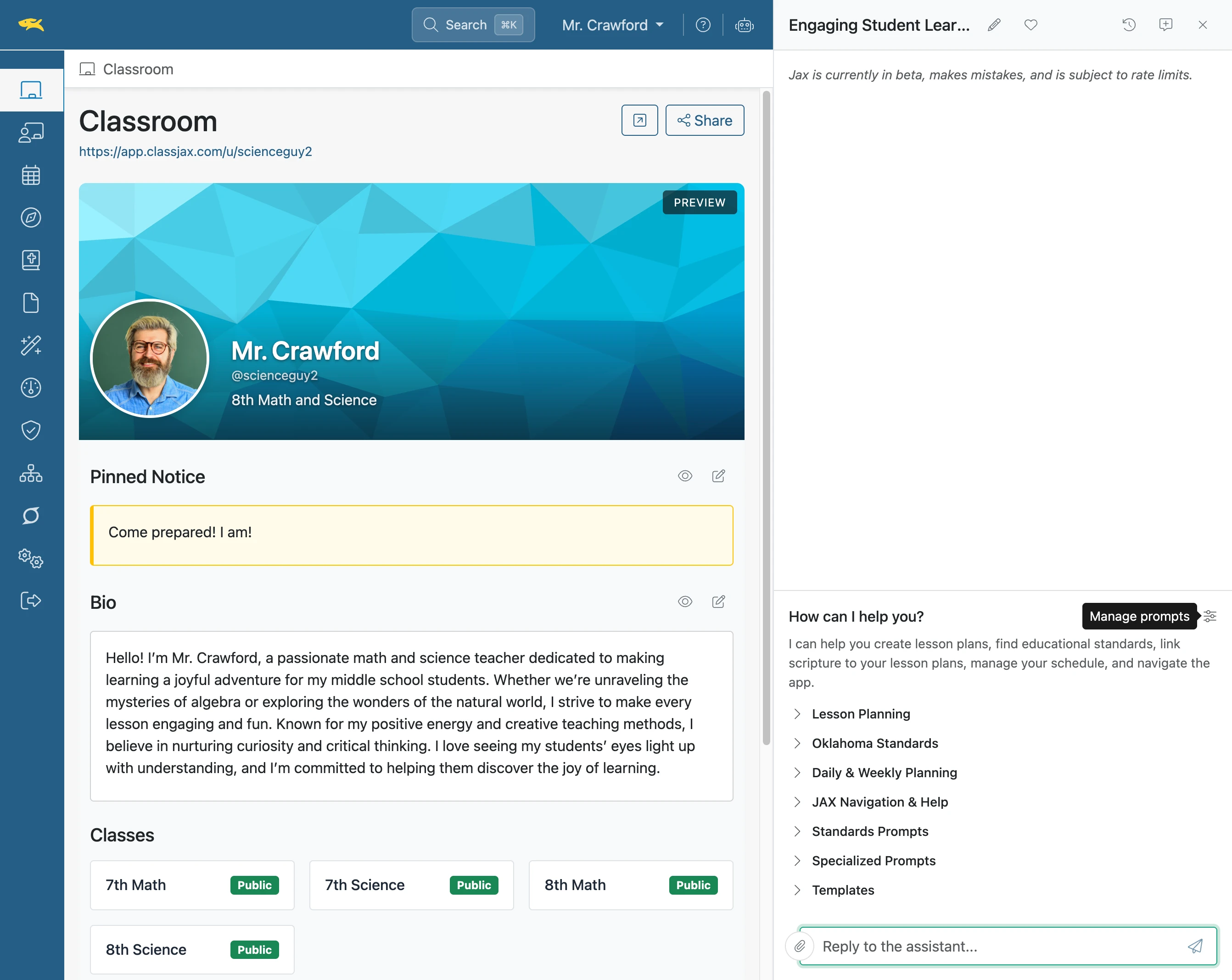
Click element
- 4
Click 'Add prompt'
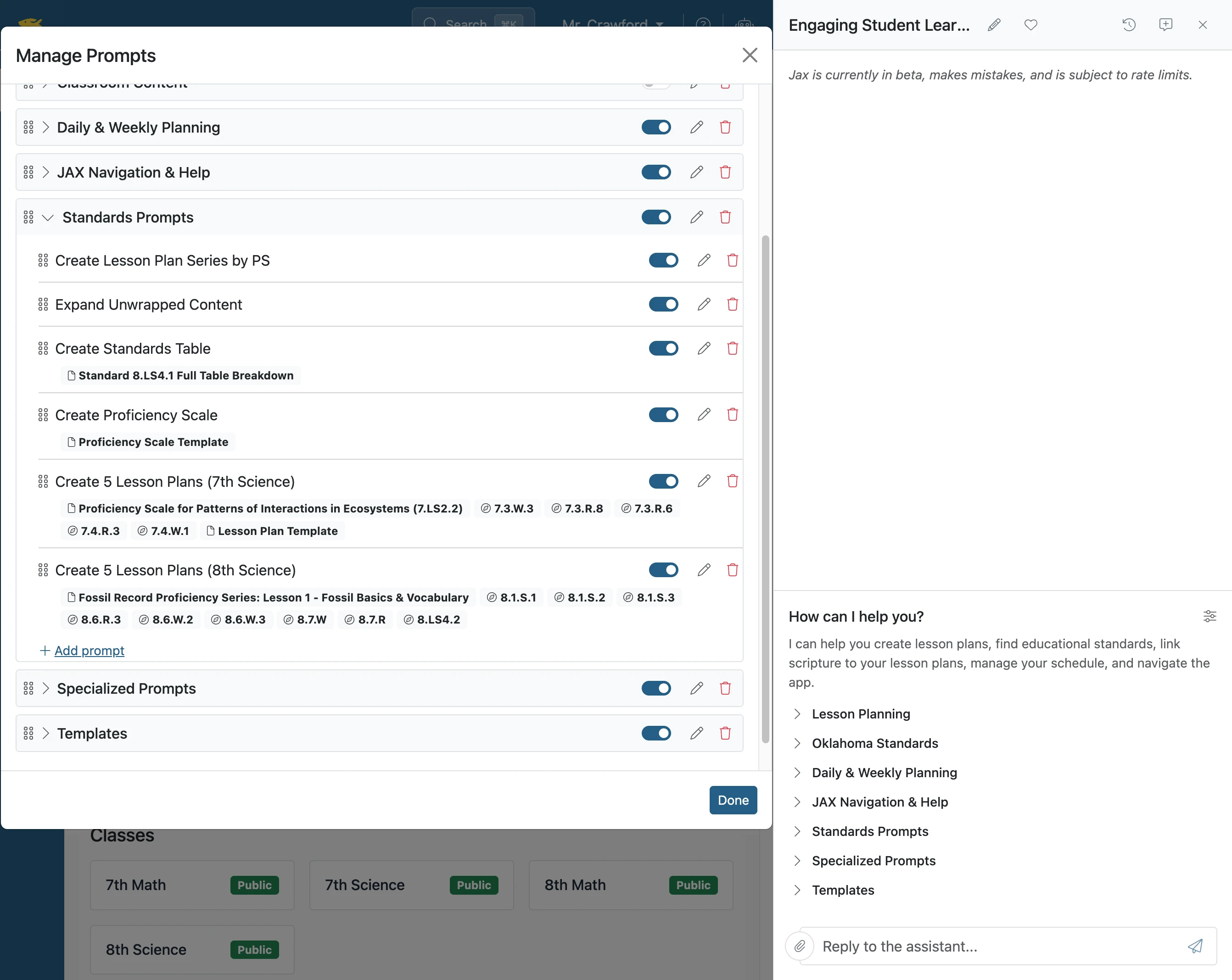
- 5
Click 'Short label shown in the suggestion list'
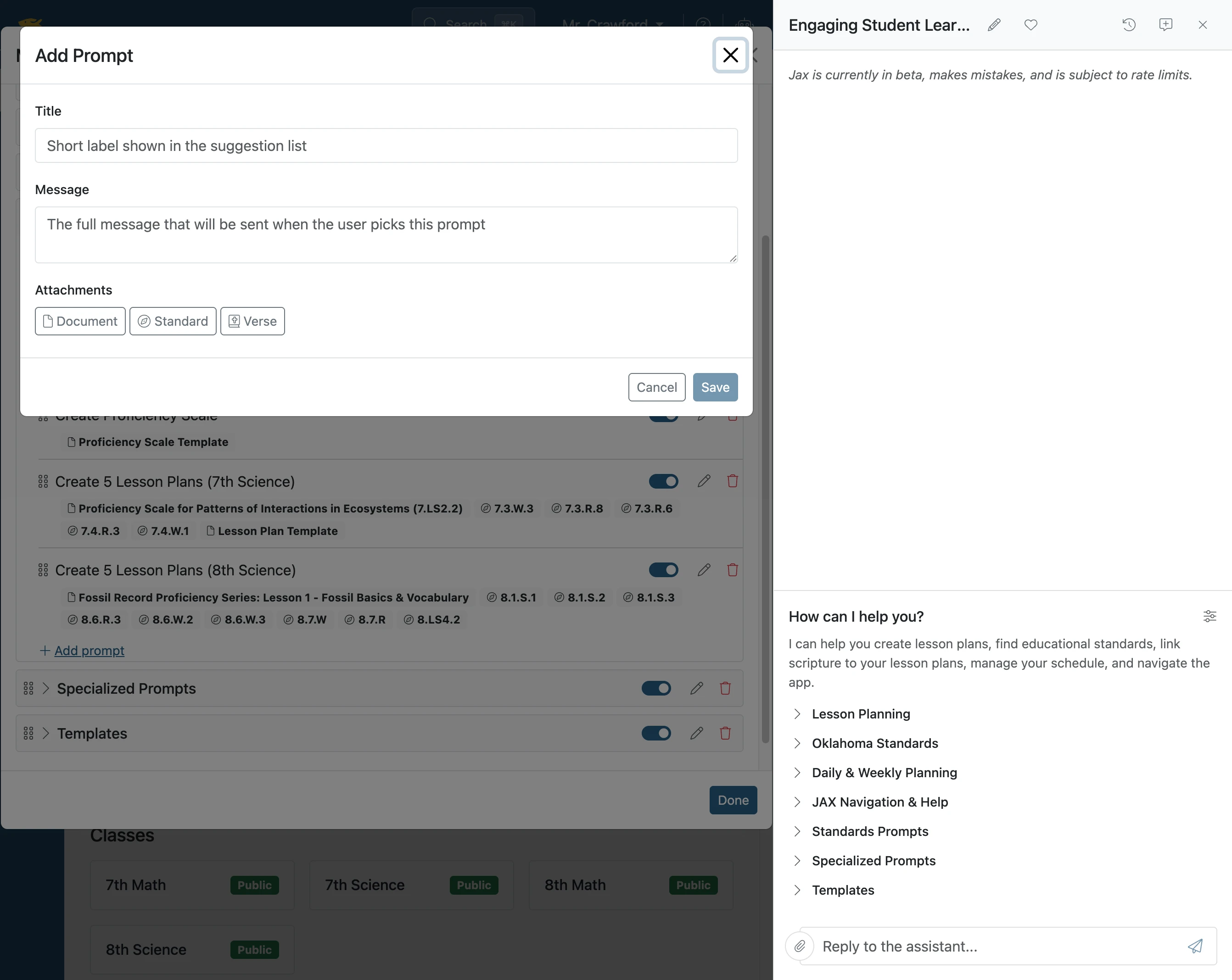
- 6
Click 'The full message that will be sent when the user picks this prompt'
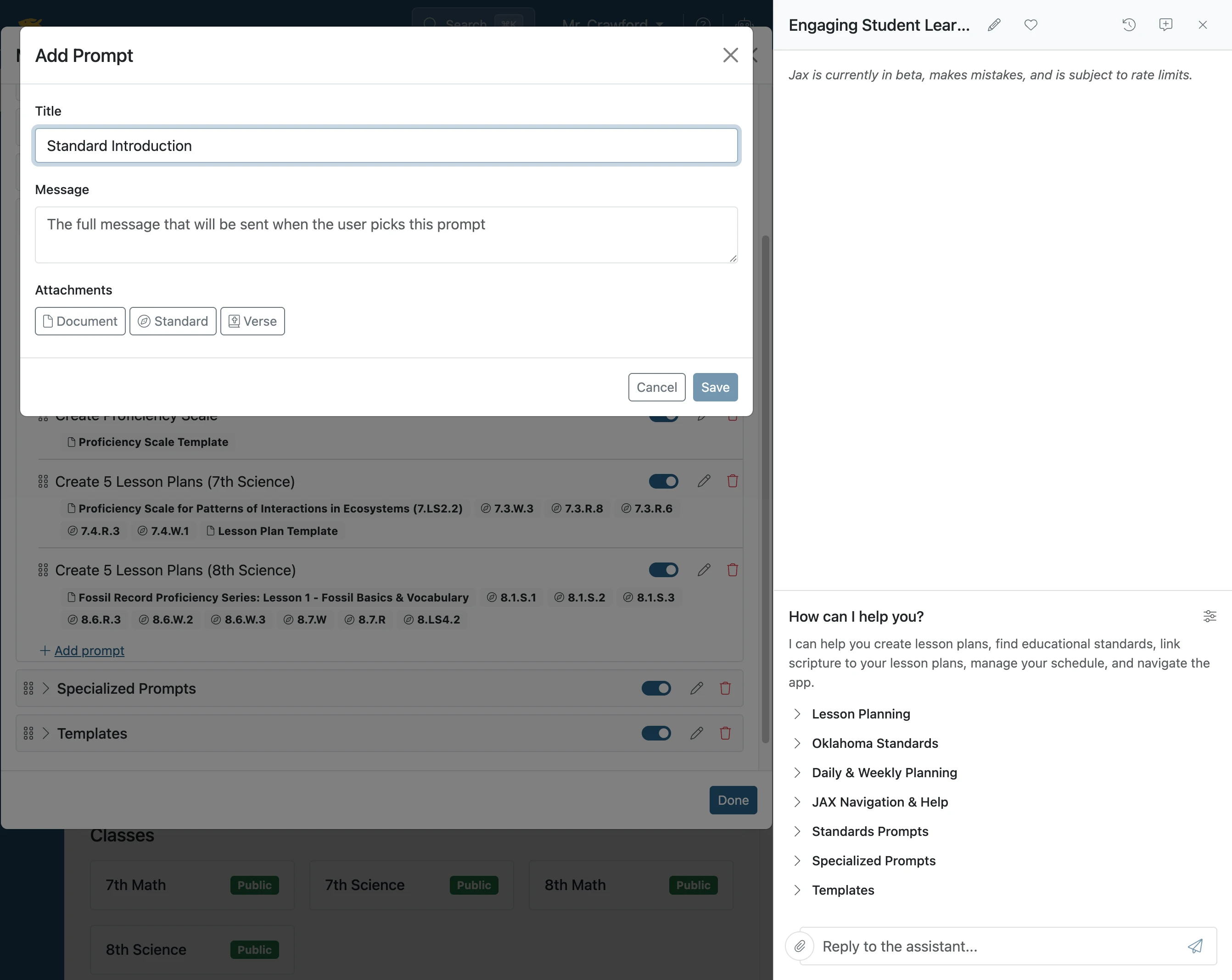
- 7
Click 'Save'
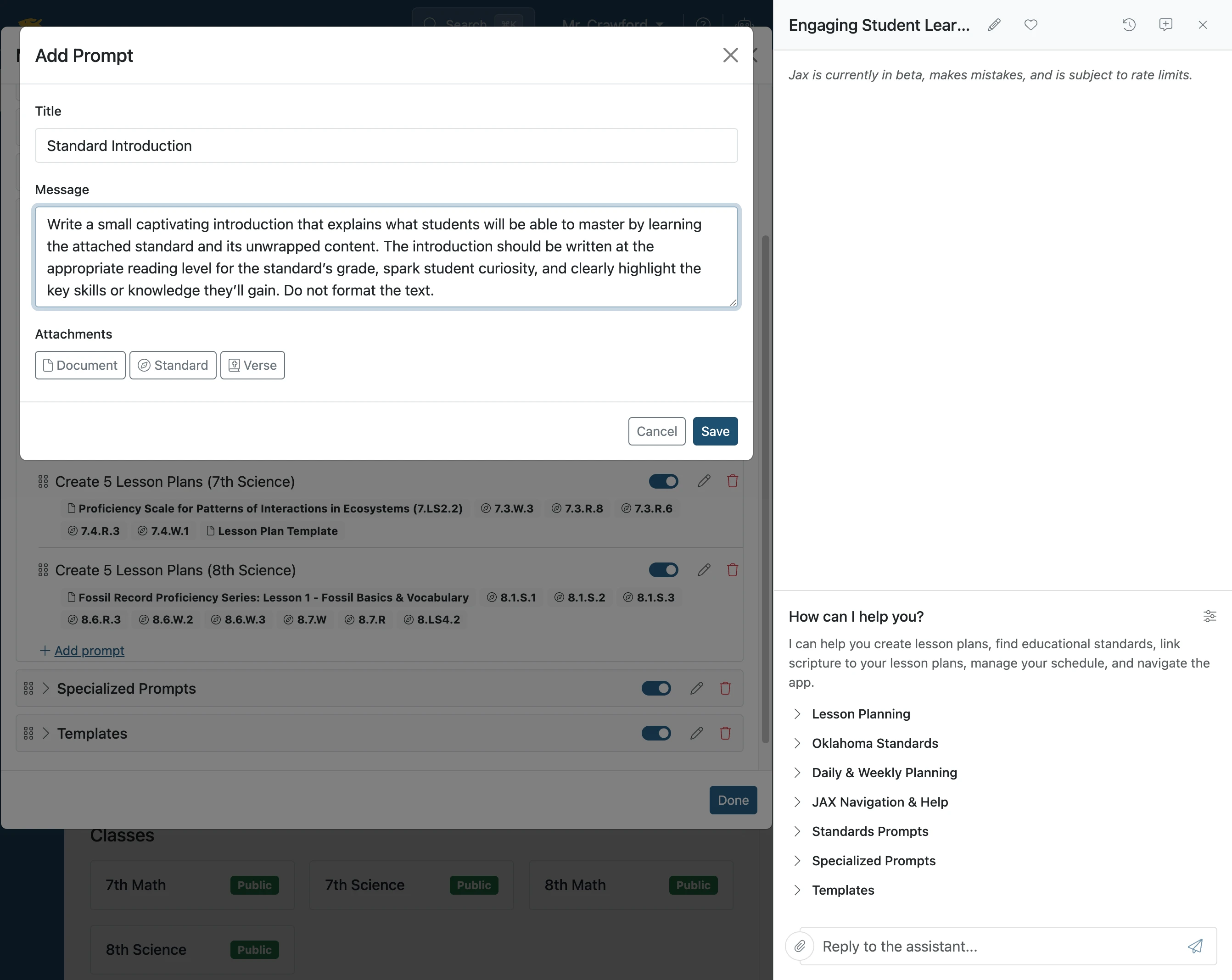
- 8
Click element
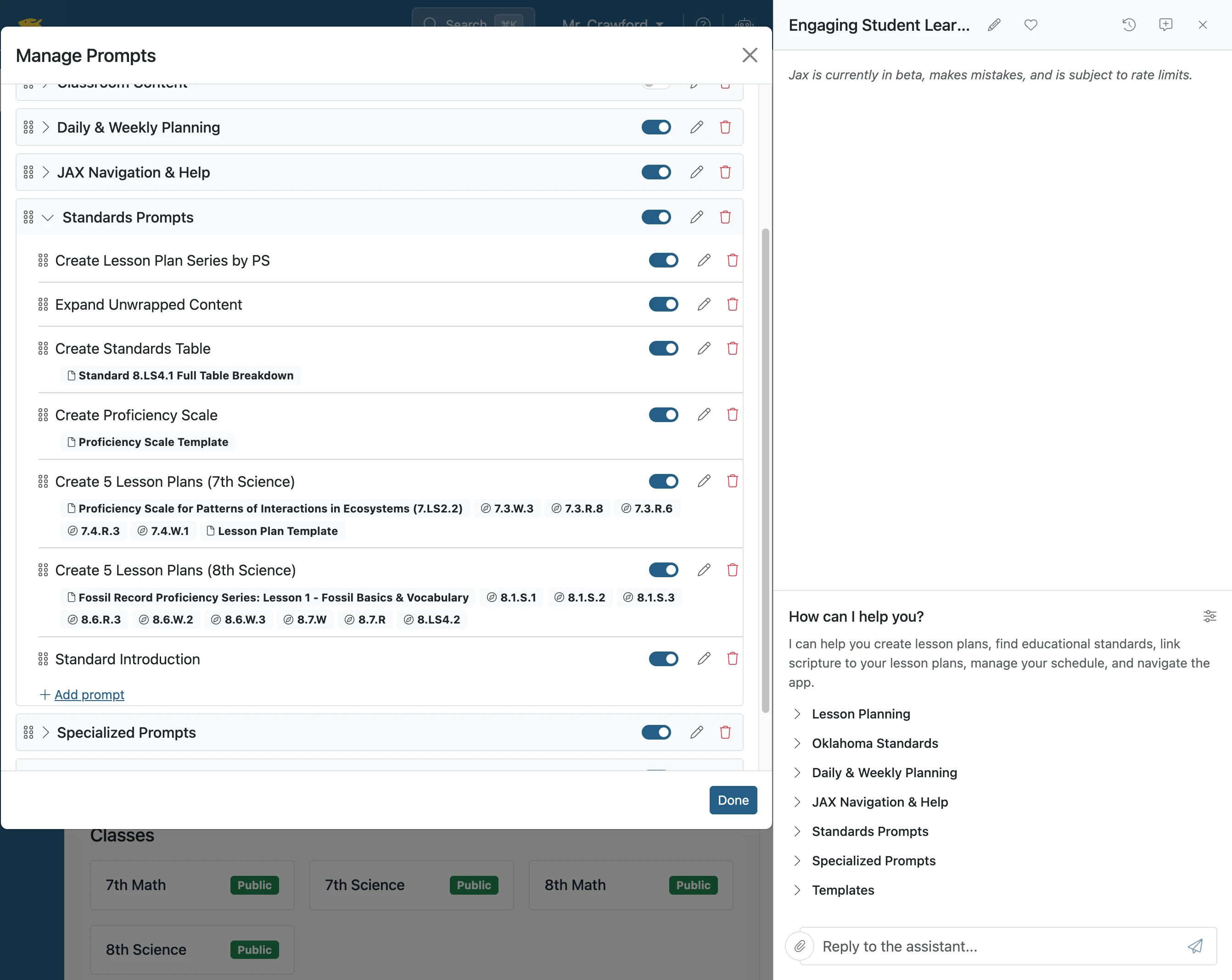
- 9
Click 'Done'
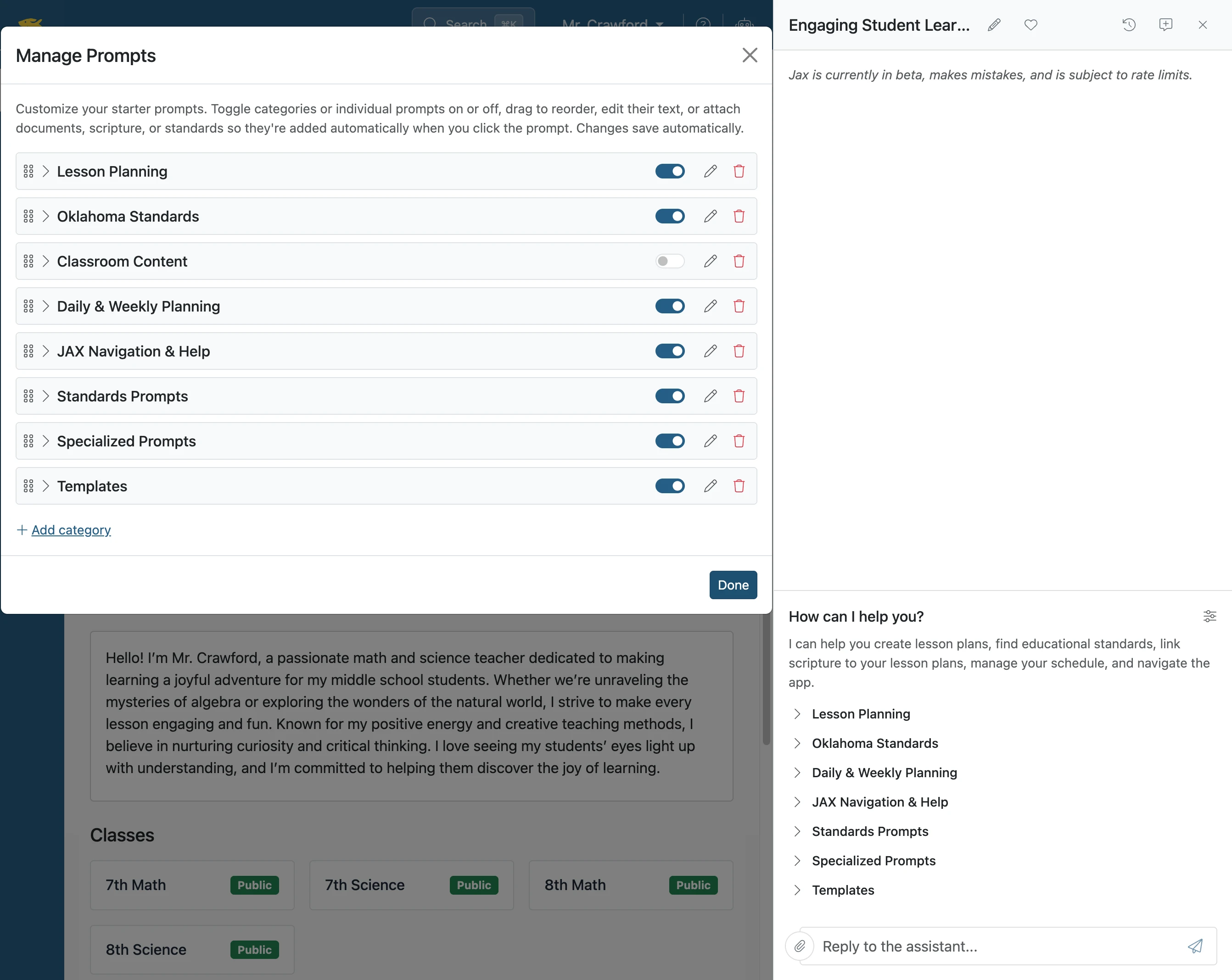
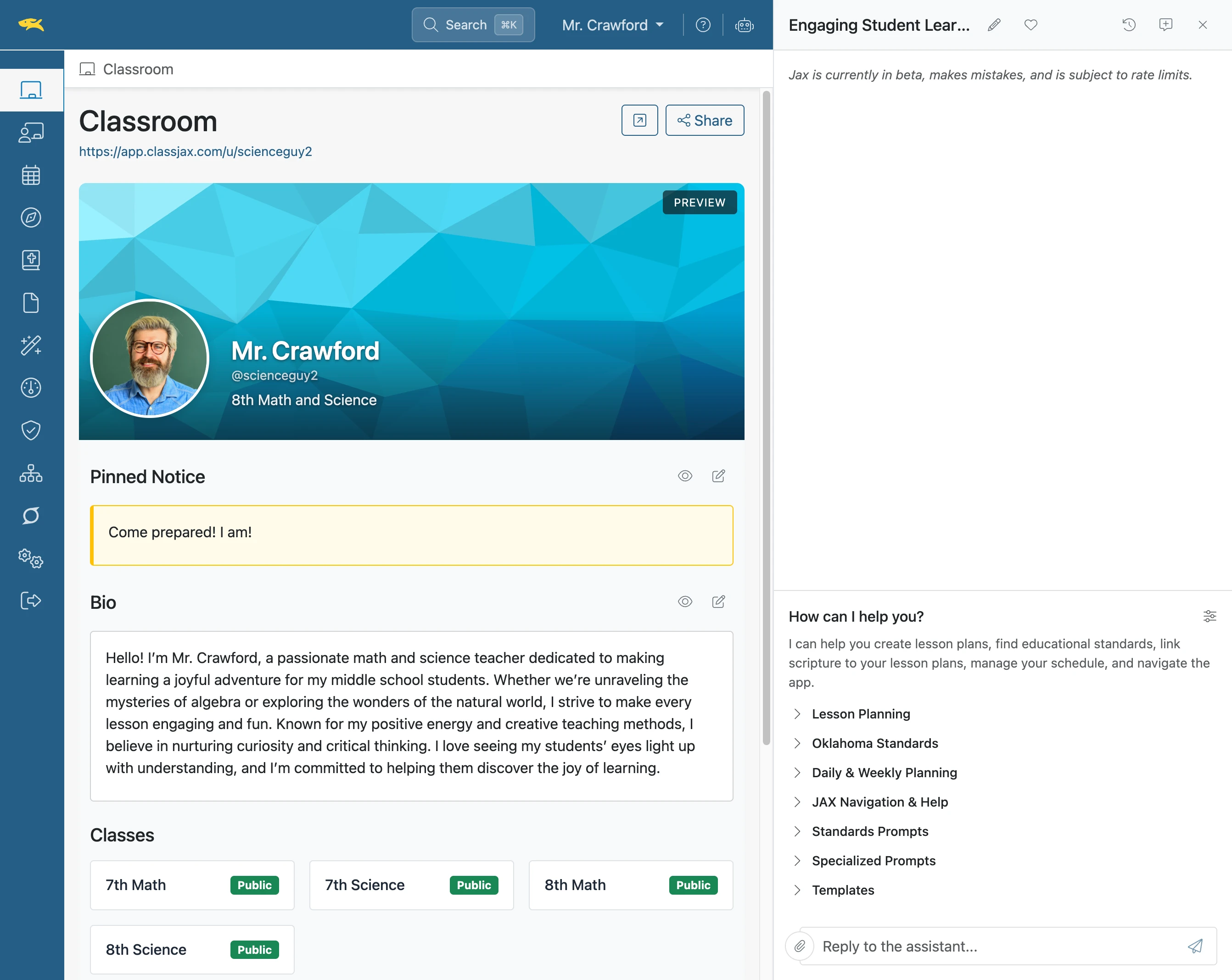
- 10
Click 'Standards Prompts'
- 11
Click 'Standard Introduction'
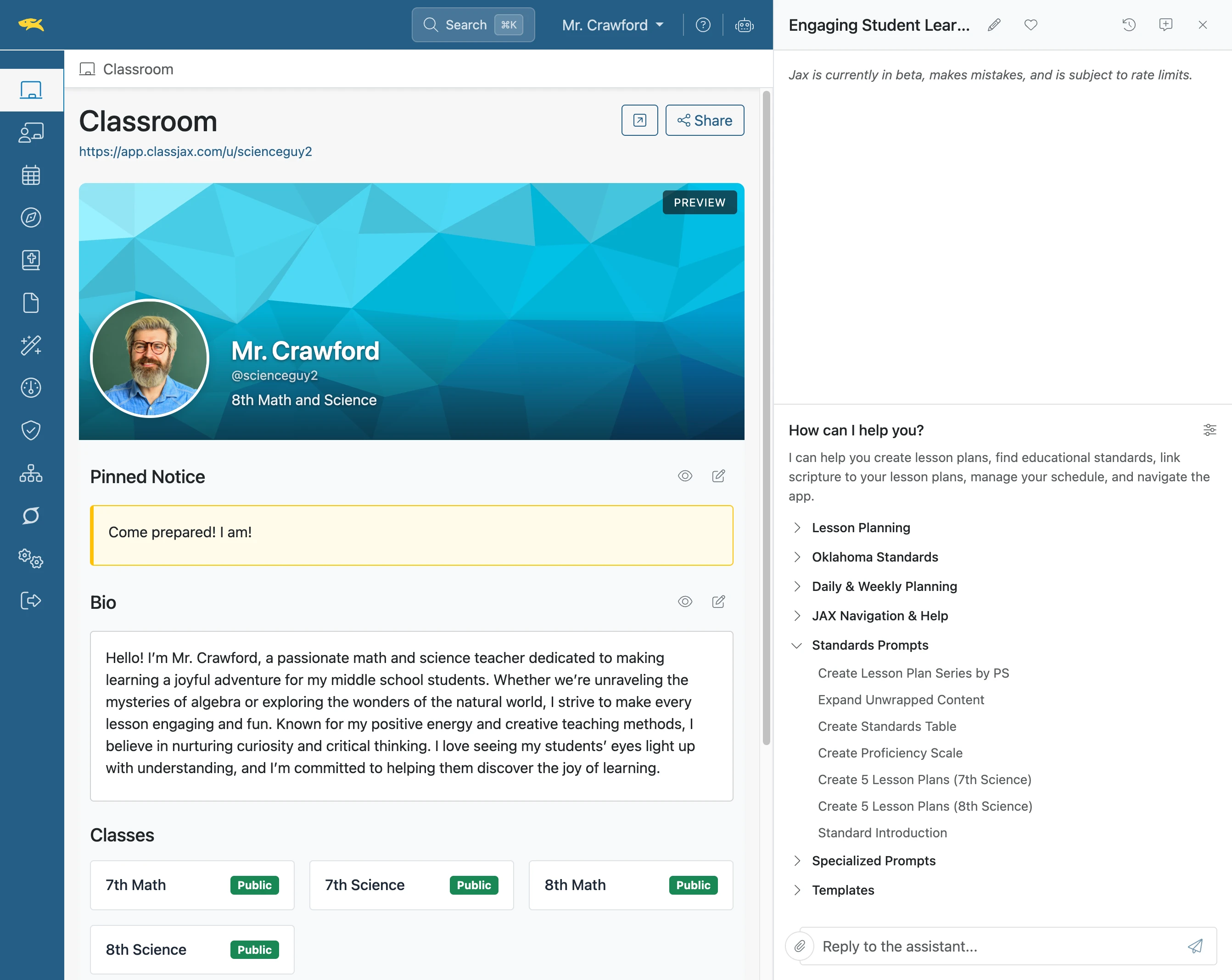
- 12
Click 'Reply to the assistant...'
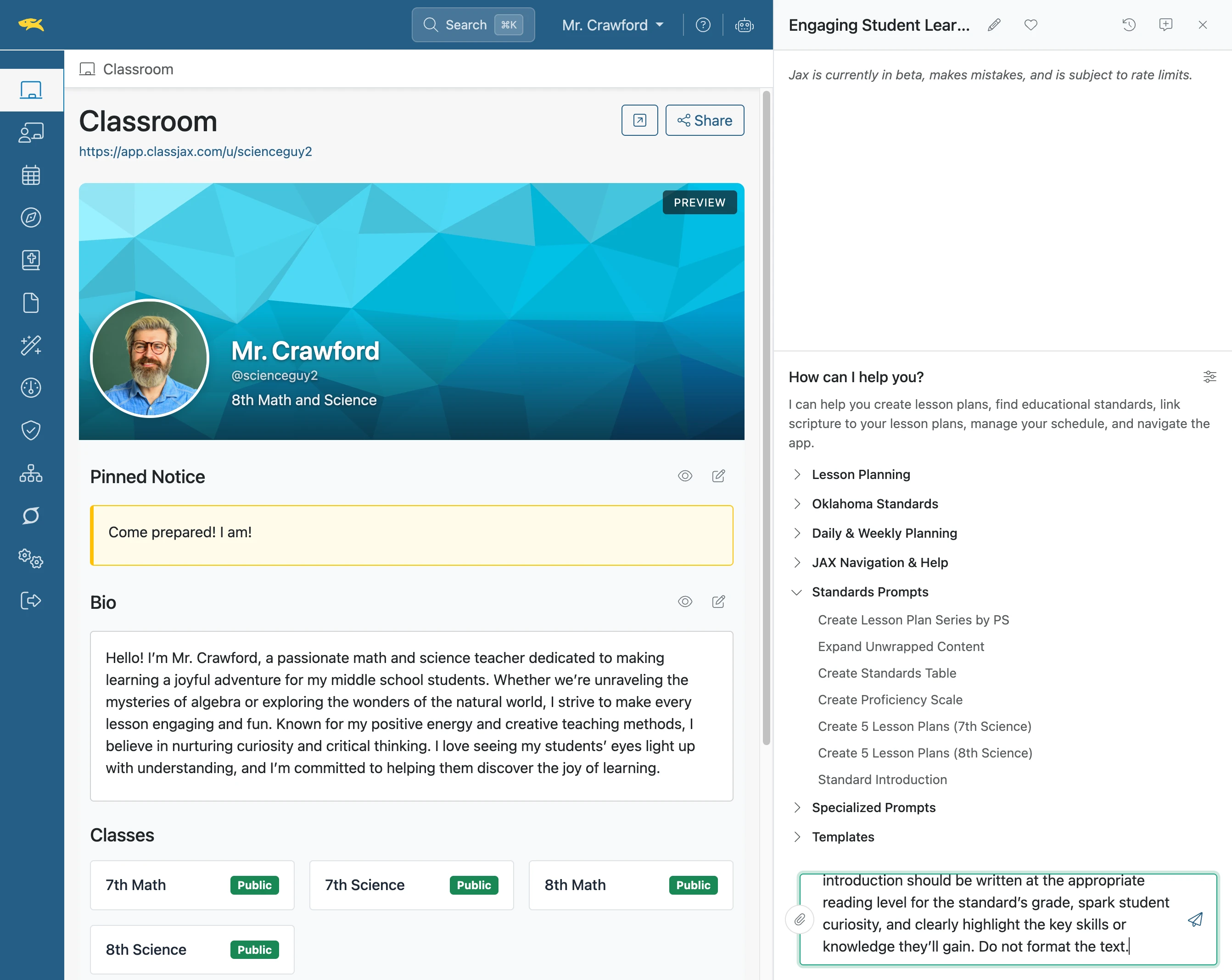
- 13
The End