
Add a Planner within a Class
Add a planner to a class to enable parents to view lesson plans. Follow these instructions to quickly add a planner to your class.
Plan smarter this year
ClassJax is free for teachers. No credit card required.
- 1
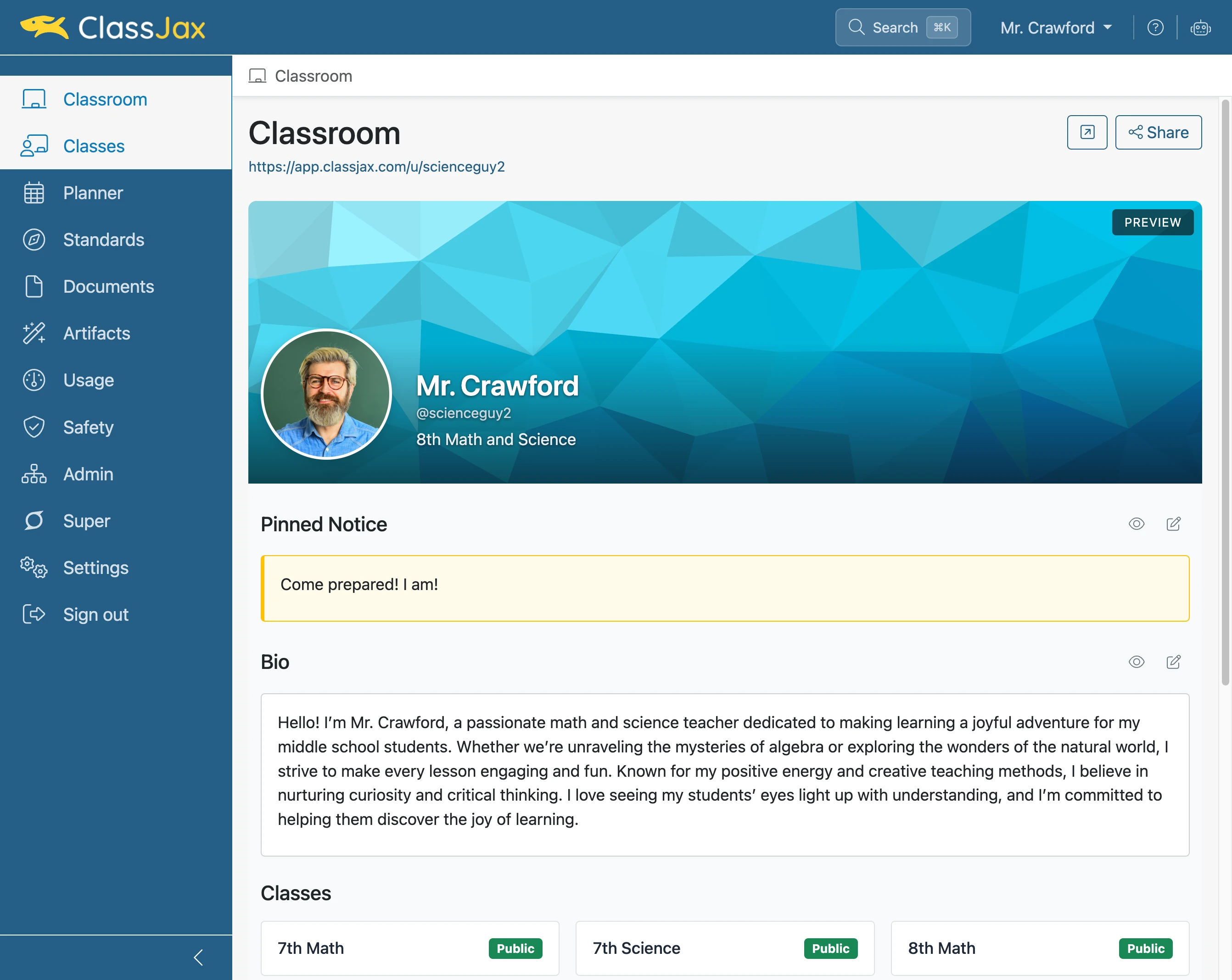
Click the 'Classes' link
- 2
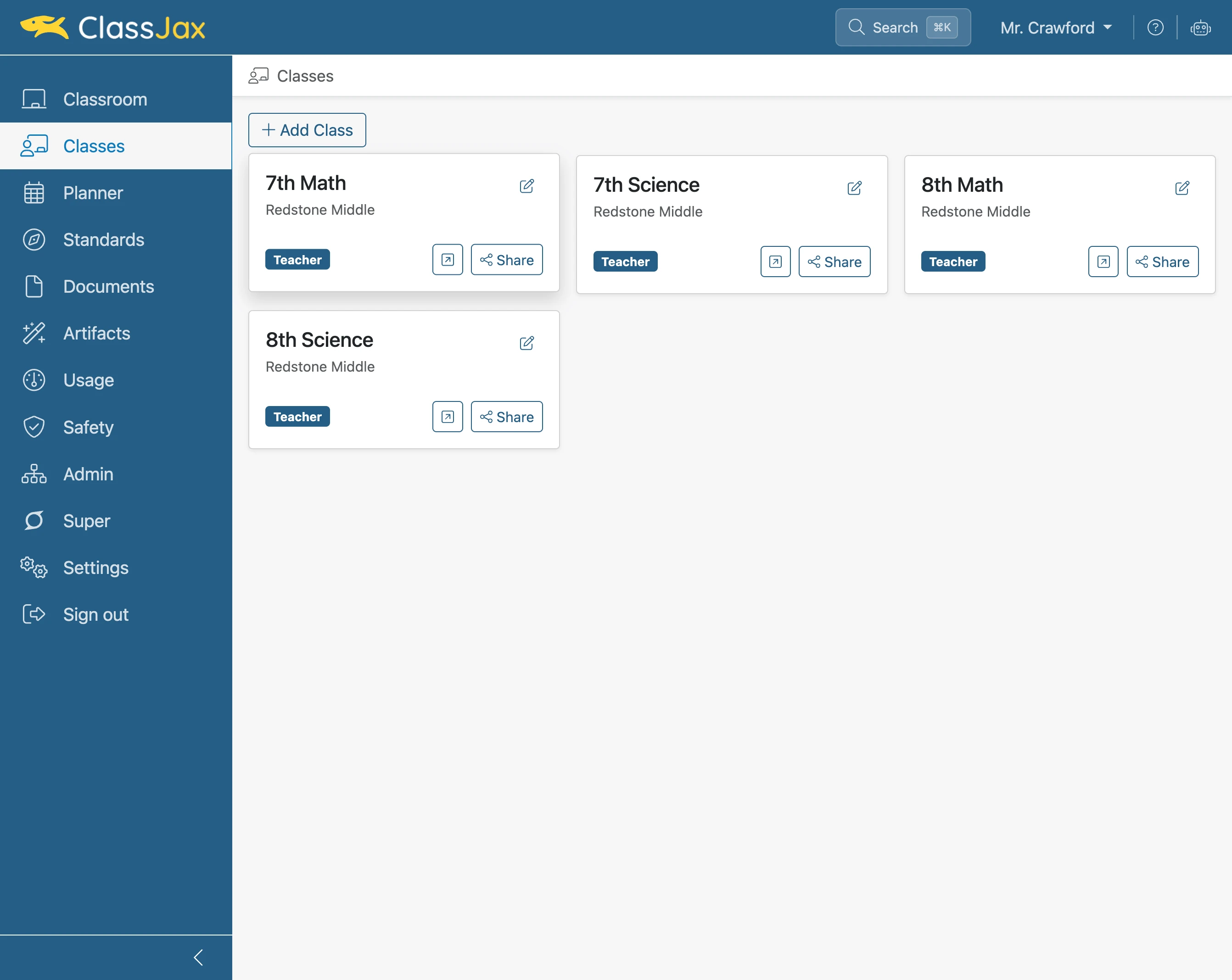
Click 'Class'
Click the class the planner is being added to.
- 3
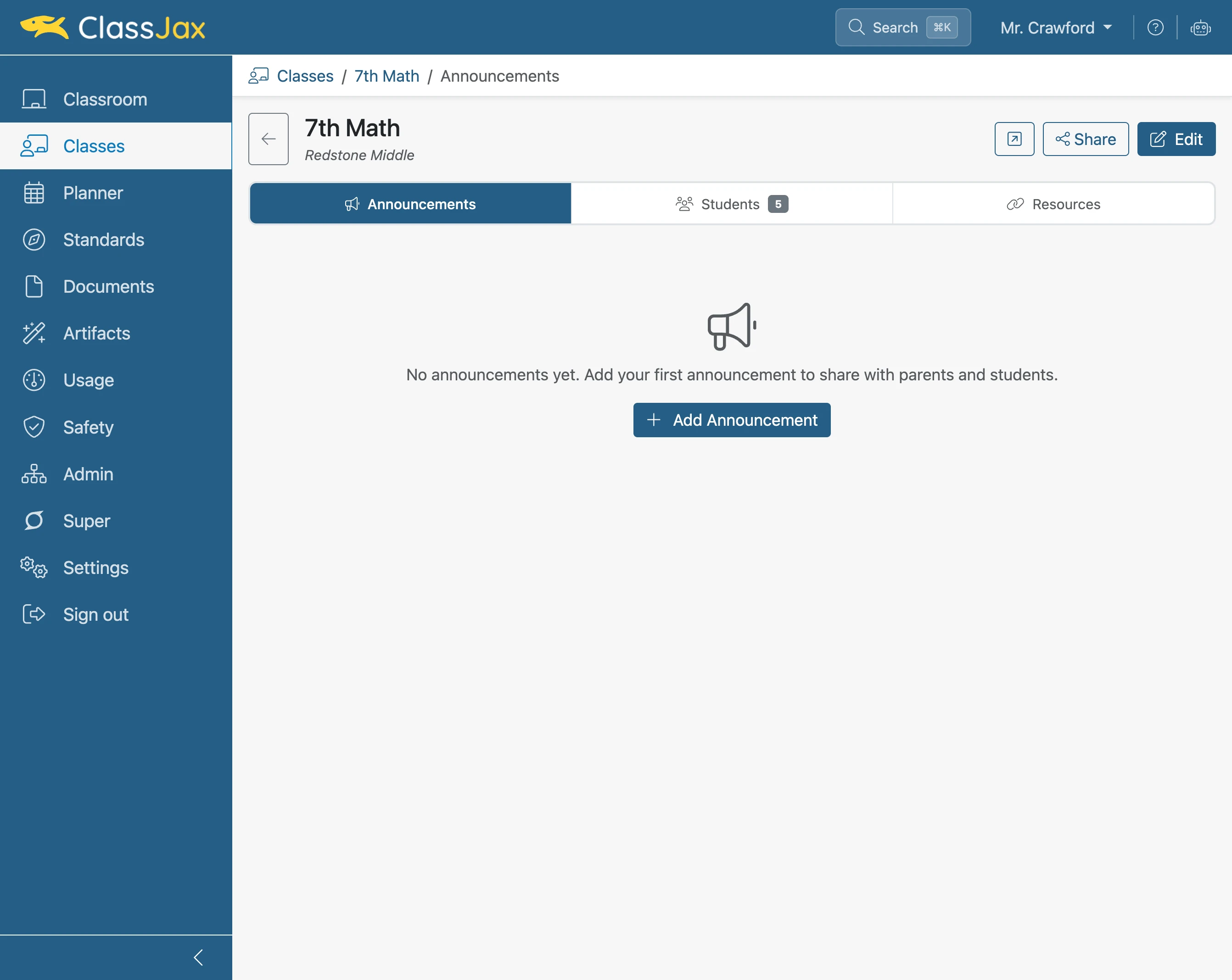
Click 'Edit'
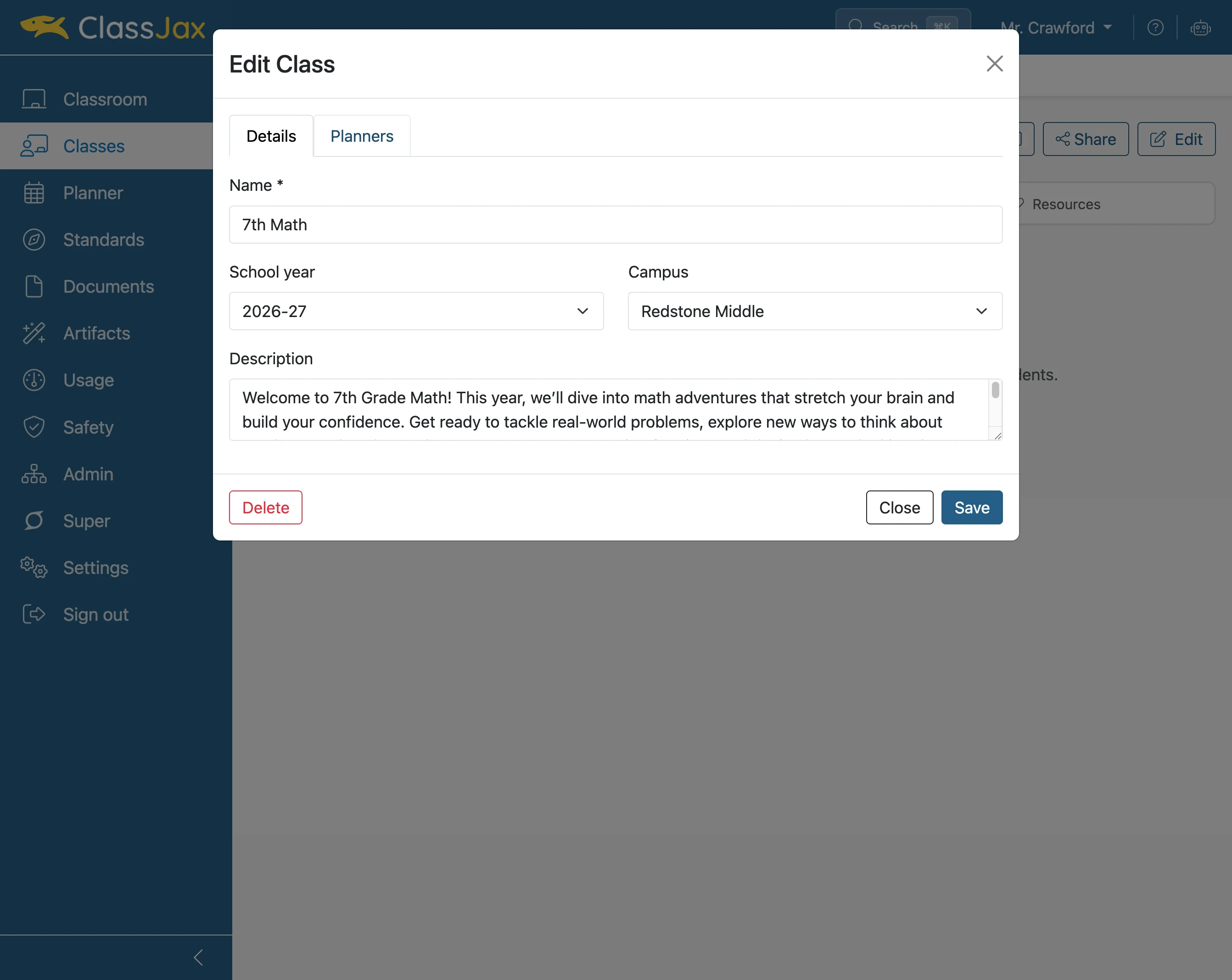
- 4
Click the 'Planners' tab
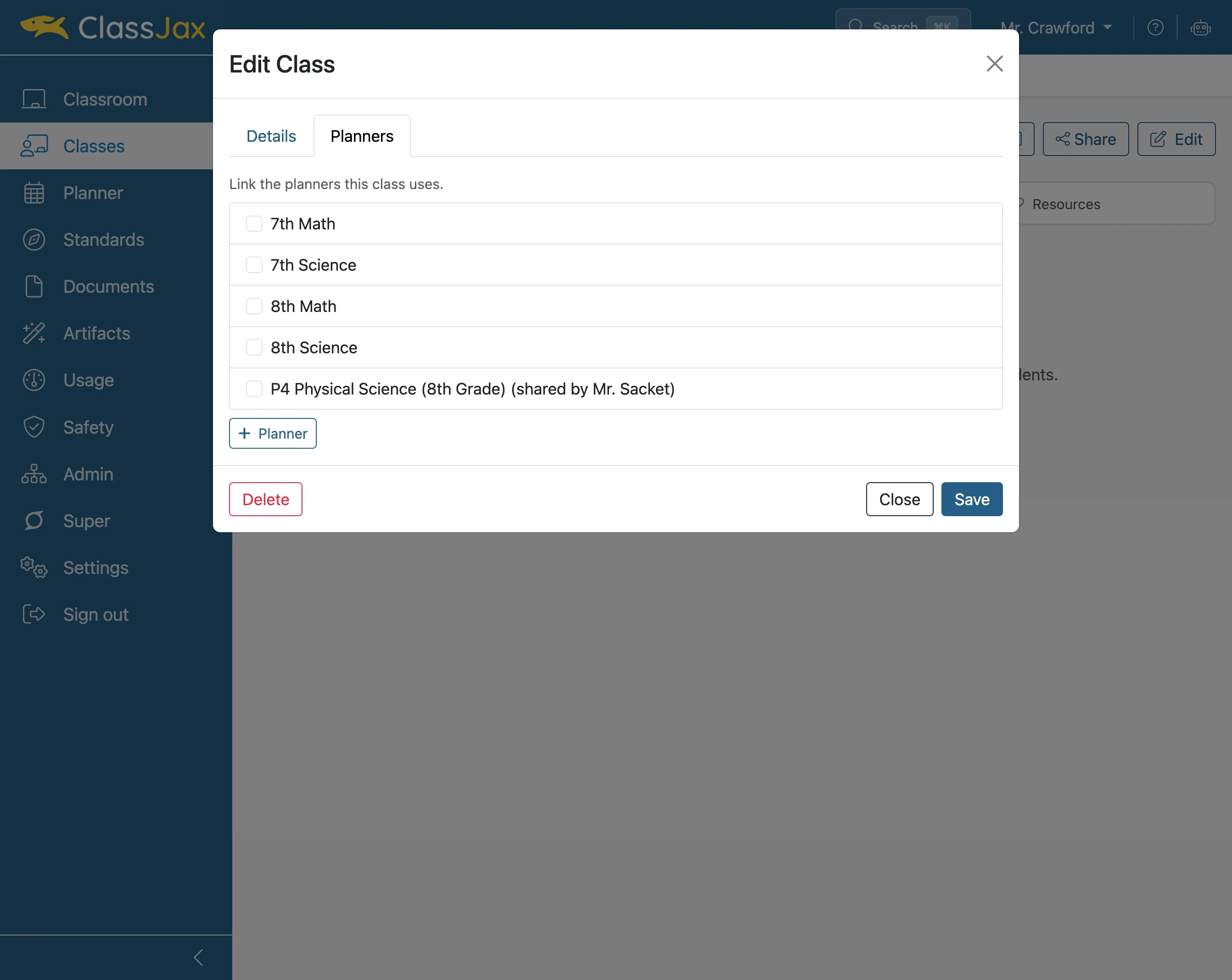
- 5
Check Planner(s)
Check the planner(s) being added to the class.
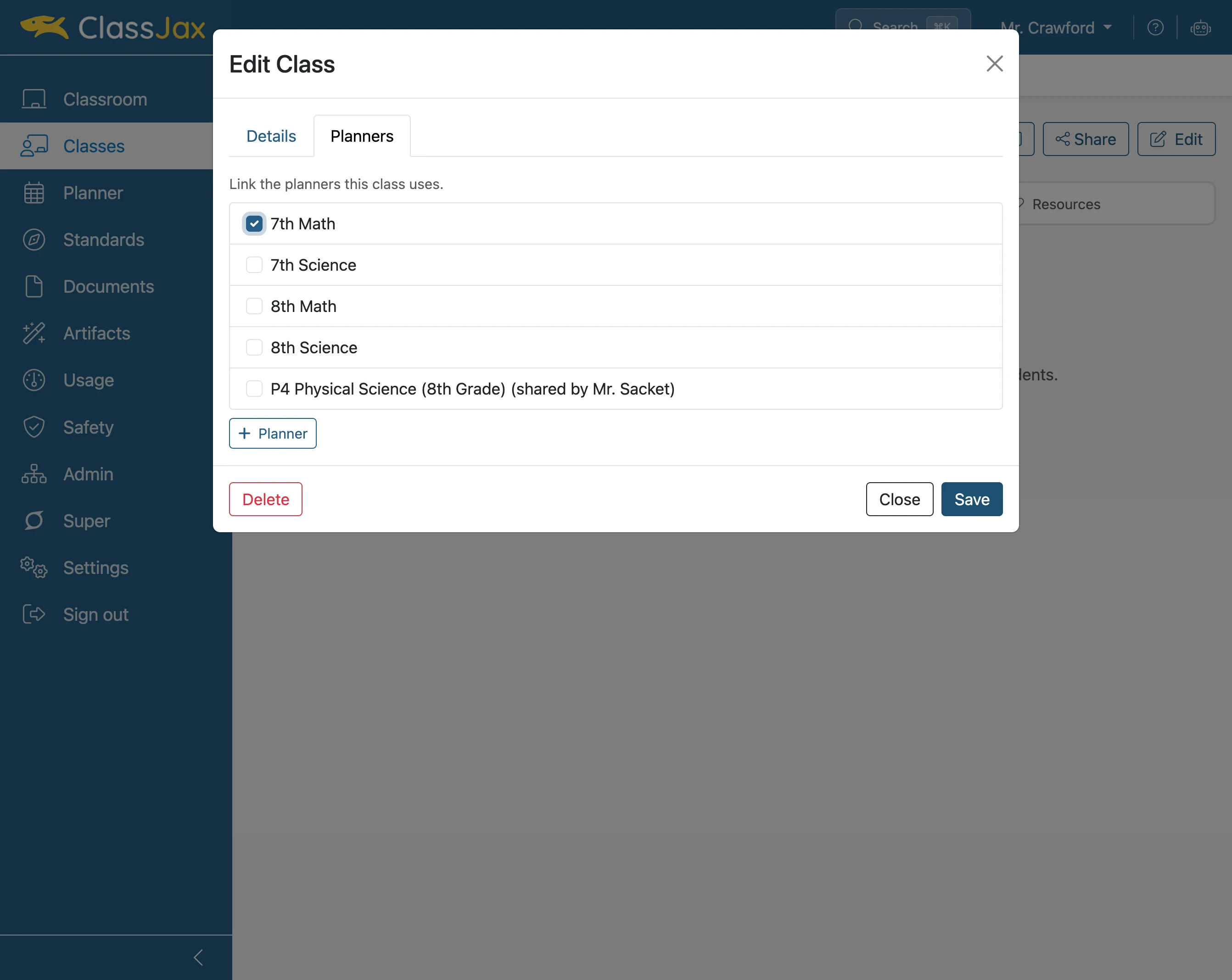
- 6
Click 'Save'
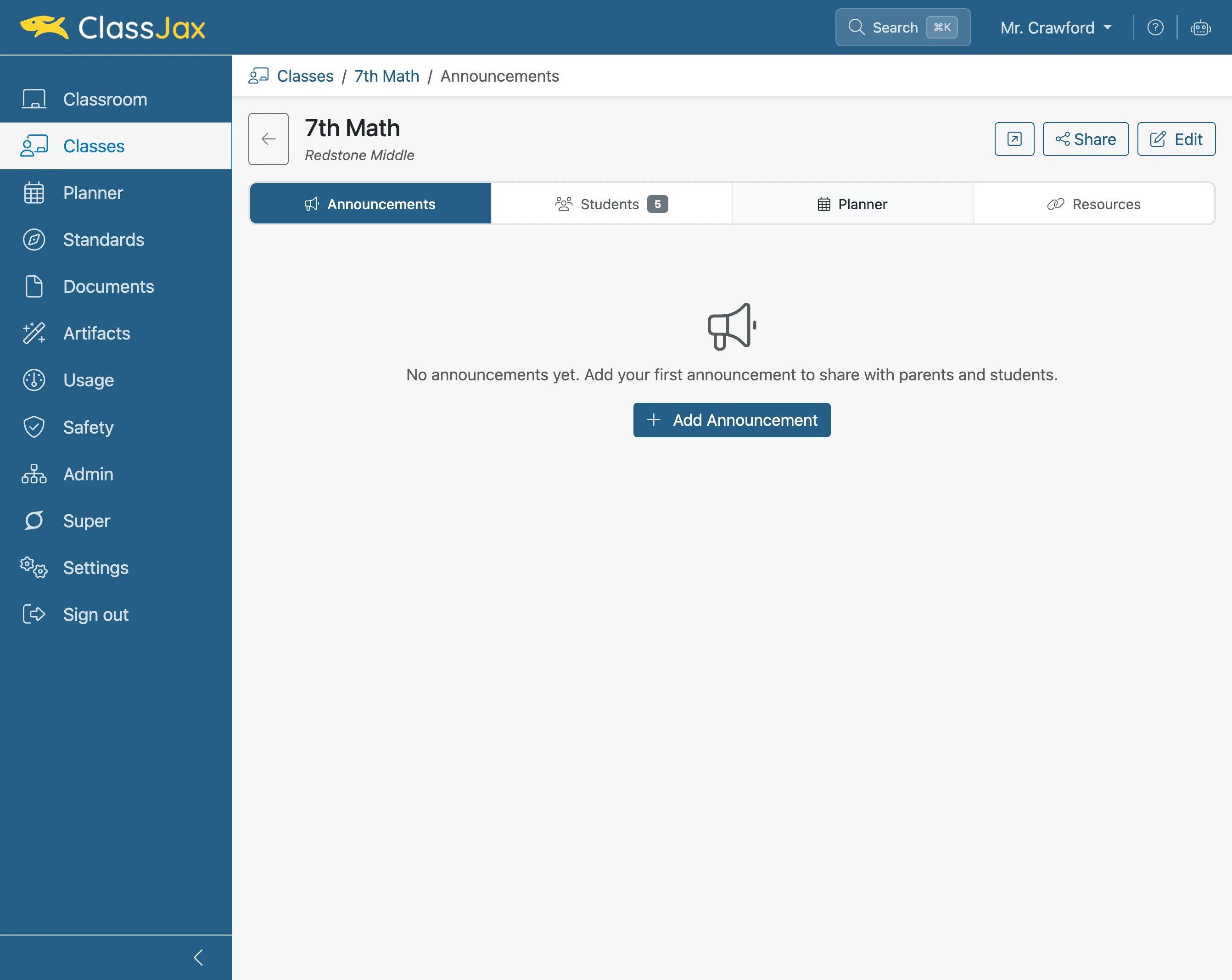
- 7
Click the 'Planner' link
The Planner tab appears. Clicking the tab displays the planner(s) checked.
- 8
Click 'Open public class in new tab'
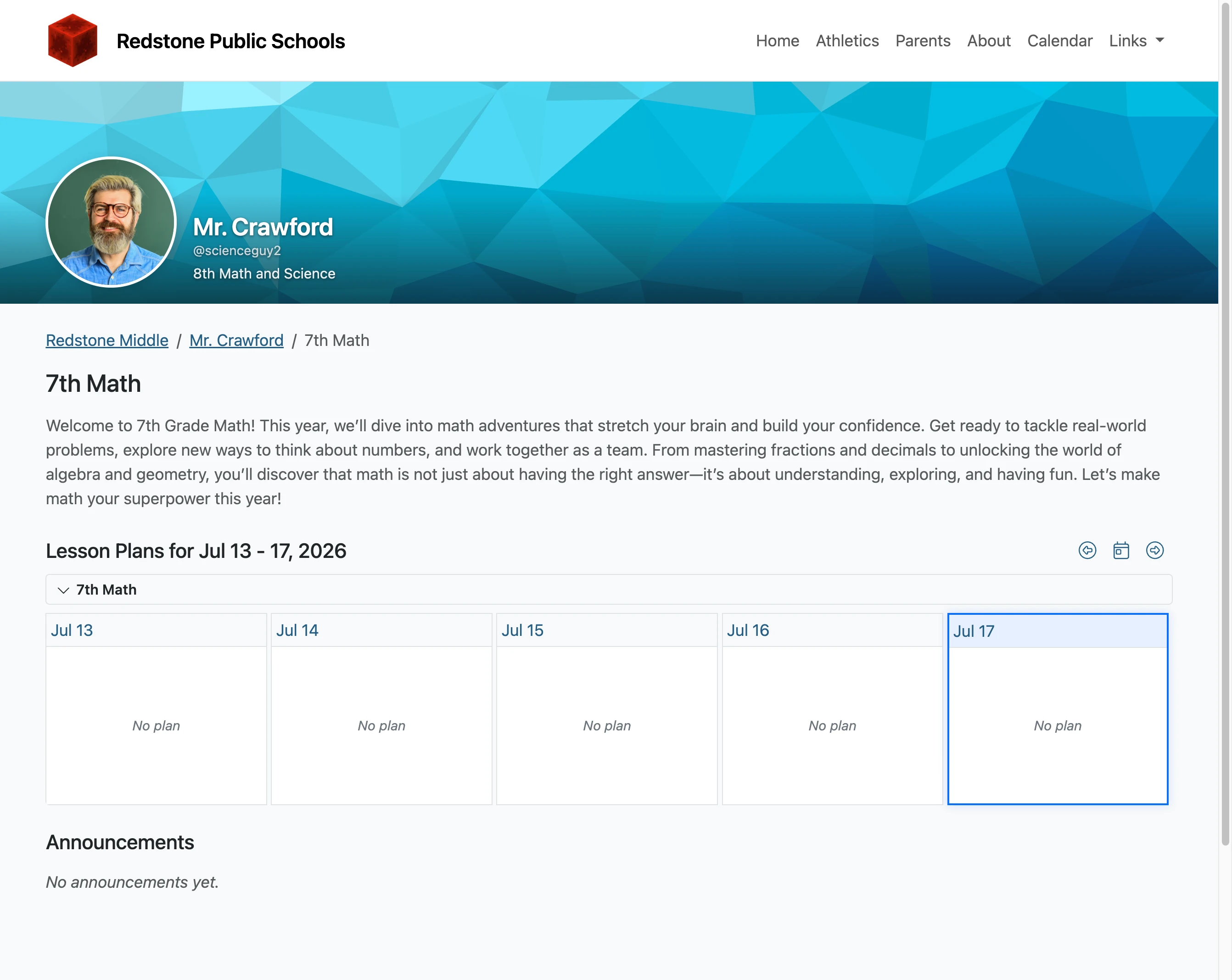
Clicking this button displays in a new tab the public view of the Class. The planner appears in the Class for easy access for parents.
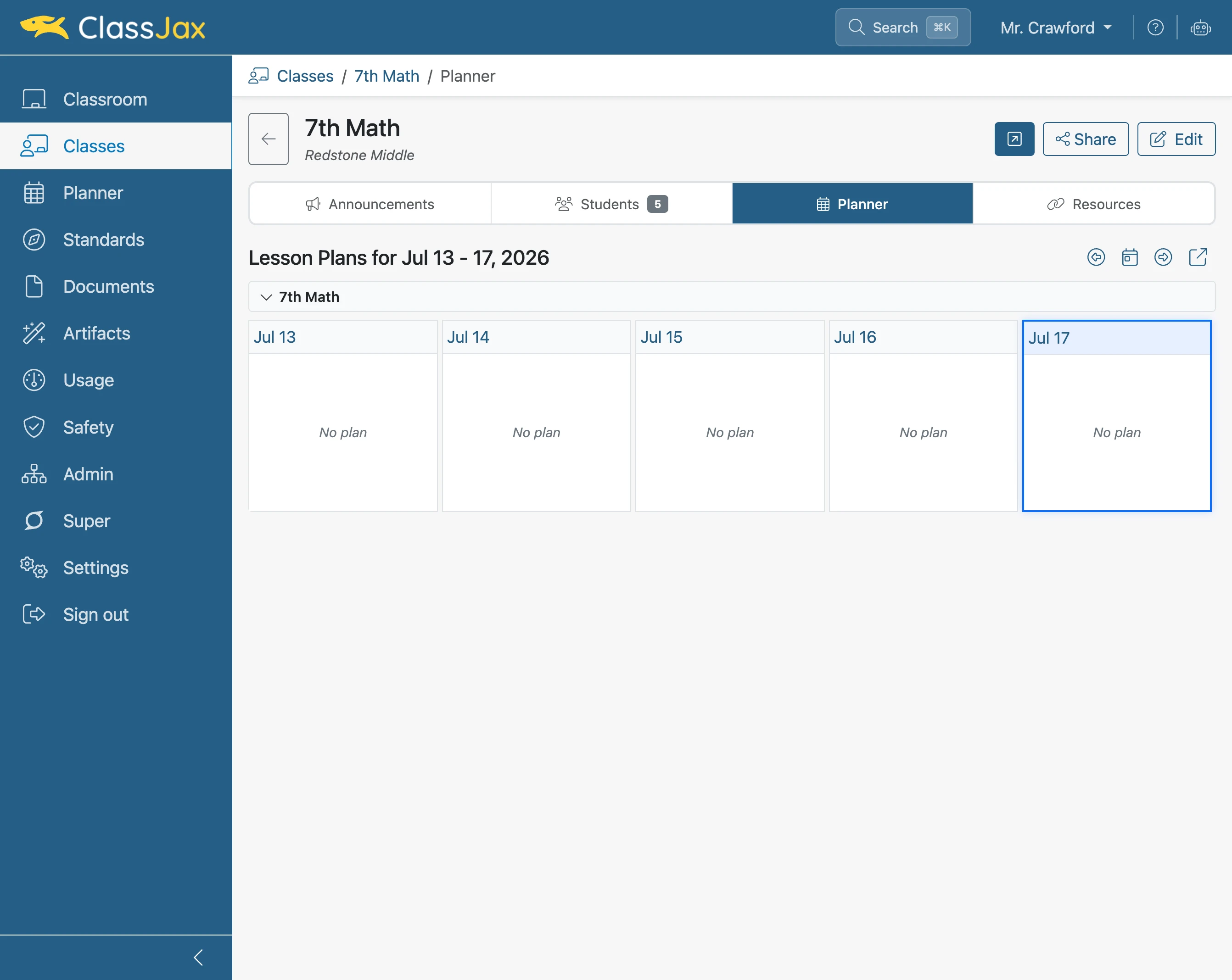
- 9
The Public view of the Planner in the Class